
Mobile Sales Workflow Guide
Create and work Accounts, Deals, Users, and Tasks from the Intempt mobile app, and move between linked records without a desktop.
Overview
Accounts, Deals, Users, and Tasks are the four sales record types you can create and work from the Intempt mobile app. Each has its own list screen with search, and each record you open has its own detail screen. This guide walks through creating a record in each area and moving between them.
How it works
The four record types link to each other:
- An account can have deals and users tied to it.
- A deal is tied to one account and can have users tied to it.
- A user can have deals, tasks, and email threads tied to it.
- A task can be tied to a user and, optionally, a deal.
Because of this, you can jump between records instead of going back to a list. From a deal's detail screen you can tap a user to open their detail screen. From a user's detail screen you can tap a deal to open the deal, tap a task to open the task, or tap an email thread to open it. From an account's detail screen you can tap any of its deals or users to open them directly.
Getting started
Accounts
Open Accounts from the app menu.
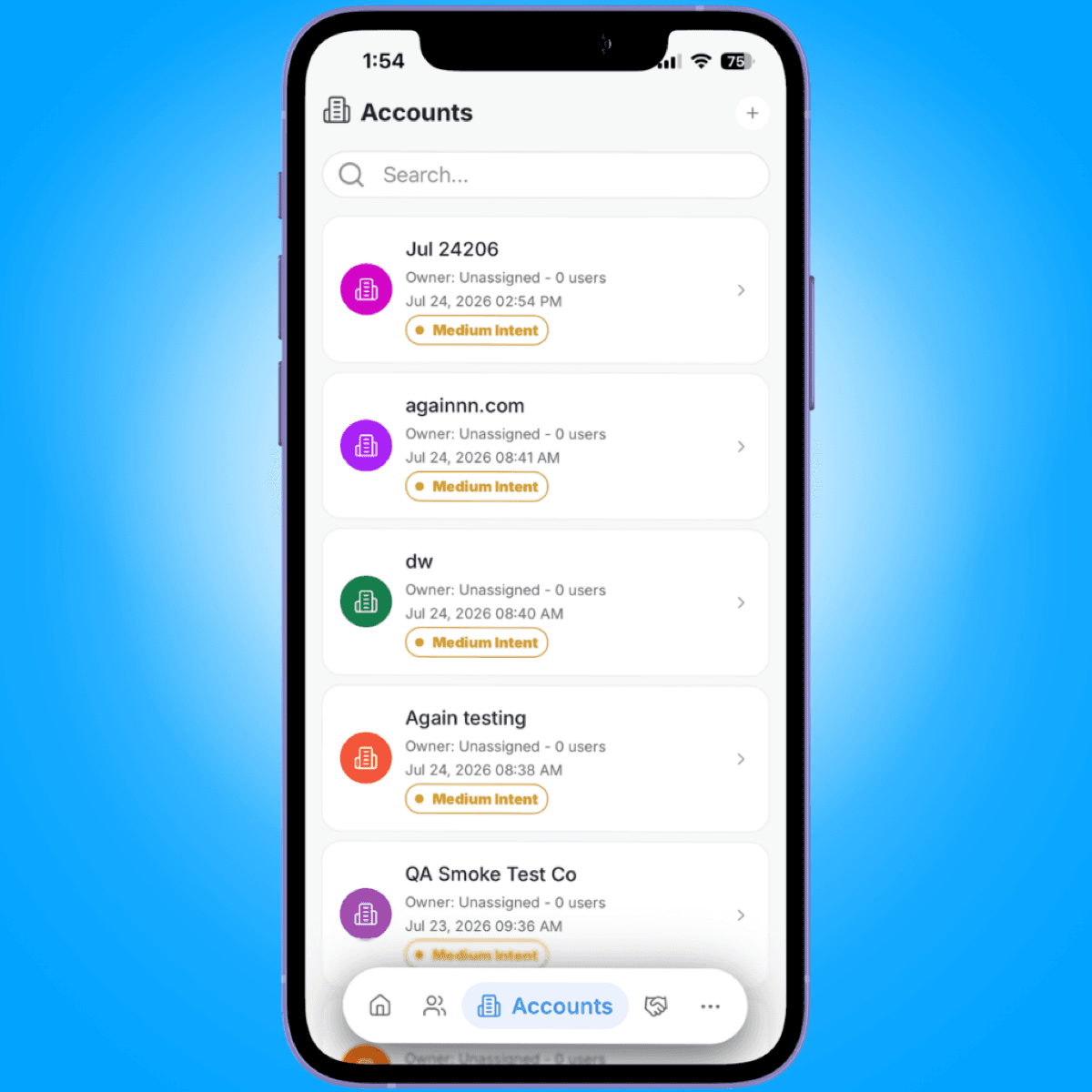
- Search. Use the search bar at the top of the list to filter accounts.
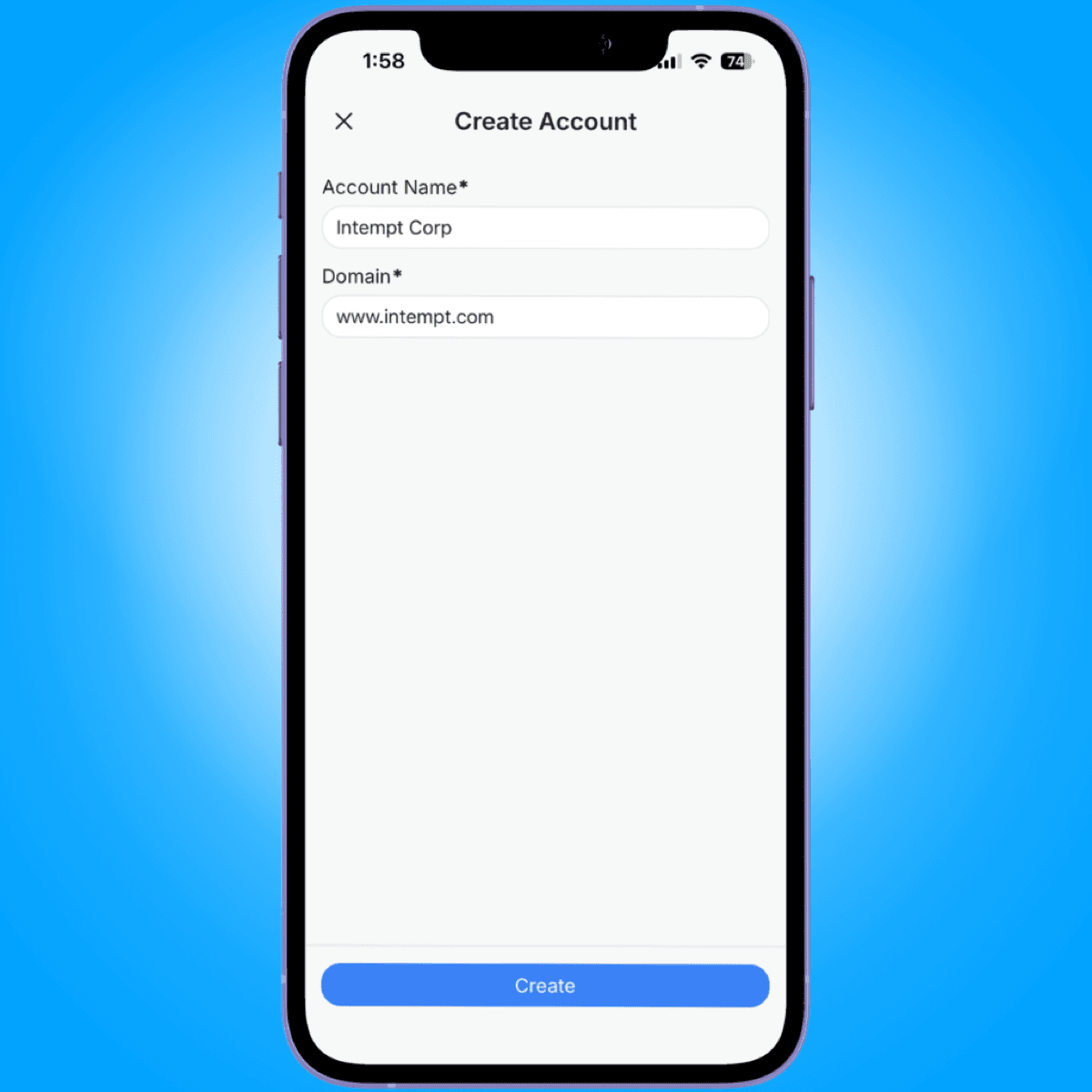
- Add. Tap the add button in the header to open the create-account form.
To create an account, fill in:
- Account Name
- Domain
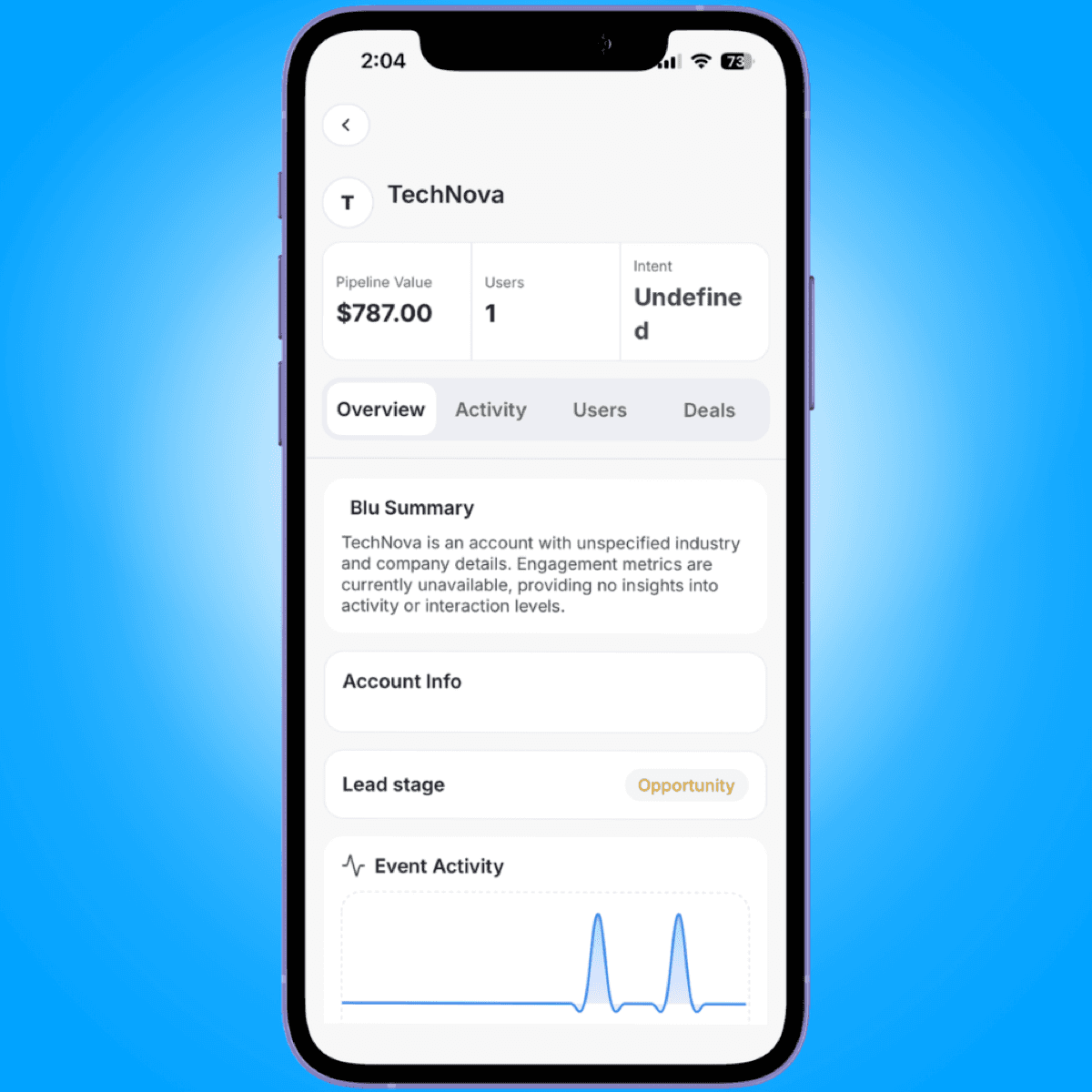
Tap an account in the list to open its detail screen. It has four tabs: Overview, Activity, Users, and Deals.
From the account's card menu, you can also tag the account or assign it an owner.
Deals
Open Deals from the app menu.
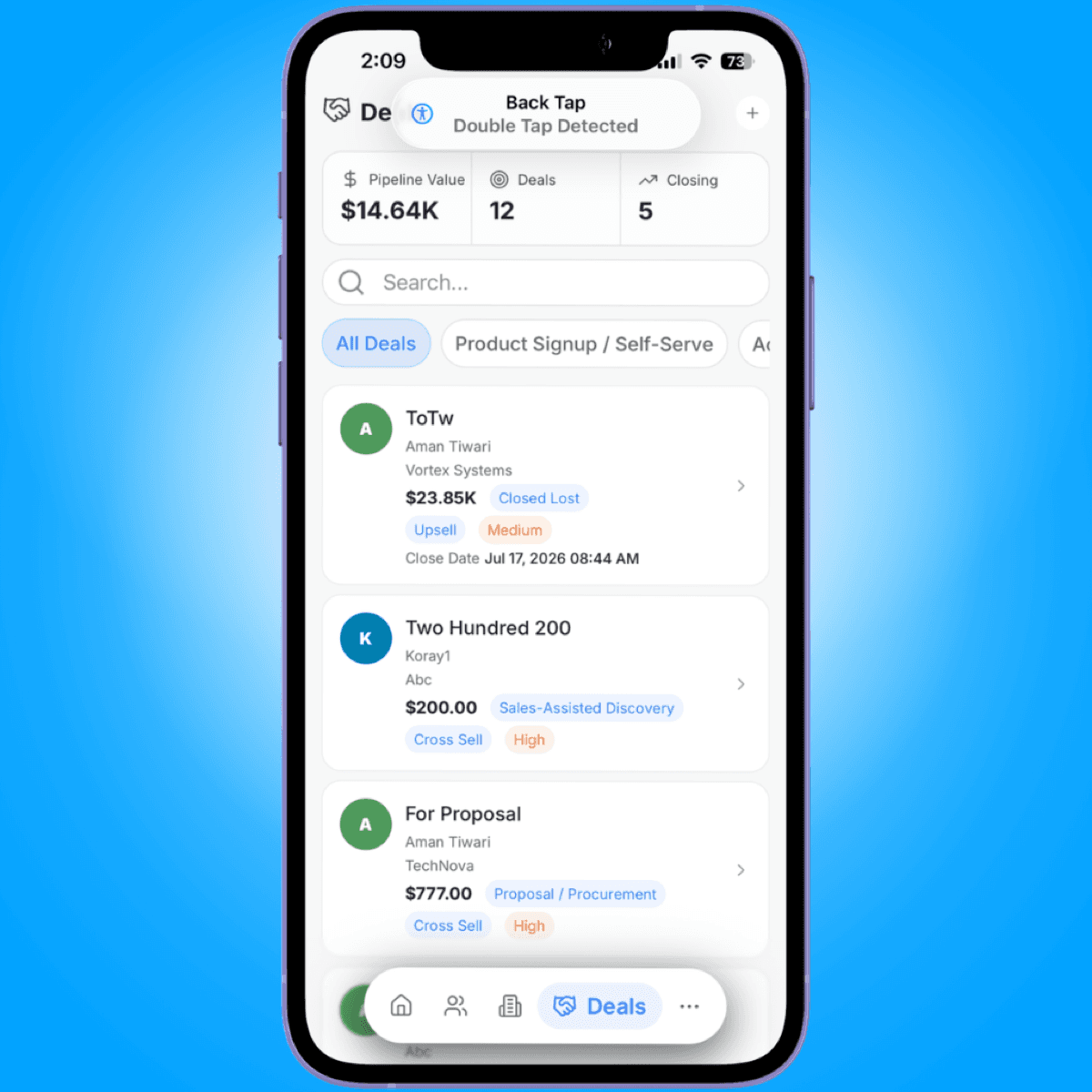
- Pipeline summary. A card at the top of the list shows your total deal count, total pipeline value, and how many deals are closing this week.
- Search. Filter the deal list by keyword.
- Stage filter. Scrollable pills let you filter the list down to a single stage.
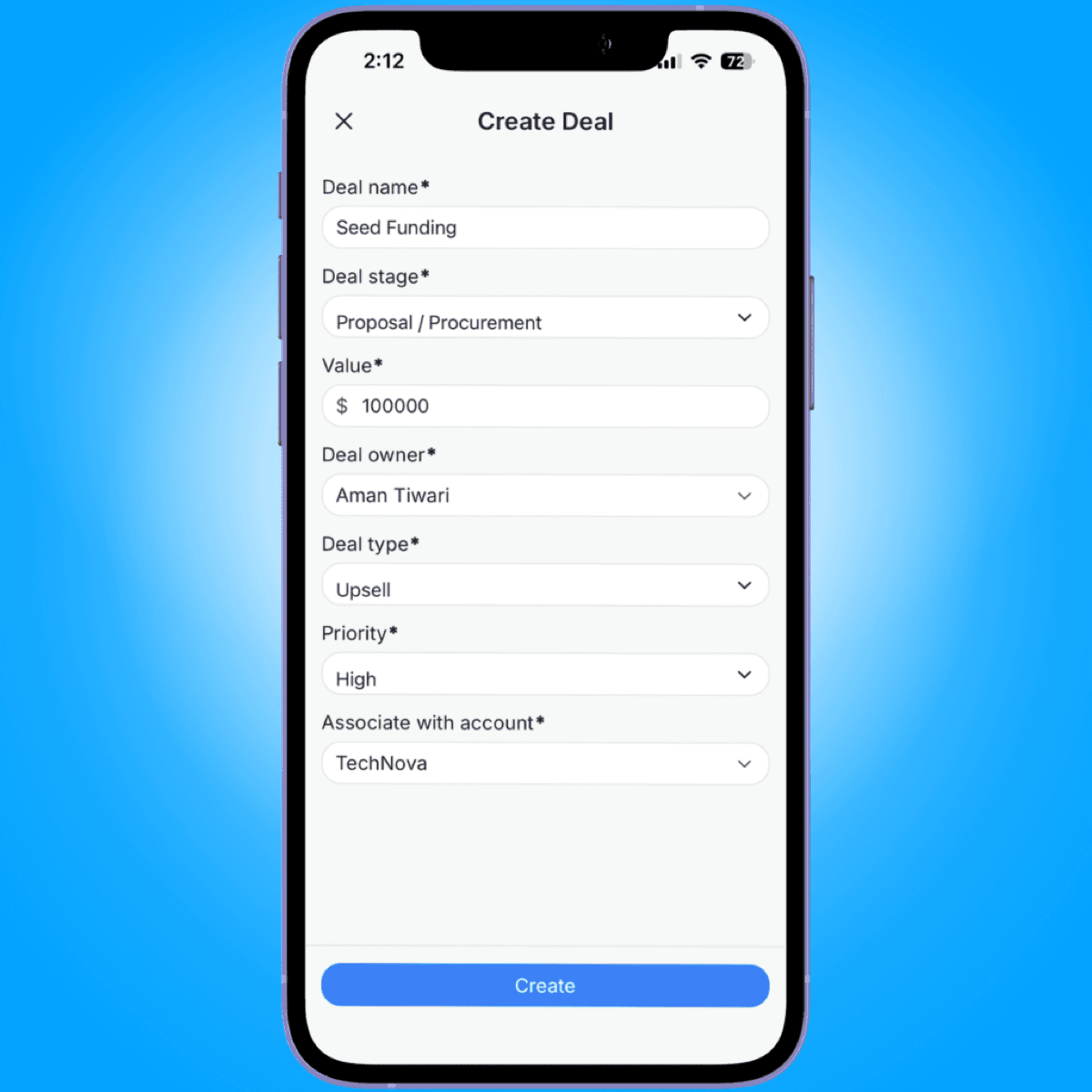
To create a deal, fill in:
- Deal name
- Deal stage, one of Product Signup / Self-Serve, Activation / First Value, Team Adoption / Expansion Signal, Sales-Assisted Discovery, Proposal / Procurement, Negotiation / Commitment, Closed Lost, or Closed Won
- Value
- Deal owner
- Deal type, one of New Business, Upsell, Renewal, Cross Sell, or Other
- Priority, one of Low, Medium, High, or Urgent
- Associate with account, search and select the account this deal belongs to
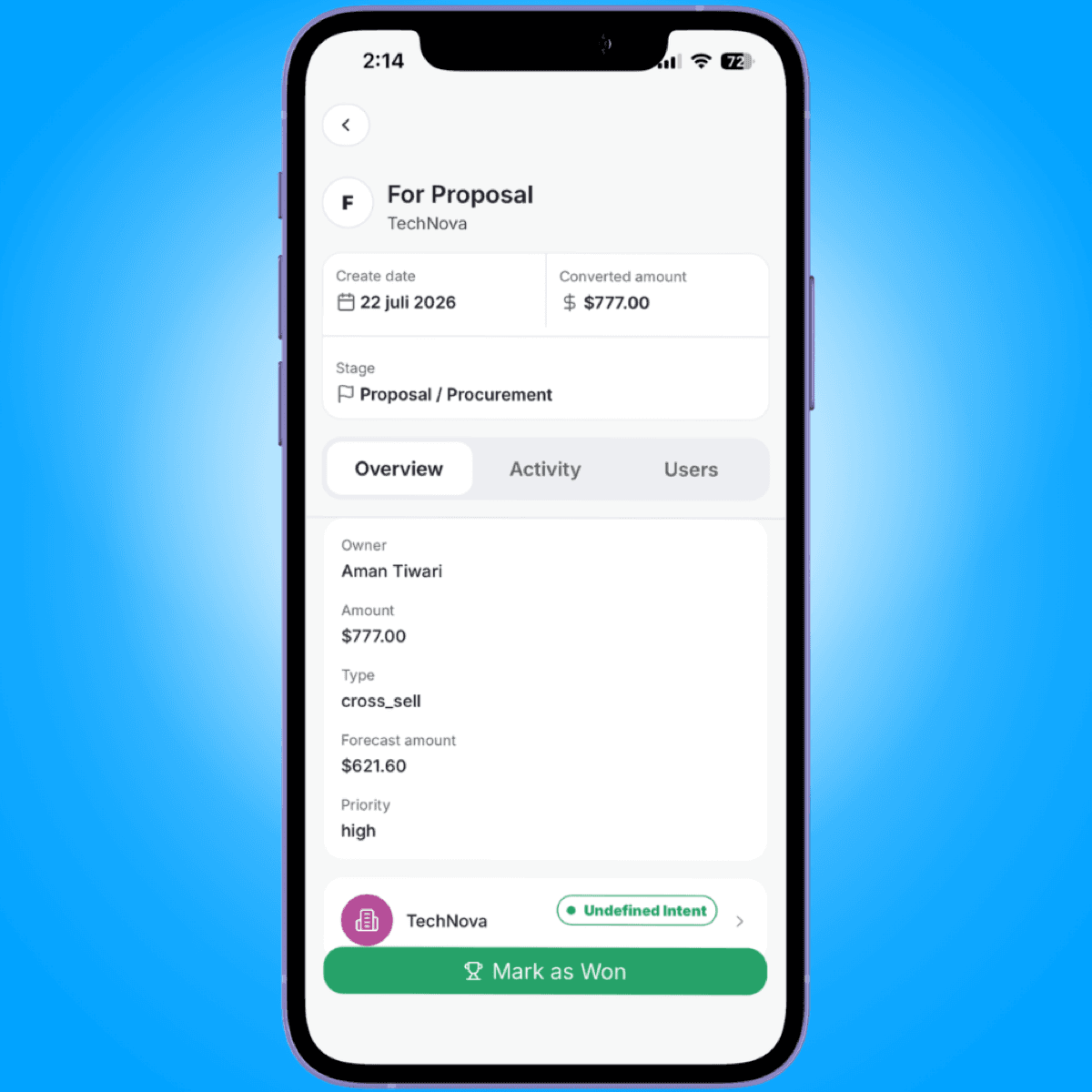
Tap a deal to open its detail screen. It has three tabs: Overview, Activity, and Users.
You can also edit or delete a deal from its card menu in the list.
Users
Open Users from the app menu.
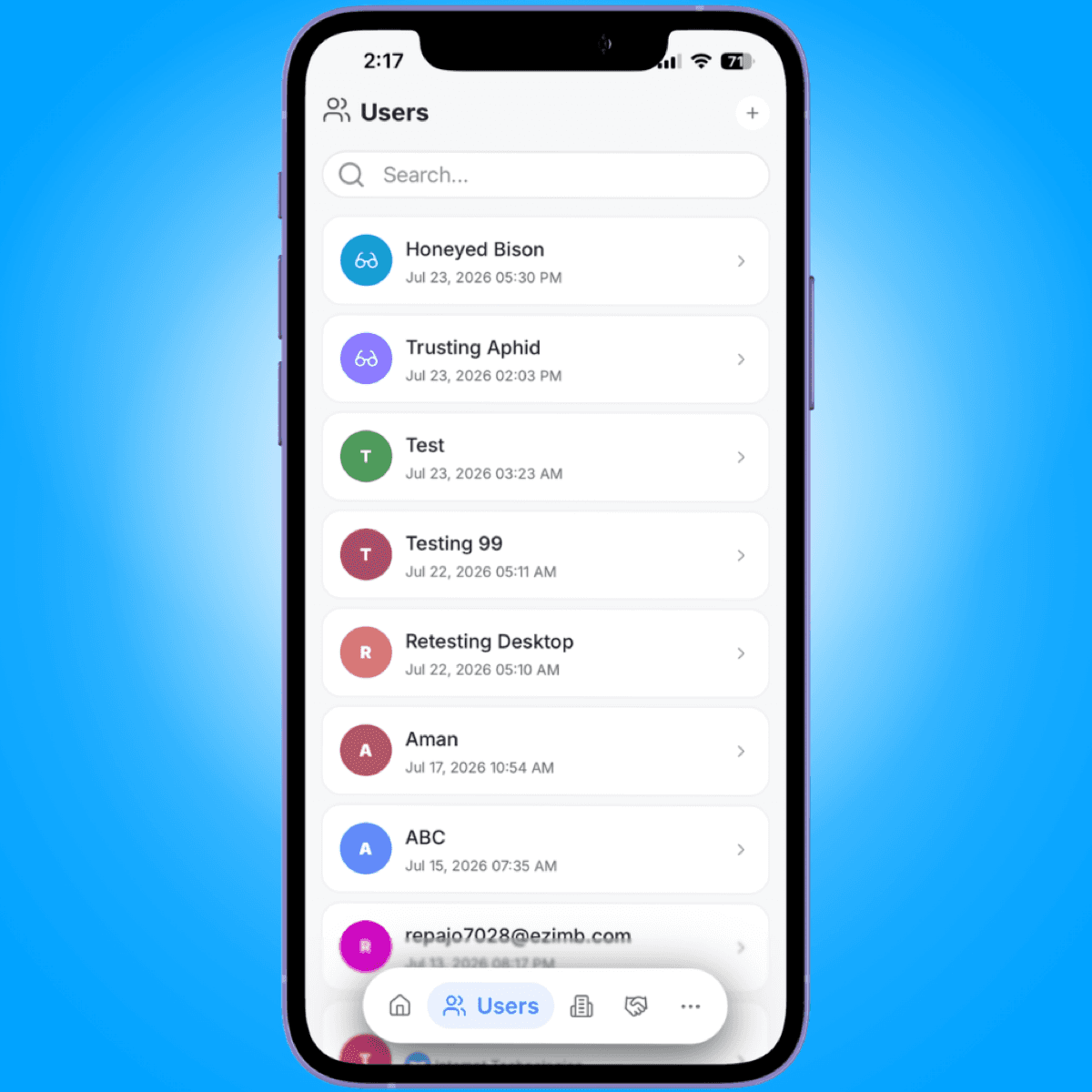
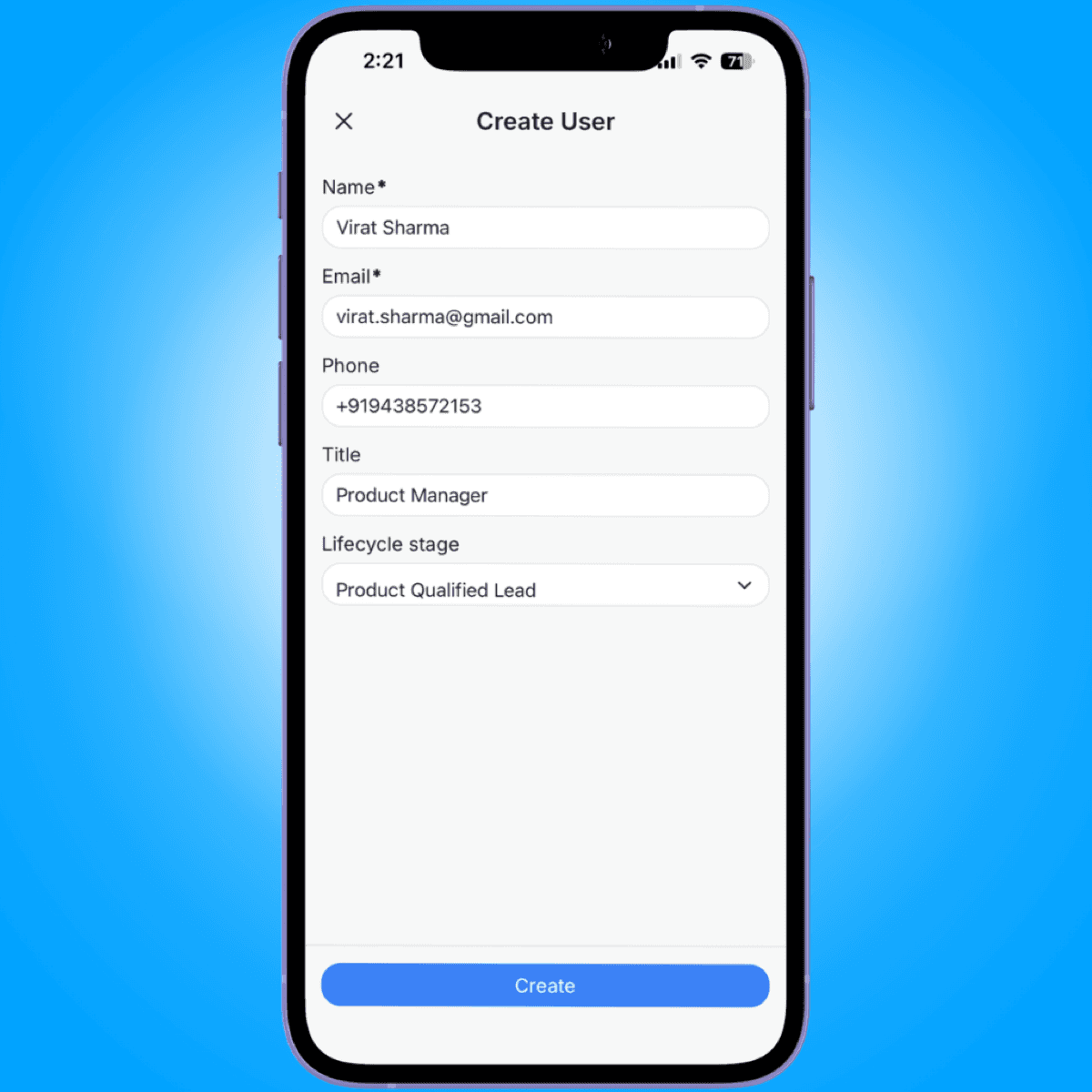
To create a user, fill in:
- Name
- Phone
- Title
- Lifecycle stage
Tap a user to open their detail screen. It has four tabs: Overview, Activity, Tasks, and Emails.
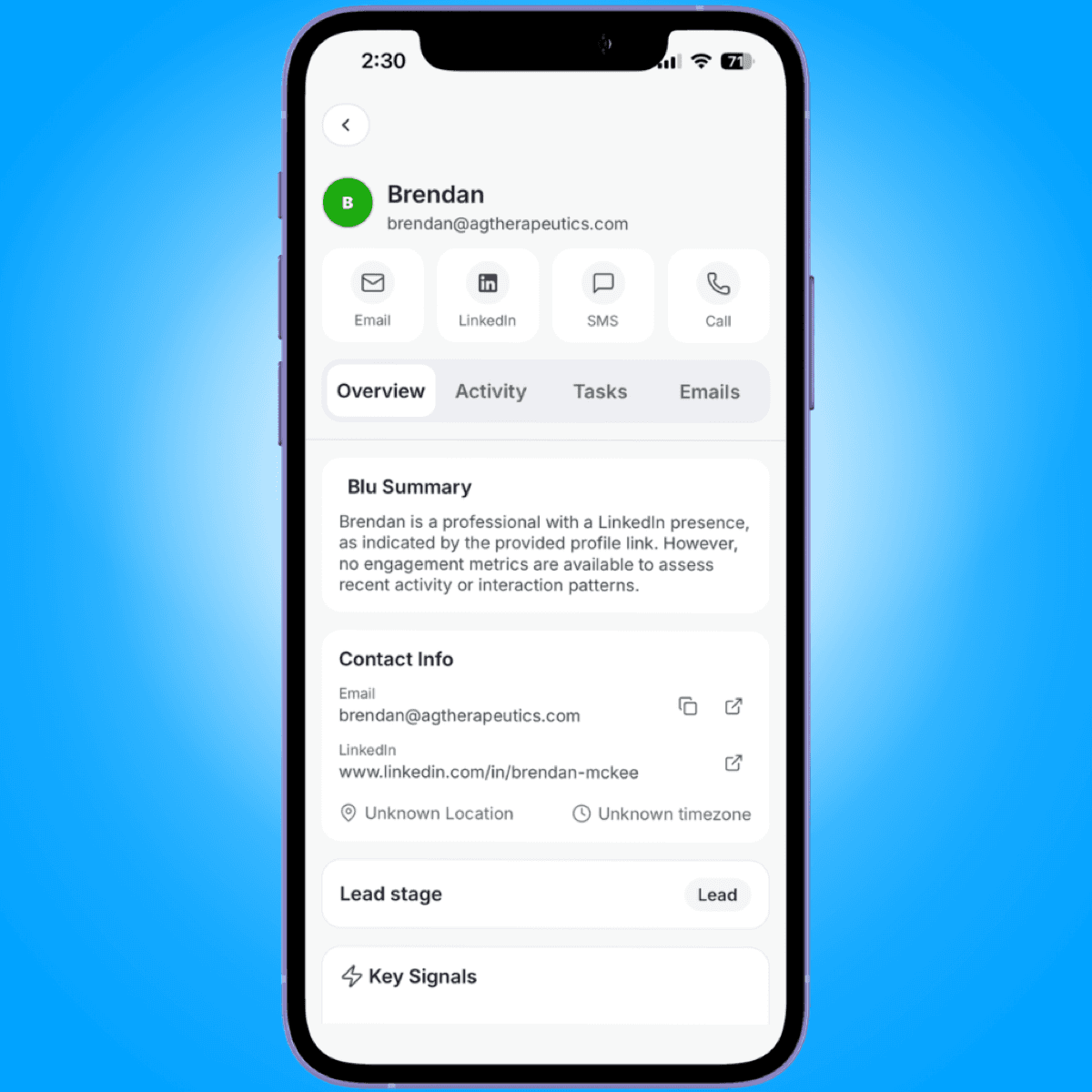
As with accounts, you can tag a user or assign them an owner from their card menu in the list.
Tasks
Open Tasks from the app menu.
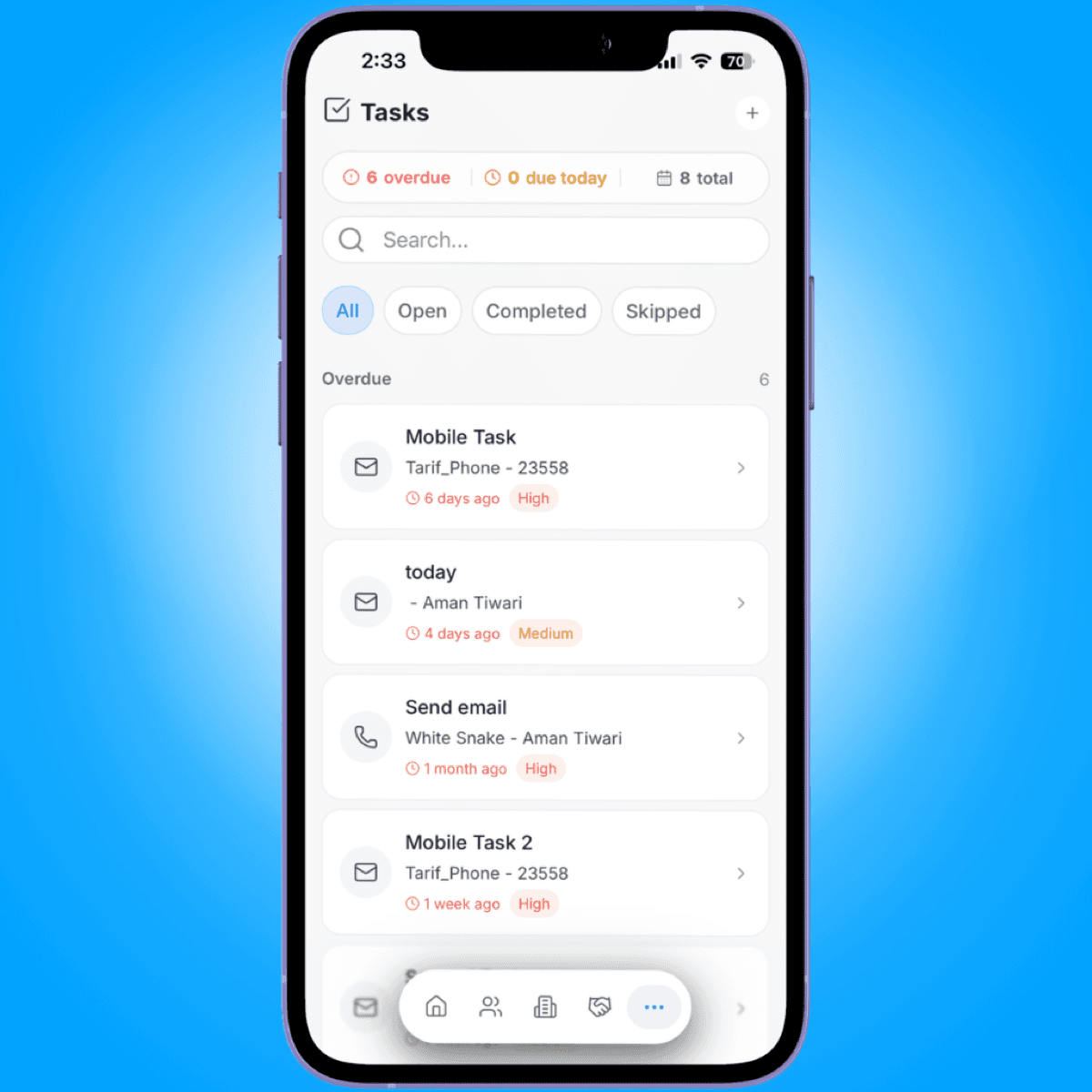
- Count card. Shows how many tasks are overdue, due today, and your total open task count.
- Search. Filter the task list by keyword.
- Status filter. Pills for All, Open, Completed, and Skipped.
To create a task, fill in:
- Task title
- Description (optional)
- Task type
- Priority
- Associated with user
- Assigned to
- Deal (optional)
- Due date
- Time
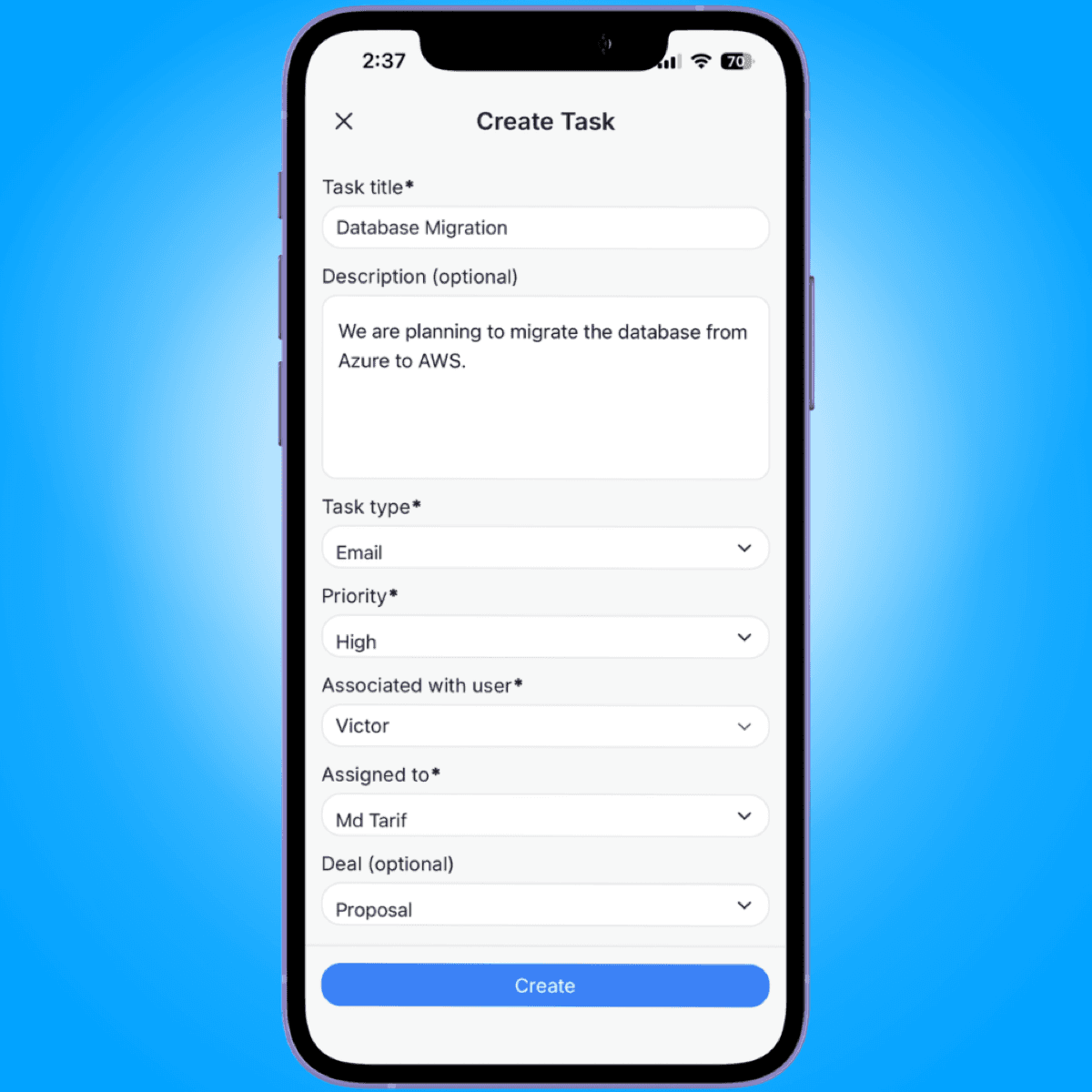
From a task's card in the list, you can mark it complete, edit it, or delete it. Tapping the card opens the task's detail screen.
📘 Good to know
Unlike Accounts, Deals, and Users, a task's detail screen doesn't have tabs. It's a single content view.
Where to go next
See Installing the Mobile App (iOS) if you haven't set up the app yet.