
Recording Meetings on Mobile
Record a live meeting, capture a call by link, or upload an existing recording from the Intempt mobile app.
Overview
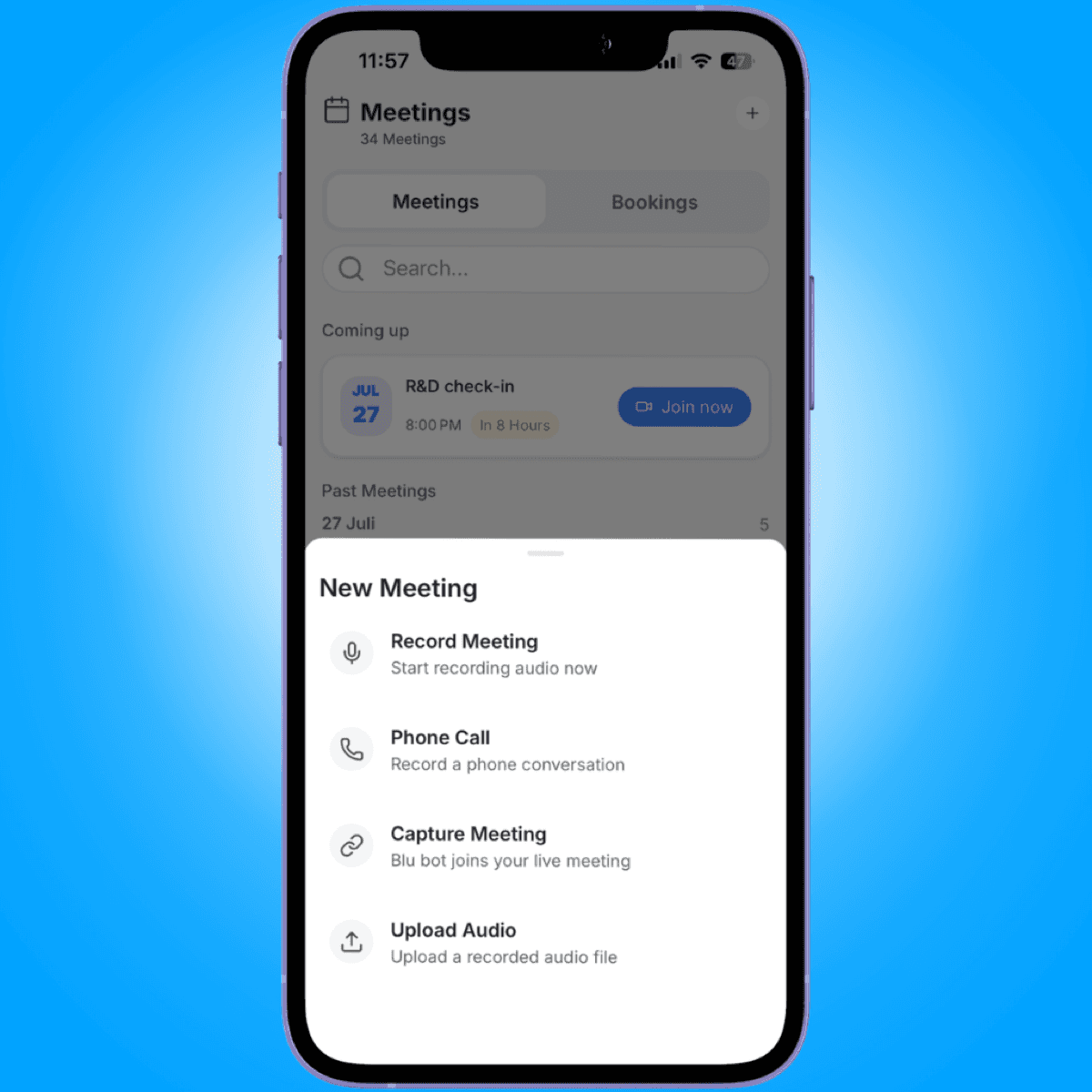
From the Meetings tab, tap + to open New Meeting. It gives you four ways to get a meeting recorded and transcribed: Record Meeting, Phone Call, Capture Meeting, and Upload Audio. Phone Call isn't live yet: tapping it opens an intro screen explaining how phone recording will work, and tapping Get Started there shows a "Coming Soon" message. The other three work today, and each one ends the same way: the meeting shows up in your meeting list, ready to open for playback, transcript, and summary.
Record a live meeting
Use this when you're in the room and want to record straight from your phone's microphone.
- On the Meetings tab, tap +, then Record Meeting.
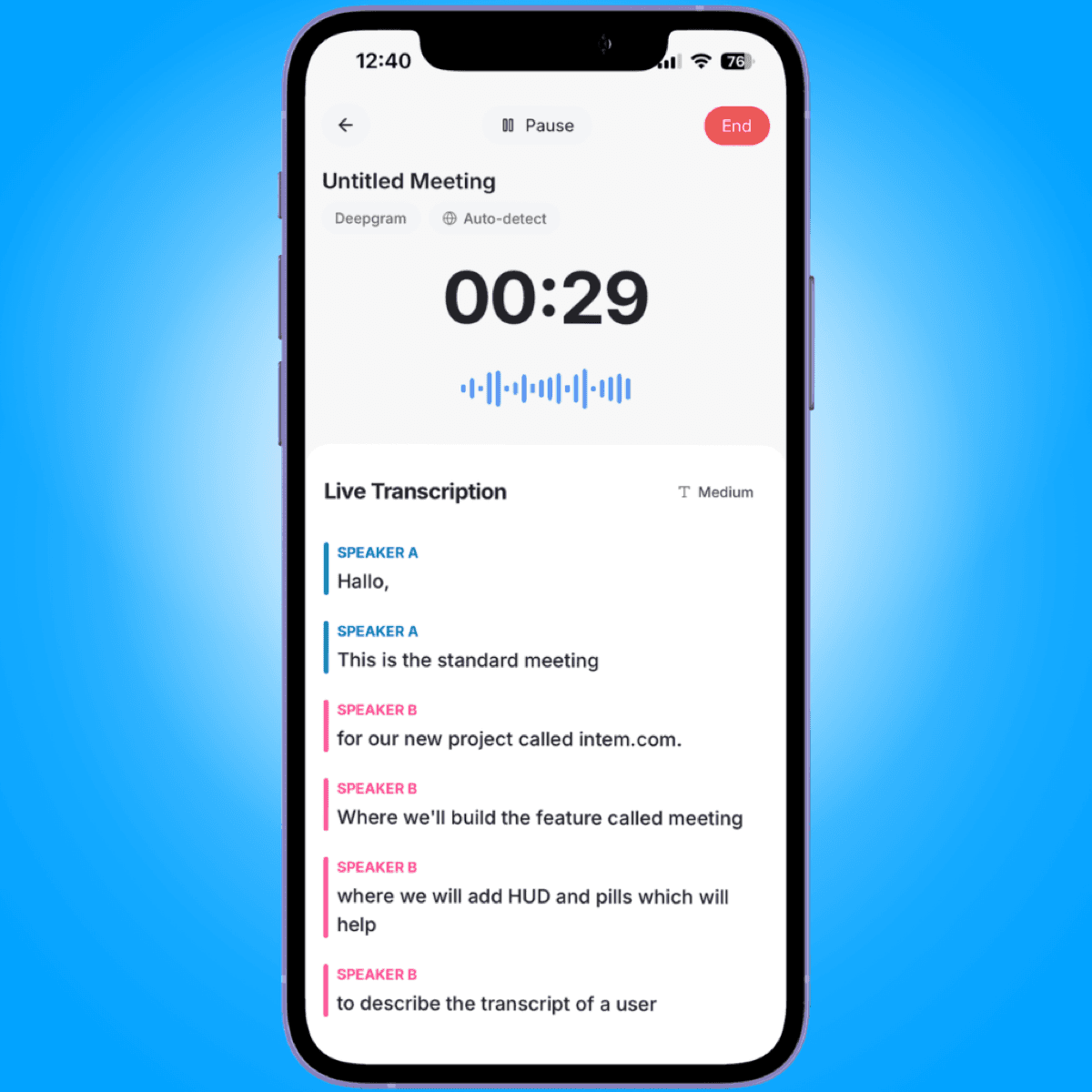
- If asked, allow microphone access. Recording starts automatically, and the screen shows a live waveform, a running duration, and a live transcript as people speak.
- Tap the meeting title at the top to rename it.
- Tap the provider or language pill near the top to change the transcription provider (Deepgram, Speechmatics, ElevenLabs, AssemblyAI, OpenAI, or Soniox) or language. These lock once recording is underway, so set them right after the screen opens if you need something other than the default.
- As the transcript fills in, tap any speaker label (Speaker A, Speaker B, and so on) to rename it to the real person's name.
- Tap Pause to pause, Resume to continue.
- Tap the back arrow in the top left to minimize. This closes the recording screen but keeps recording running in the background.
- Tap End when you're done, then confirm in the "End meeting" prompt. This stops recording and closes the screen.
📘 Good to know
Recording laws vary by location, and you're responsible for getting consent where it's required before you record anyone.
Capture a call by link
Use this when a call is already happening in Google Meet, Zoom, or Microsoft Teams and you want Intempt's bot to join it.
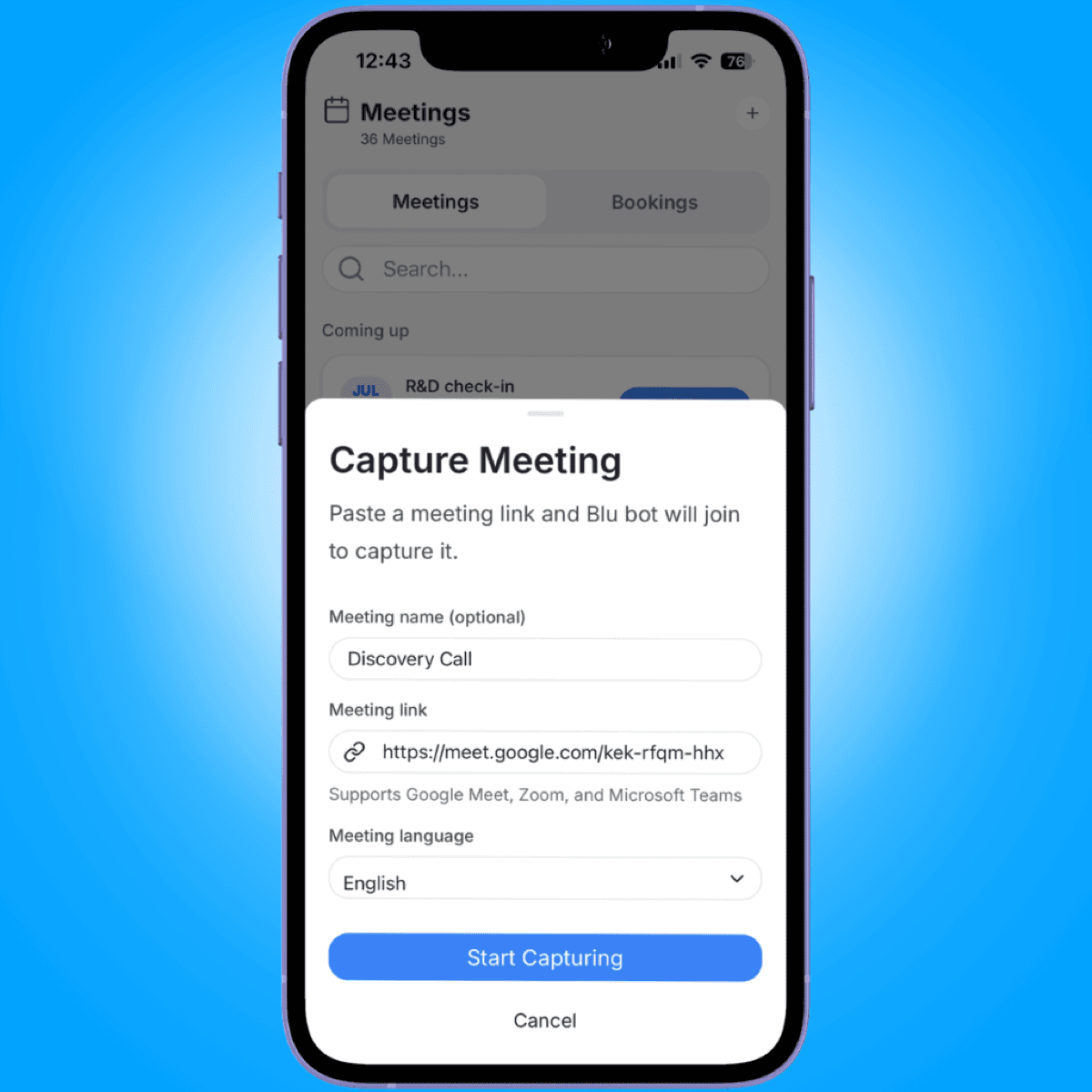
- Tap +, then Capture Meeting.
- Optionally name the meeting.
- Paste the meeting link. Only Google Meet, Zoom, and Microsoft Teams links are accepted.
- Pick the meeting's spoken language, or leave it on the default.
- Tap Start Capturing. The bot joins the call and the meeting appears in your list once it's in progress.
Upload a recording
Use this for a call you already recorded elsewhere, or an audio file someone sent you.
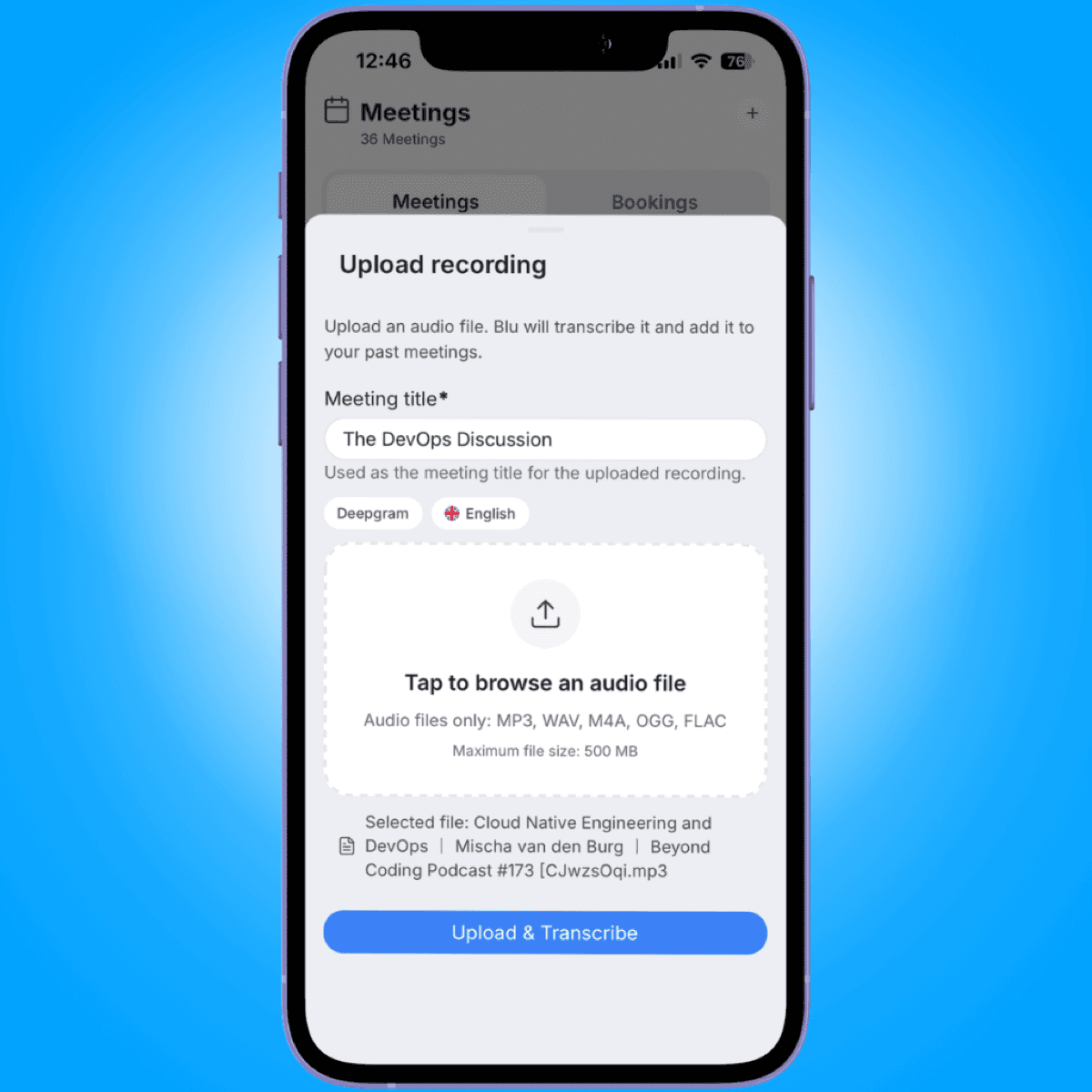
- Tap +, then Upload Audio.
- Enter a meeting title. This becomes the title Blu uses for the recording.
- Set the transcription provider and language if you want something other than the default.
- Tap the upload area to browse for a file. Supported formats are MP3, WAV, M4A, OGG, and FLAC, up to 500 MB.
- Tap Upload & Transcribe. Once it finishes, the recording appears in your meeting list, fully transcribed.
Where to go next
See Setting Up Call Recording for the project-wide settings that control what gets recorded and whether Intempt's bot joins calls on its own.
Sign Up, MFA & Onboarding
How to create an Intempt account on mobile, verify with two-factor authentication when it's required, and complete first-run onboarding.
Viewing Journeys on Mobile
Browse, filter, and open journeys from the Intempt mobile app, check their status, and start, pause, resume or stop them on the go.