
Desktop Scheduling
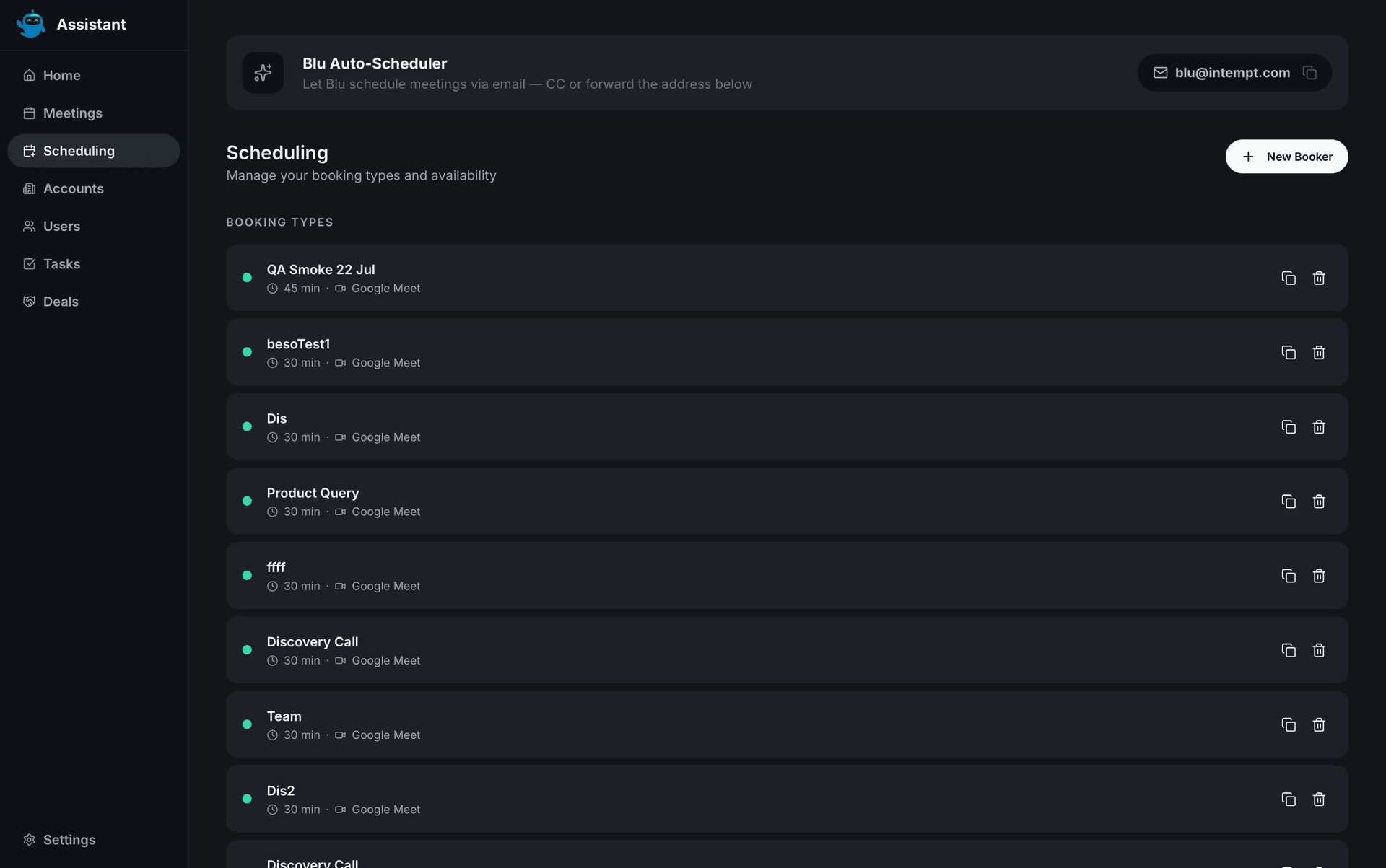
Manage your booking types and weekly availability, and copy the Blu Auto-Scheduler email address, from the Scheduling screen in the Intempt desktop app.
Overview
Scheduling is a screen in the Intempt desktop app for managing your own booking types and weekly availability. A booking type is a reusable meeting template, like "Discovery Call" or "Renewal Check-in," that Blu can offer when it schedules a meeting for you over email. This screen is separate from the "Schedule meeting" option in the Meetings window, which books one specific future meeting rather than managing templates.
Blu Auto-Scheduler
At the top of the screen, a banner explains Intempt's email-based scheduling flow: CC or forward an email to blu@intempt.com, and Blu handles booking it against your booking types and availability.
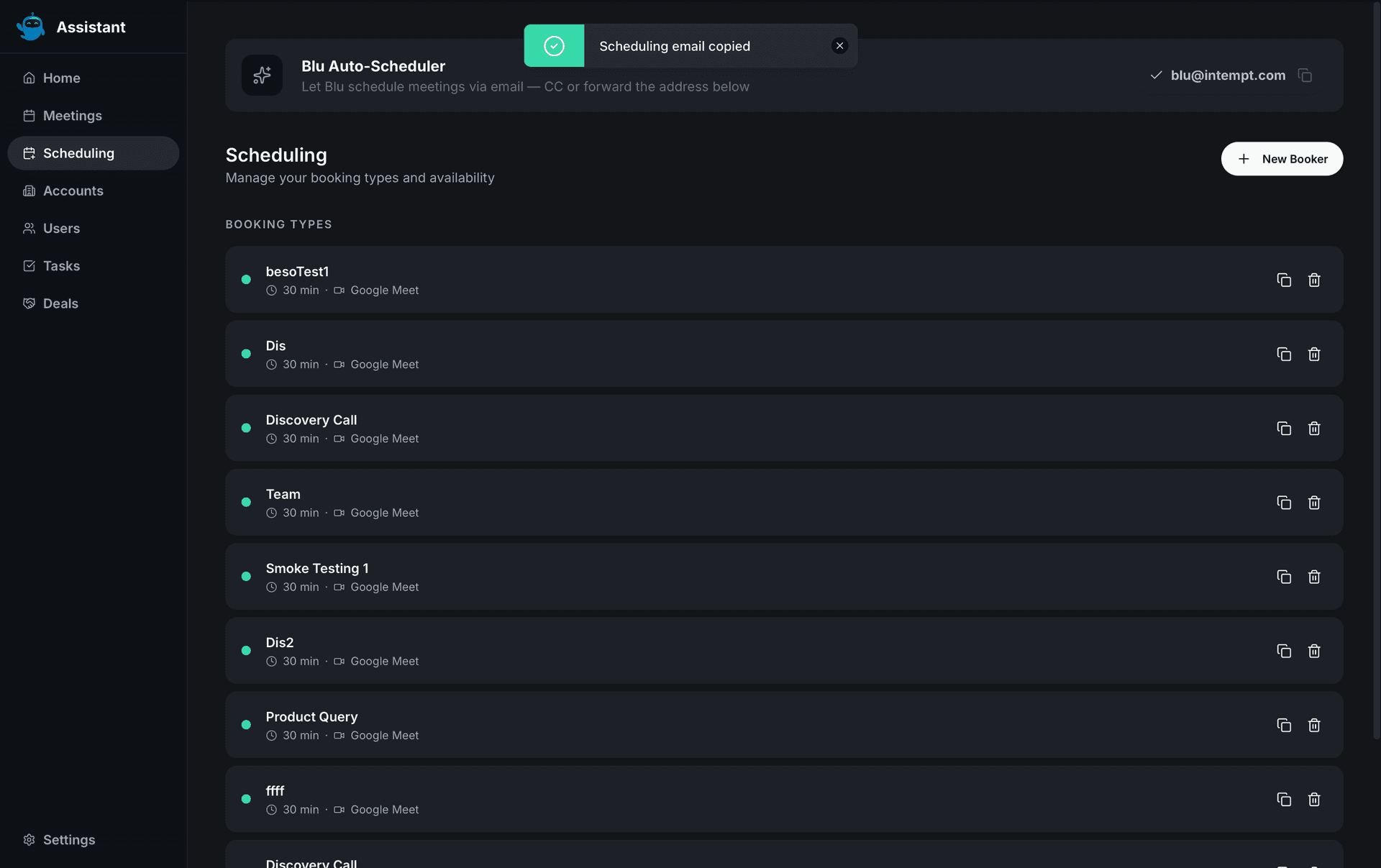
Click the blu@intempt.com button to copy the address to your clipboard. Its icon switches to a checkmark for about two seconds to confirm the copy, and a "Scheduling email copied" toast appears. If the copy fails, you'll see a "Could not copy scheduling email" toast instead.
Booking types
The Booking Types section lists your booking types as a row of pill-shaped buttons, one per type, showing its name. Click a pill to select it. Before you've created any, this section shows an empty state: "No booking types yet. Create one to get started."
Creating a booking type
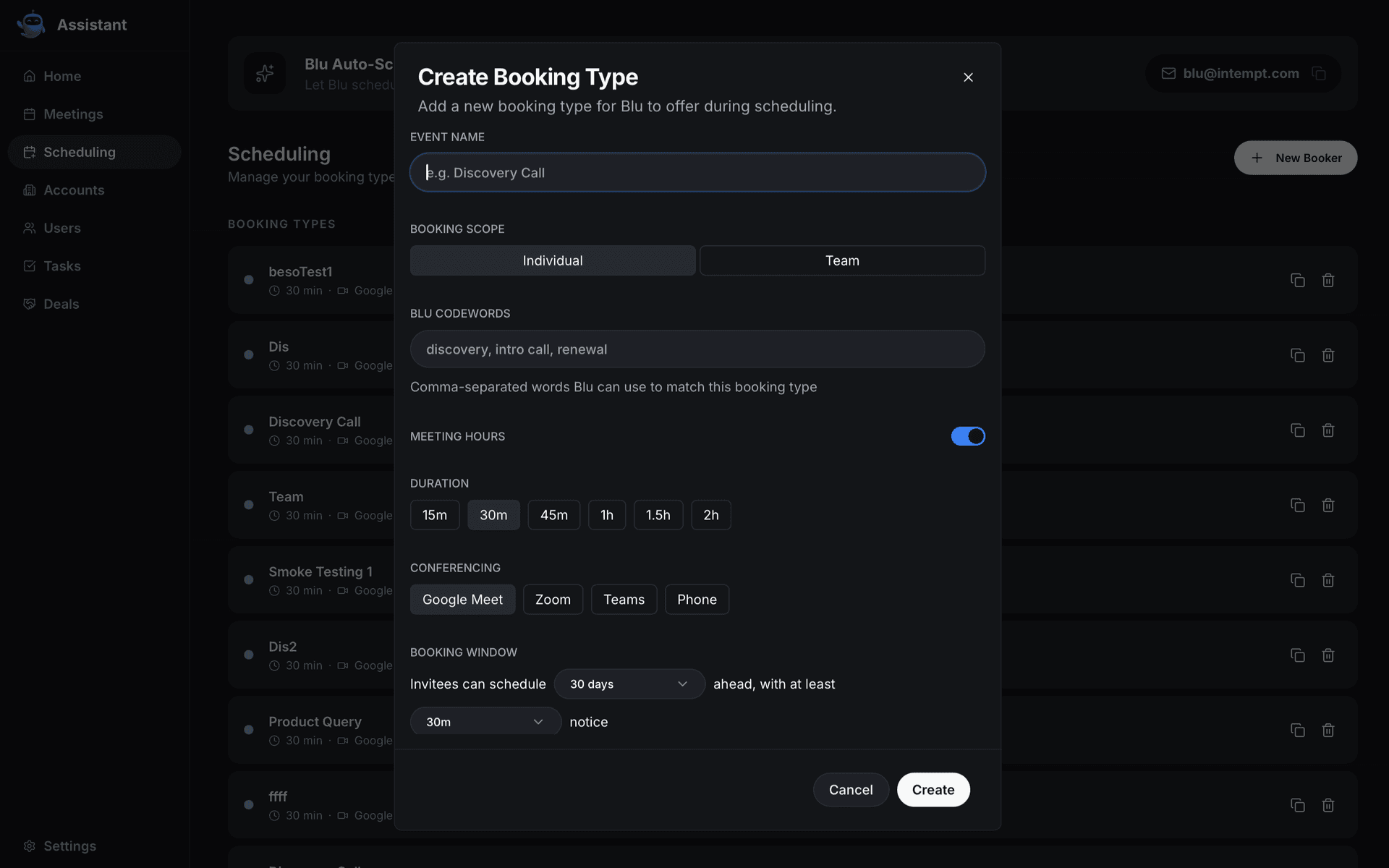
- Click New Booker in the top-right corner of the screen.
- Enter an Event Name. This is the only field that blocks you if left empty — clicking Create shows "Name is required."
- Choose a Booking Scope: Individual (default) or Team. Choosing Team reveals two more fields: a required Team picker (leaving it empty shows "Select a team") and an Assignment Type toggle, Collective (default) or Round robin.
- Optionally, enter comma-separated Blu Codewords: words or phrases Blu matches against to route an inbound scheduling email to this booking type.
- Choose Meeting Hours: on (default) uses your project's regular weekly availability, off reveals a custom per-day hours editor for this booking type only.
- Choose a Duration: 15, 30, 45, 60, 90, or 120 minutes. Defaults to 30.
- Choose a Conferencing provider: Google Meet, Zoom, Teams, or Phone. Defaults to Google Meet.
- Set the Booking Window row: "Invitees can schedule [7, 14, 30, 60, or 90 days] ahead, with at least [30 minutes, or 1, 2, 4, 8, 24, or 48 hours] notice." Defaults to 30 days and 30 minutes.
- Click Create. A "Booking type created" toast confirms it, and the new type appears in the list. Click Cancel at any point to close the dialog without creating anything.
📘 Good to know
There's no way to edit a booking type's settings, copy its booking link, or delete it from this screen once it's created. If you need different settings, create a new booking type instead.
Weekly availability
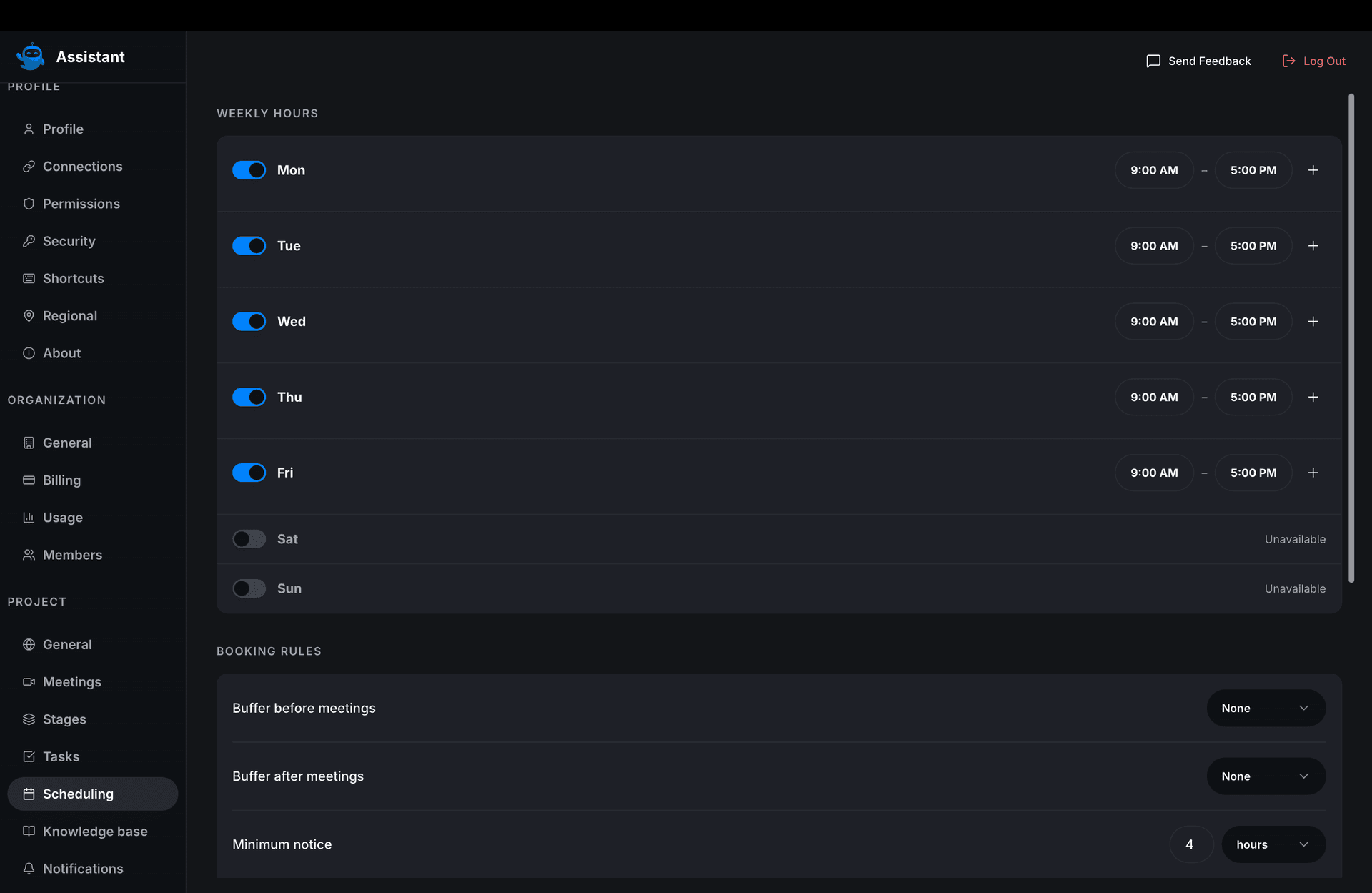
The Weekly Availability section lists all seven days, Monday through Sunday, each with a start-time and end-time picker. Any day the backend hasn't set yet defaults to 09:00 to 17:00. Change a time and it saves immediately; there's no separate Save button.
📘 Good to know
Every day always shows an editable start and end time on this screen. There's no toggle to mark a day as unavailable here. To turn off a specific day, for example weekends, use the weekly-hours editor in Settings → Project → Scheduling instead, which has that toggle and edits the same underlying availability.
Where to go next
- Desktop App Overview for how Scheduling fits into the rest of the desktop app's main window.
- Recording & Capturing Meetings on Desktop for the "Schedule meeting" option in the New Meeting menu, which books one specific future meeting and isn't connected to the booking types on this screen.
Desktop Sales Workflow Guide
Work your pipeline in the Intempt desktop app: search and filter deals on the Kanban board, move a deal between stages, create a new deal, and review a deal's full record.
Viewing User Accounts on Desktop
Browse, search, and open the CRM accounts in your project, then read their Overview, Activity, Users, and Deals tabs from the Intempt desktop app.