
AI Coaching & Call Review
Review a completed call's AI summary, talk-ratio stats, and coaching flags on the Meeting Details page in the Intempt desktop app.
Overview
Once a call ends, its Meeting Details page becomes your post-call review: an AI-generated summary, a transcript with per-speaker talk-time stats, and coaching flags you can tag on any line for follow-up. Ask Blu a question about the call, including a dedicated Coaching Review prompt, and it answers using that call's own transcript and participants.
This is different from Live Meeting Assist, which is Blu coaching you live, during the call, from the HUD overlay's Coach tab. This article covers what happens after the call is over.
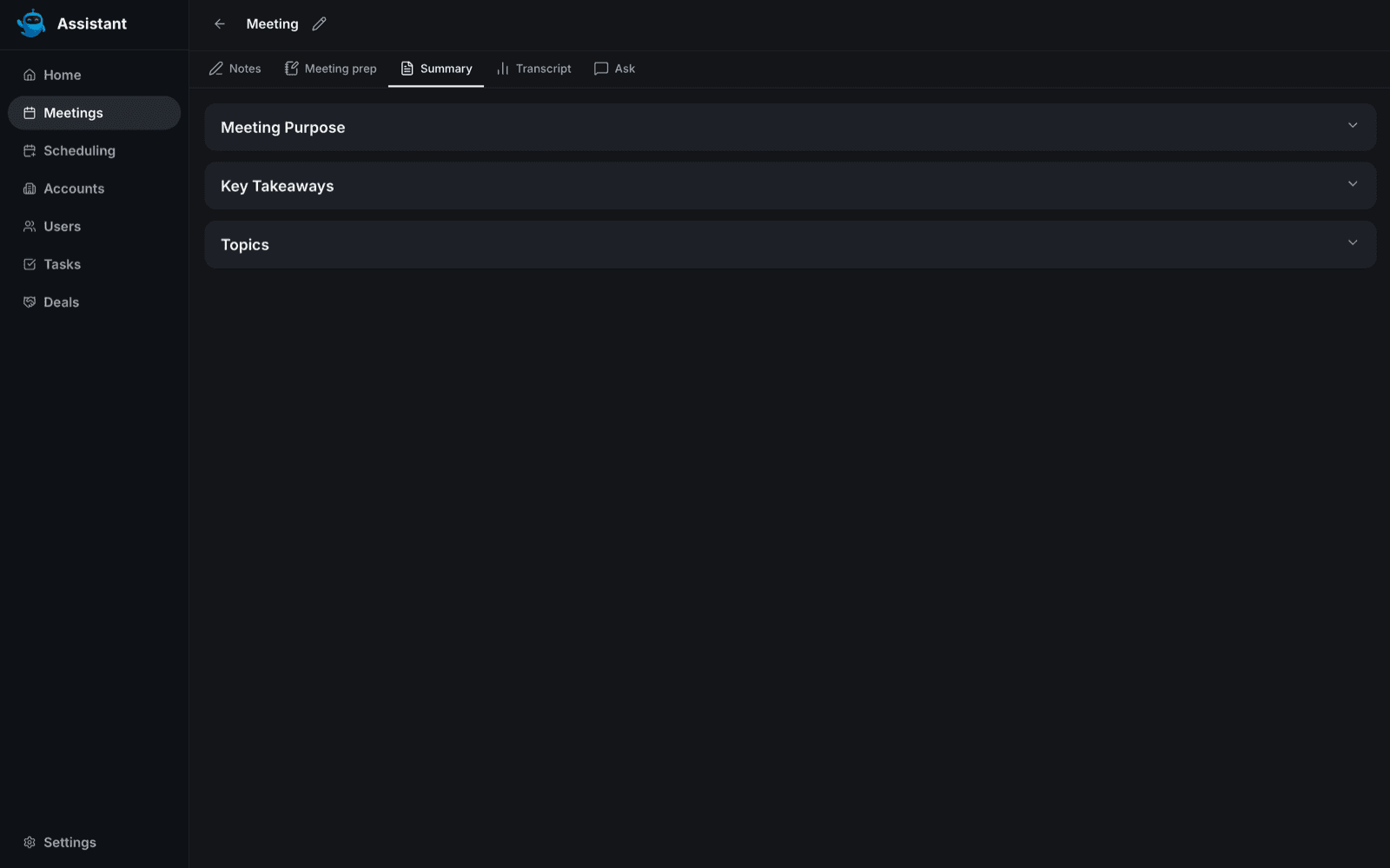
Summary tab
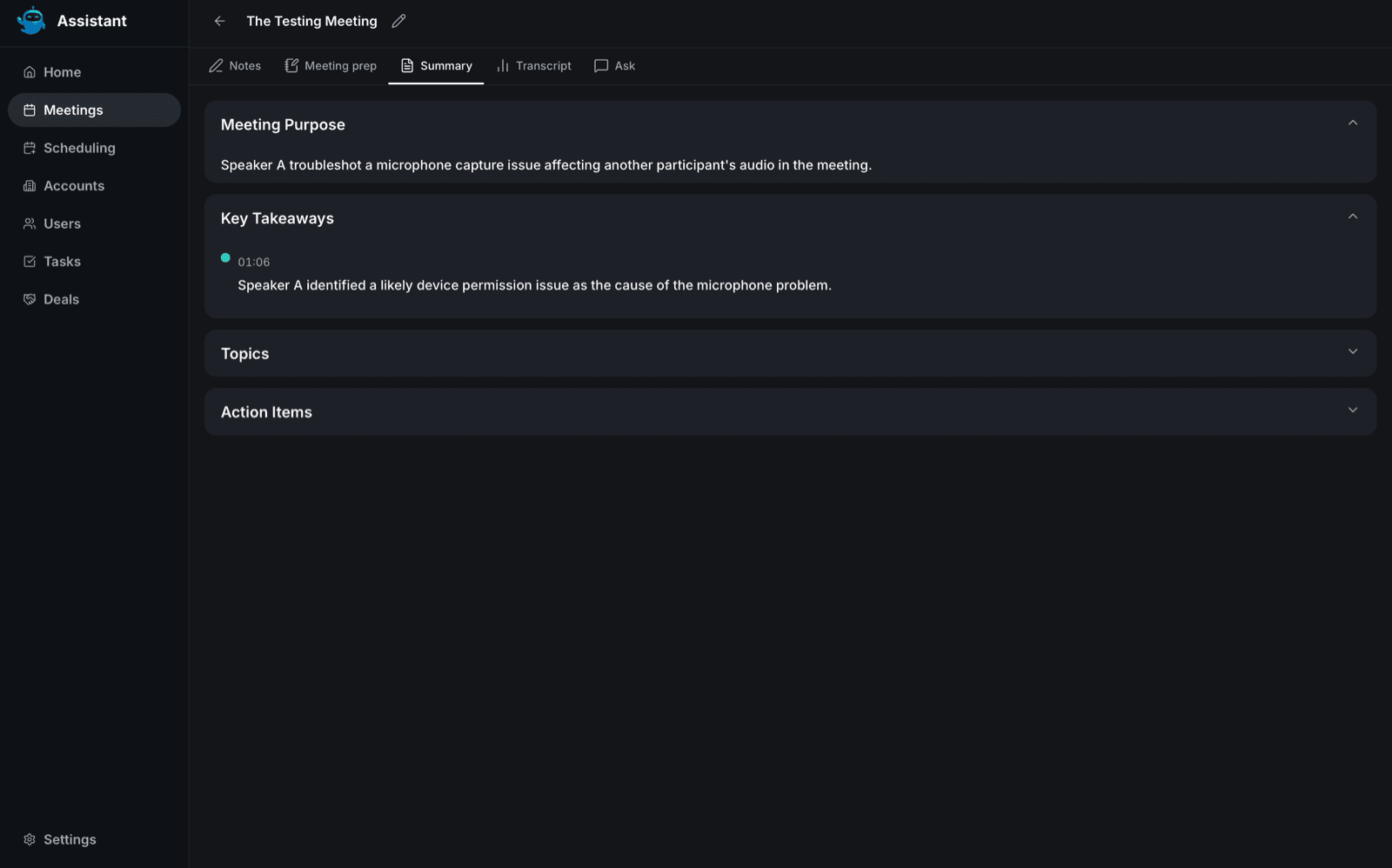
Open a completed meeting from the Meetings list to land on its Details page. Click Summary to see the AI-generated recap.
Sections render grouped and collapsed by default, click a section's header to expand it. A "general" category, if the meeting has one, always sorts first. Most sections expand into a timeline: each line shows a timestamp, a title, and supporting detail. A section titled exactly "Meeting purpose" is the one exception, it renders as a plain bulleted list instead of a timeline.
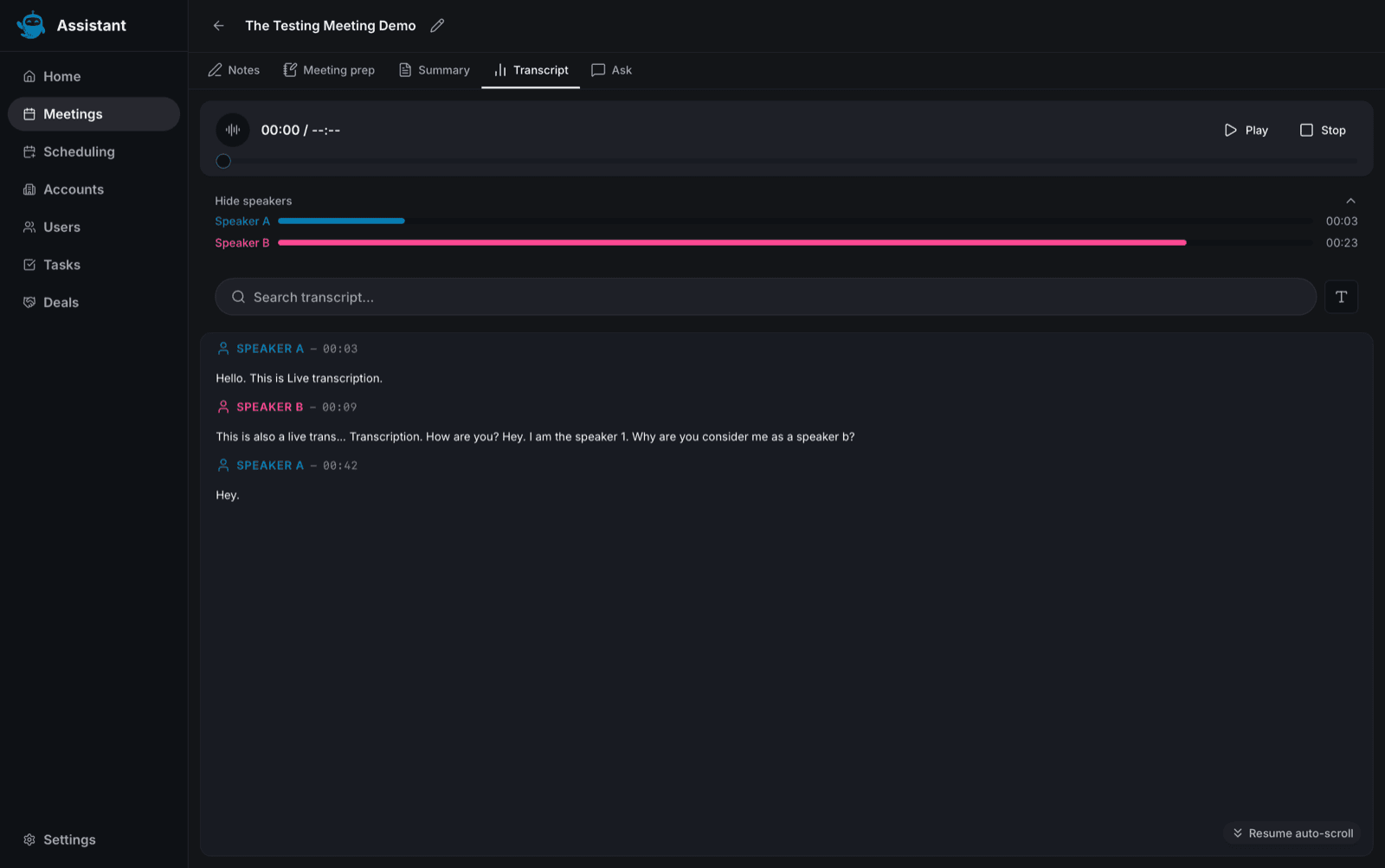
Talk-ratio and speaker stats
Click Transcript on the same Details page, then click Show speakers to expand the Speaker Stats list. Each speaker gets a row with a bar sized to how much of the call they spoke and their total elapsed talk time.
Click a speaker's row to hide their lines in the transcript below. Their row shows strikethrough and reduced opacity while hidden. This only changes what you see, it doesn't delete or edit anything.
📘 Good to know
The recording player above the transcript lets you play, pause, stop, and drag the seek bar to jump to any point in the call.
Coaching flags on transcript lines
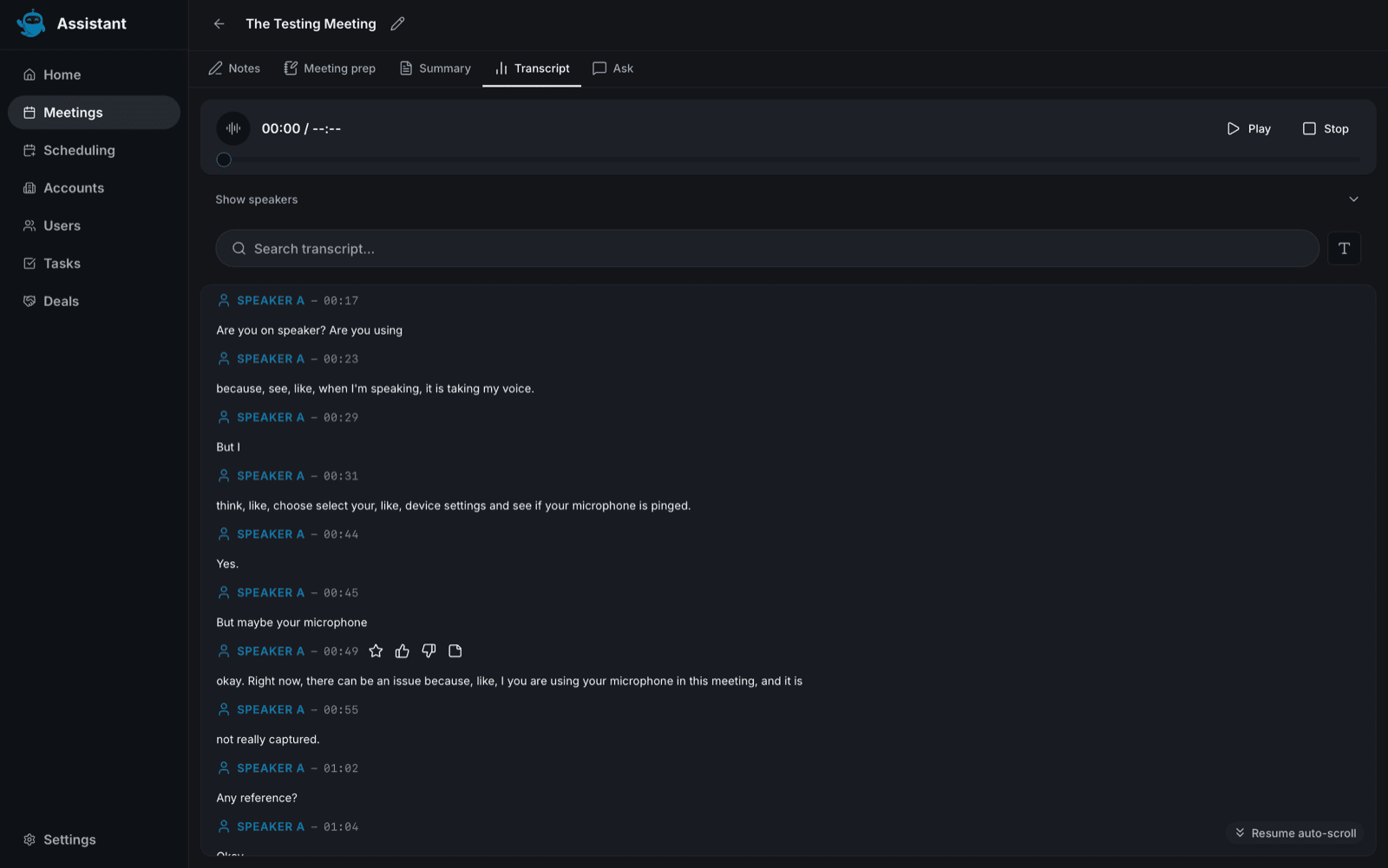
Hover any confirmed line in the Transcript tab to reveal four icons: a star, a thumbs up, a thumbs down, and a sticky note. Clicking one tags that line and creates a note you'll find on the Notes tab:
| Icon | Note type |
|---|---|
| Star | Highlight |
| Thumbs up | Positive |
| Thumbs down | Concern |
| Sticky note | Note |
Only the Note type opens an editable text body afterward, so it's the one to use if you want to write something alongside the tag.
📘 Good to know
These four icons also appear on transcript lines during a live, in-progress recording, but clicking them there doesn't do anything. Tagging a line only works once the call is over and you're reviewing it on the Details page.
Ask Blu about the call
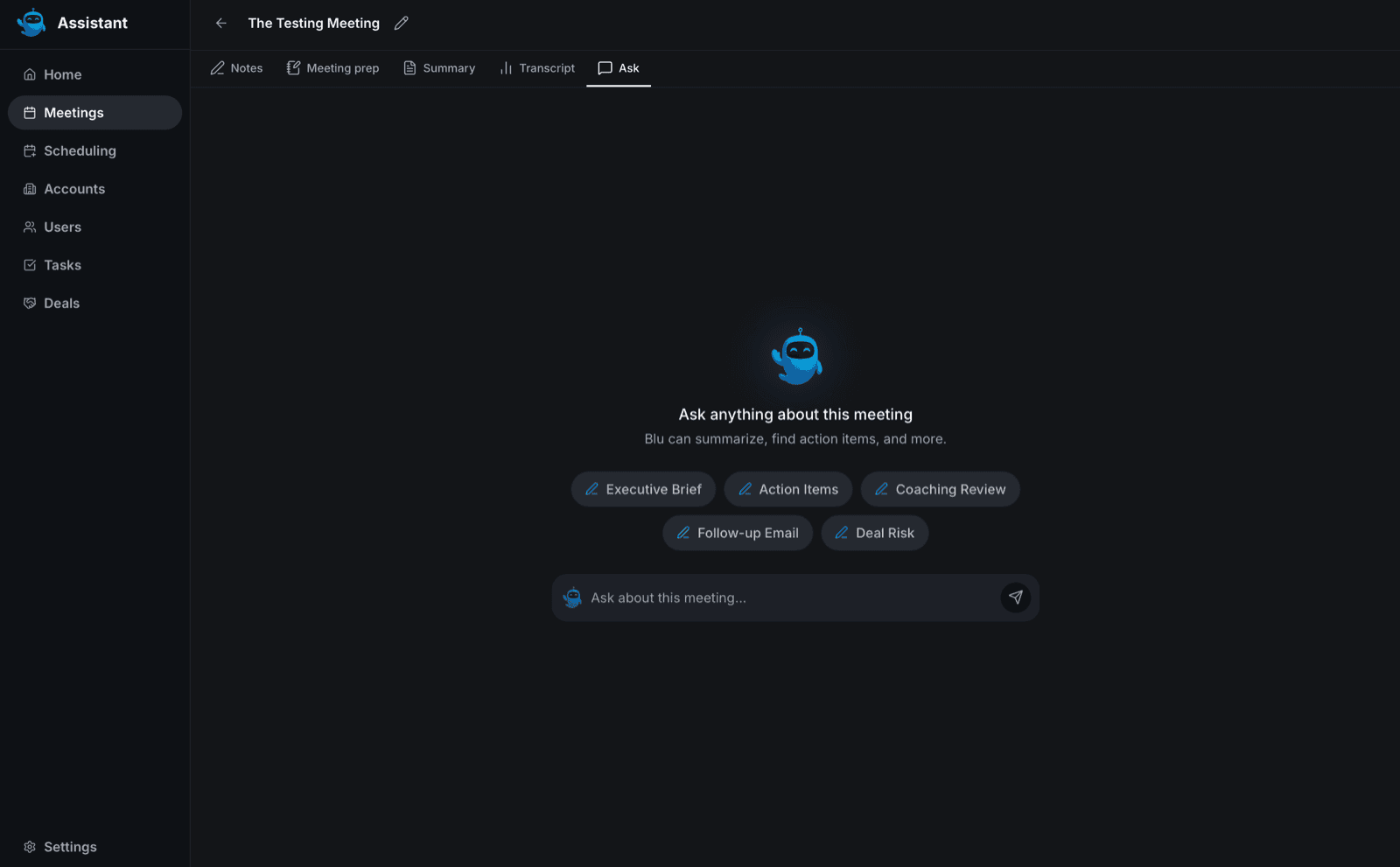
Click Ask on the Details page to open a chat scoped to this one meeting. With no prior messages, you'll see five prompt chips: Executive Brief, Action Items, Coaching Review, Follow-up Email, and Deal Risk. Clicking one fills the composer with that prompt instead of sending it right away, so you can edit it first.
Use Coaching Review to get Blu's read on how the call went, grounded in the transcript and participants rather than a generic answer.
Use cases
- Reviewing your own call before a deal update. Open the Summary tab's Executive Summary section instead of re-watching the recording.
- Coaching a rep after a call. A manager tags Concern moments while reviewing the transcript, then points the rep to those exact lines.
- Checking who dominated the conversation. Use the Speaker Stats talk-time bars to see whether the rep or the prospect did most of the talking.
- Building a follow-up email. Use the Follow-up Email prompt in the Ask tab instead of writing one from scratch.
- Flagging a strong objection-handling moment. Star a line as a Highlight so it's easy to find again during team review.
- Getting a structured coaching read without re-listening. Use the Coaching Review prompt for a targeted answer instead of scrolling the whole transcript.
- Isolating one participant's side of the call. Click their row in Speaker Stats to hide everyone else's lines while you read.
- Leaving a written note next to a moment. Use the sticky-note icon instead of the star or thumbs icons when you want to attach actual text, not just a tag.
Where to go next
- Live Meeting Assist for Blu's proactive coaching during the call itself, before it ends.
- Recording & Capturing Meetings on Desktop for how a call gets recorded in the first place.
- Generating Meeting Summaries for the same on-demand summary pattern in the web console.
Recording & Capturing Meetings on Desktop
Record a call from your own device, send a notetaker into an external meeting, or upload an existing recording from the Intempt desktop app.
Desktop Sales Workflow Guide
Work your pipeline in the Intempt desktop app: search and filter deals on the Kanban board, move a deal between stages, create a new deal, and review a deal's full record.