
Desktop App Overview
The Intempt desktop app is five native windows working together: the main app, a floating recording pill, a live-call HUD, a meeting notification popup, and a menu bar panel.
Overview
The Intempt desktop app isn't one window. It's five separate native windows that show up depending on what you're doing: a main app window for your regular workspace, and four small overlay windows that appear only when they're relevant.
How it works
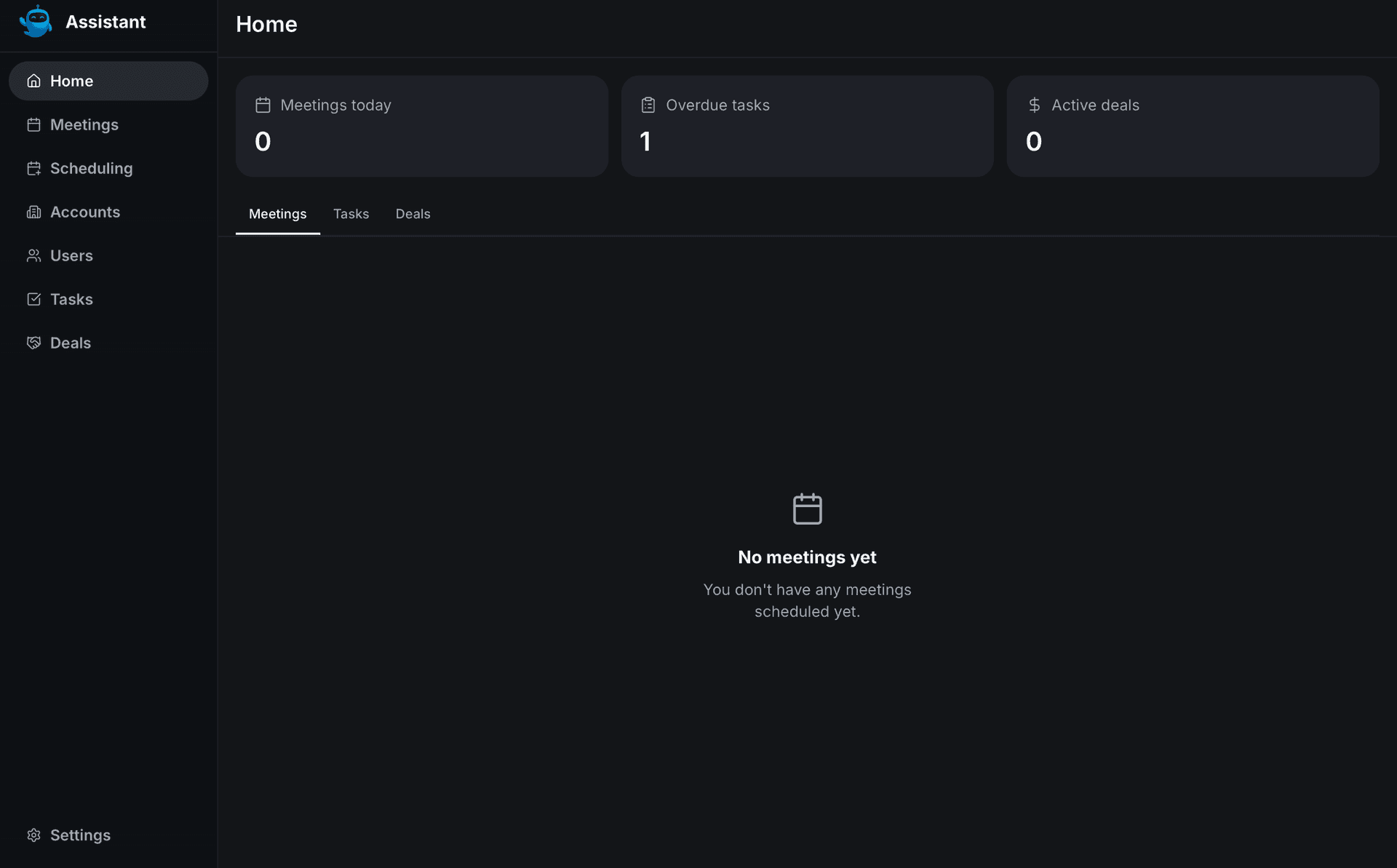
The main window
This is the app you open day to day. A sidebar on the left groups navigation into a main section (Home, Meetings, Scheduling), a pipeline section below it (Accounts, Users, Tasks, Deals), and Settings pinned at the bottom. While a recording is active, the sidebar header shows a REC indicator and a recording banner at the top of the nav.
📘 Good to know
Blu Chat also lives in the main window, as a floating panel rather than a sidebar item. See Chat on Desktop for how it works.
The pill
A small floating pill shows up whenever a recording is active, about to start, or wrapping up, and tucks itself out of the way while the HUD is open. You don't need to be in a scheduled meeting to use it: click the pill any time to start or stop recording on the spot. While recording, it shows a live audio level and an elapsed timer. Double-click it to open the HUD.
📘 Good to know
The pill can't be captured in a screenshot, so it isn't pictured here.
The HUD
During an active call, a small overlay window opens with three tabs: Coach, Ask, and Transcript. This is Blu working in its proactive mode, surfacing coaching guidance on its own as the call progresses. The full walkthrough of this window lives in Live Meeting Assist.
The notification popup
Before a scheduled meeting starts, or as soon as Intempt detects one is underway, a small popup appears with the meeting title, a countdown, and a button to open and start recording locally. If you're already recording something else, that button instead offers to finish the current recording and start a new one, with a confirmation step before it switches. Dismiss the popup with the X in its header.
📘 Good to know
The notification popup can't be captured in a screenshot, so it isn't pictured here.
The menu bar panel
Click the Intempt icon in the system menu bar to open a small dropdown with three actions: Open Assistant (brings the main window to the front), Settings (opens the main window straight to Settings), and Quit.
📘 Good to know
The menu bar dropdown can't be captured in a screenshot, so it isn't pictured here.
Where to go next
- Live Meeting Assist for the full HUD walkthrough, including the Coach, Ask, and Transcript tabs.
- Chat on Desktop for the floating chat panel in the main window.