
Onboarding (workspace setup)
Set up your workspace, review what Blu found about your brand, and pick a plan the first time you sign into the Intempt desktop app.
Overview
The first time you sign into the Intempt desktop app, and any time your account isn't fully onboarded yet, Intempt opens straight into a three-step setup flow instead of the main app: Workspace, Brand Intel, and Pricing. This guide covers what happens on each screen and how to get through it.
If you close Intempt partway through, it picks up where you left off: back at Workspace if you haven't created an organization yet, or at Brand Intel if you have.
Step 1: Set up your workspace
Workspace is the first screen you land on. It gives you two ways to get started.
Join your team. At the top of the screen, Intempt shows a card previewing what joining an existing team looks like, with a sample company and a few teammates. This isn't wired up yet: the Request to join button is disabled. If you're the first person from your company setting up Intempt, skip this and use Create a new organization below.
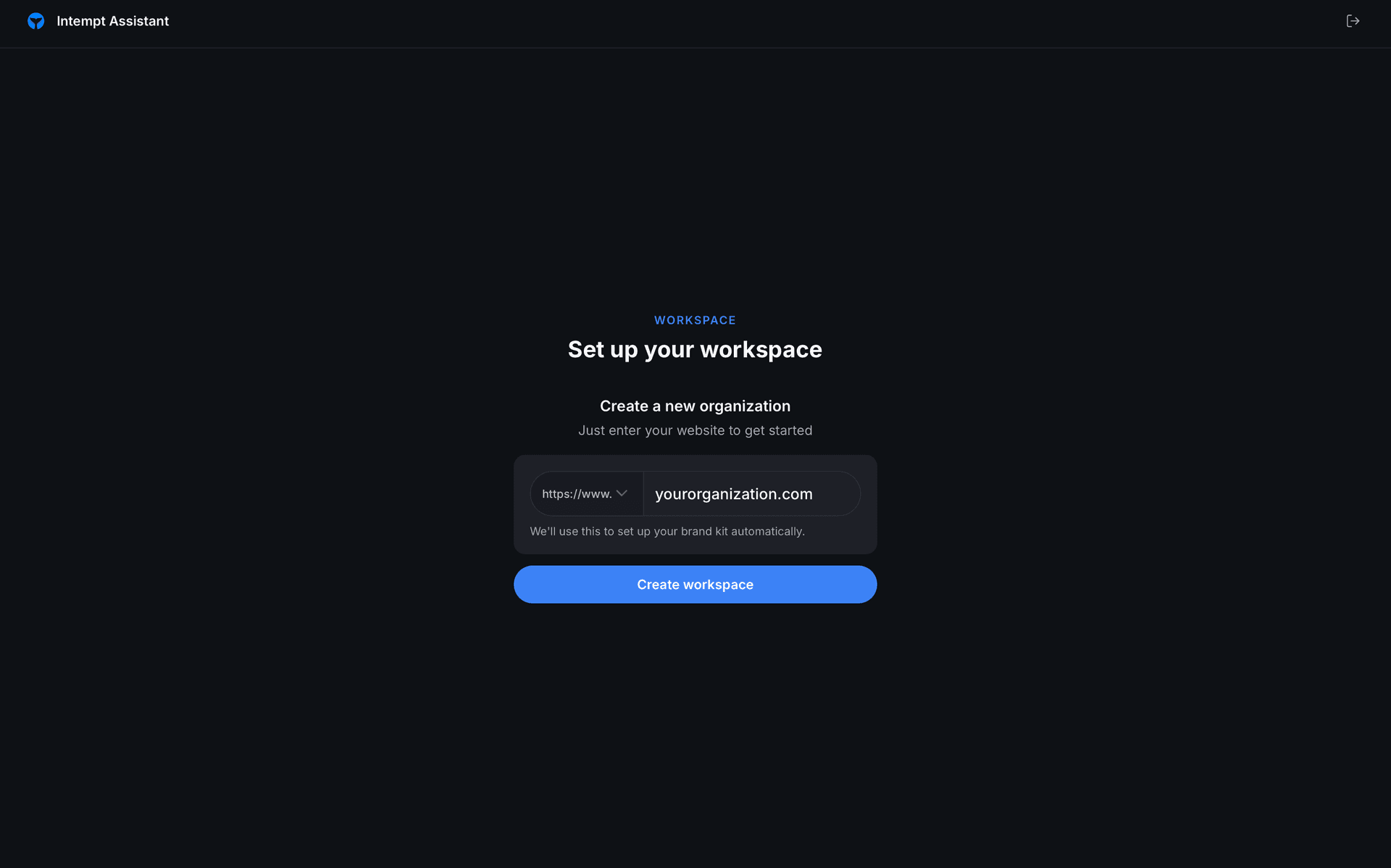
Create a new organization. Enter your company's website and Intempt does the rest:
- Choose the protocol prefix (
https://www.,https://,http://www., orhttp://) from the dropdown next to the domain field. - Type your domain, for example
acme.co. Enter it without thehttps://,http://, orwww.prefix; that part is a separate dropdown, and Intempt shows an error if you type it into the domain field. - Click Create workspace.
Intempt derives your organization's name and URL slug from the domain you enter (acme.co becomes "Acme"), creates your organization and project, and starts scanning your site for your brand kit in the background. Once your organization is created, Intempt takes you to Brand Intel automatically.
📘 Good to know
The hint under the domain field, "We'll use this to set up your brand kit automatically," is why there's no separate company-name field. Your website is the only input this step needs.
Step 2: Review your brand intel
Brand Intel shows what Blu found by scanning the website you entered. While Blu is still reading the site, the Blu mascot's speech bubble reads "Looking at [your site] now..." and the fields below load in one at a time with a skeleton placeholder. Once every field has a value, the speech bubble switches to "Here's what I found about [your company]. Take a quick look before we keep going."
The card below shows four fields as Blu fills them in: Audience, Business description, Value proposition, and Business model.
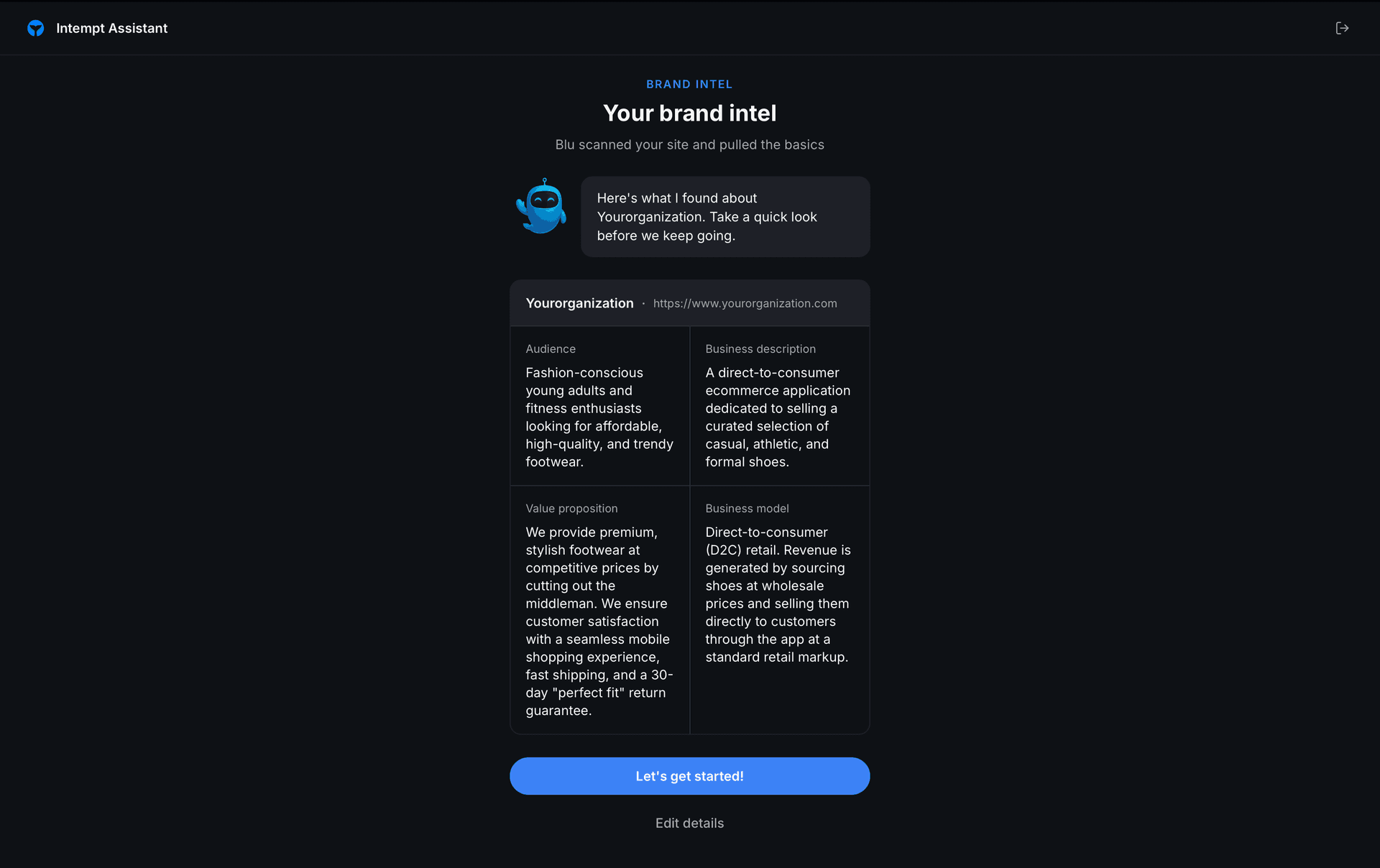
Click Edit details to open any field in a text box and change it before moving on, useful if Blu misread something on your site. Save only updates the fields you actually changed.
Click Let's get started! once all four fields have loaded to move to Pricing. The button stays disabled until the scan finishes.
Step 3: Choose a plan
Pricing is the last step. At the top, a toggle switches the plan cards between Annual (25% off) and Monthly billing.
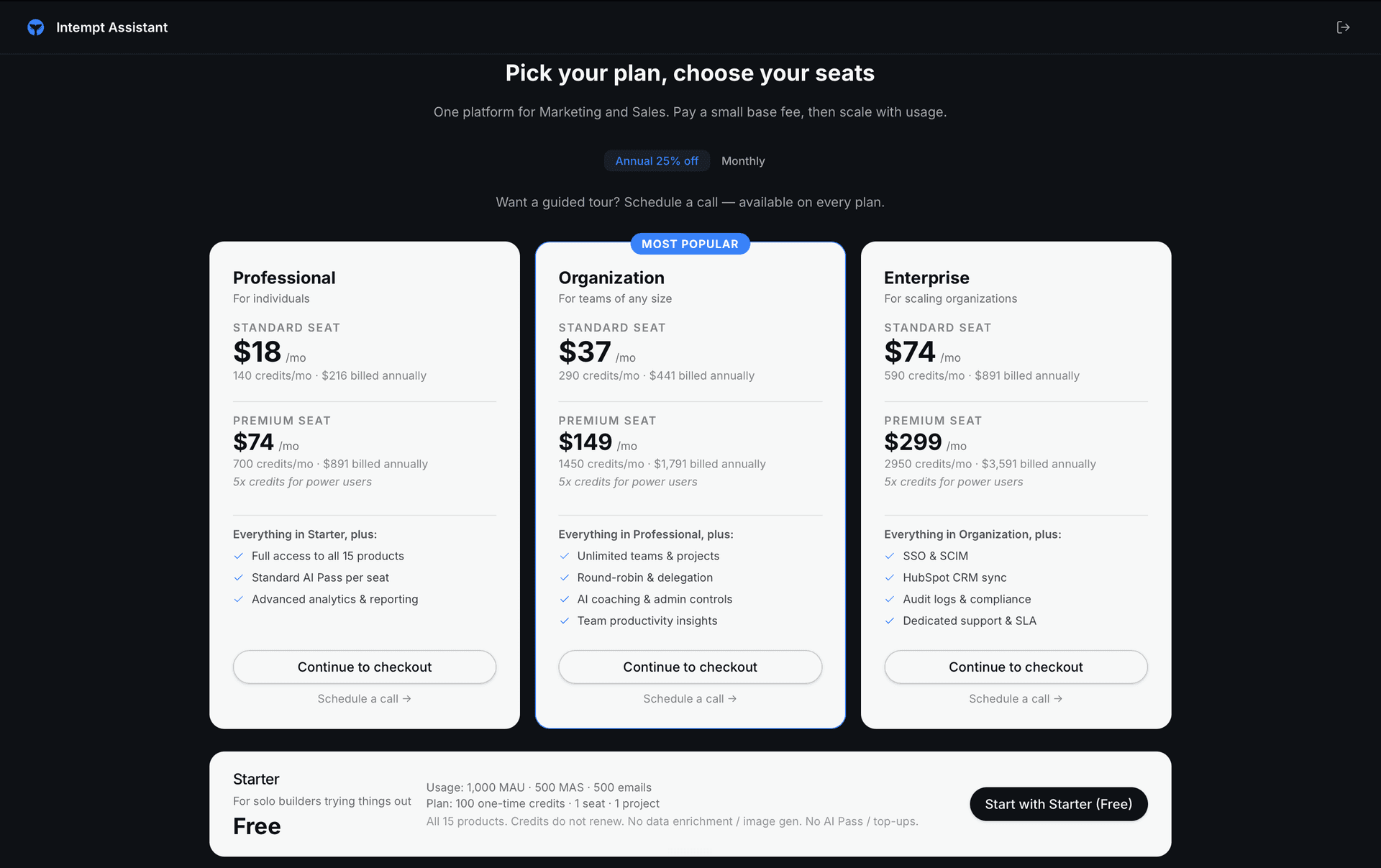
Three plan cards sit side by side, each showing a Standard Seat price and a Premium Seat price per month, the credits included at that tier, and a feature list:
| Plan | Standard seat | Premium seat |
|---|---|---|
| Professional (for individuals) | 140 credits/mo | 700 credits/mo |
| Organization (for teams of any size, most popular) | 290 credits/mo | 1,450 credits/mo |
| Enterprise (for scaling organizations) | 590 credits/mo | 2,950 credits/mo |
Switching to Annual lowers each seat price. Current prices are on the cards and on intempt.com/pricing.
Below the plan cards is a Starter bar: free, with 1,000 MAU · 500 MAS · 500 emails of usage and 100 one-time credits (they don't renew) · 1 seat · 1 project, no data enrichment or image generation, and no AI Pass or top-ups. Click Start with Starter (Free) to finish setup. This is what actually completes onboarding and opens the main Intempt app.
📘 Good to know
Start with Starter (Free) is the only button on this screen that moves you into the app. Looking at the Professional, Organization, or Enterprise cards doesn't commit you to anything during setup.
Where to go next
- Desktop App Overview for a tour of the app's five windows now that you're in.
- Recording & Capturing Meetings on Desktop to record or upload your first call.
- Desktop Sales Workflow Guide to start working your pipeline.