
Installing the Desktop App (macOS)
Download the Intempt desktop app on macOS, sign in, and complete first-run setup.
Overview
The Intempt desktop app is a native desktop app for sales reps, with builds for macOS and Windows: live coaching from Blu during calls, pre-call briefs, and automatic CRM updates after each call. This guide covers downloading and installing it, signing in for the first time, and the setup steps that create your workspace.
You'll need macOS 12 (Monterey) or later. Both Apple Silicon (M-series) and Intel Macs are supported, each with its own native build (not a universal binary).
Download and install
- Download the installer. Get the Intempt
.dmgfile for macOS onto your Mac. - Open the
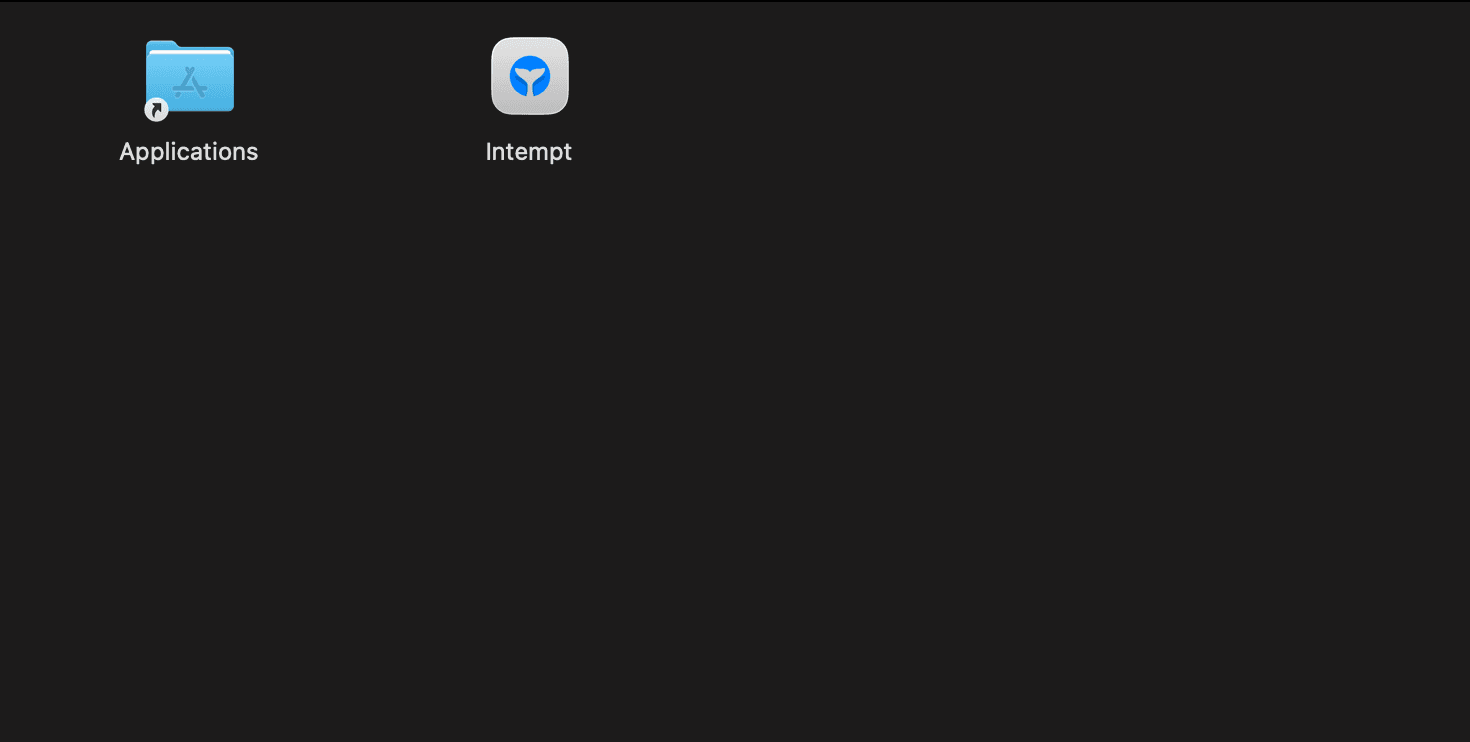
.dmgand drag Intempt into Applications. The installer window shows the Intempt app icon next to a shortcut to your Applications folder. Drag one onto the other to install. - Open Intempt from Applications (or Spotlight). The app is signed and notarized by Apple, so macOS won't block it as coming from an unidentified developer. Since it's a freshly downloaded file, macOS may still show a one-time "are you sure you want to open it" prompt the first time. Click Open to continue.
Signing in
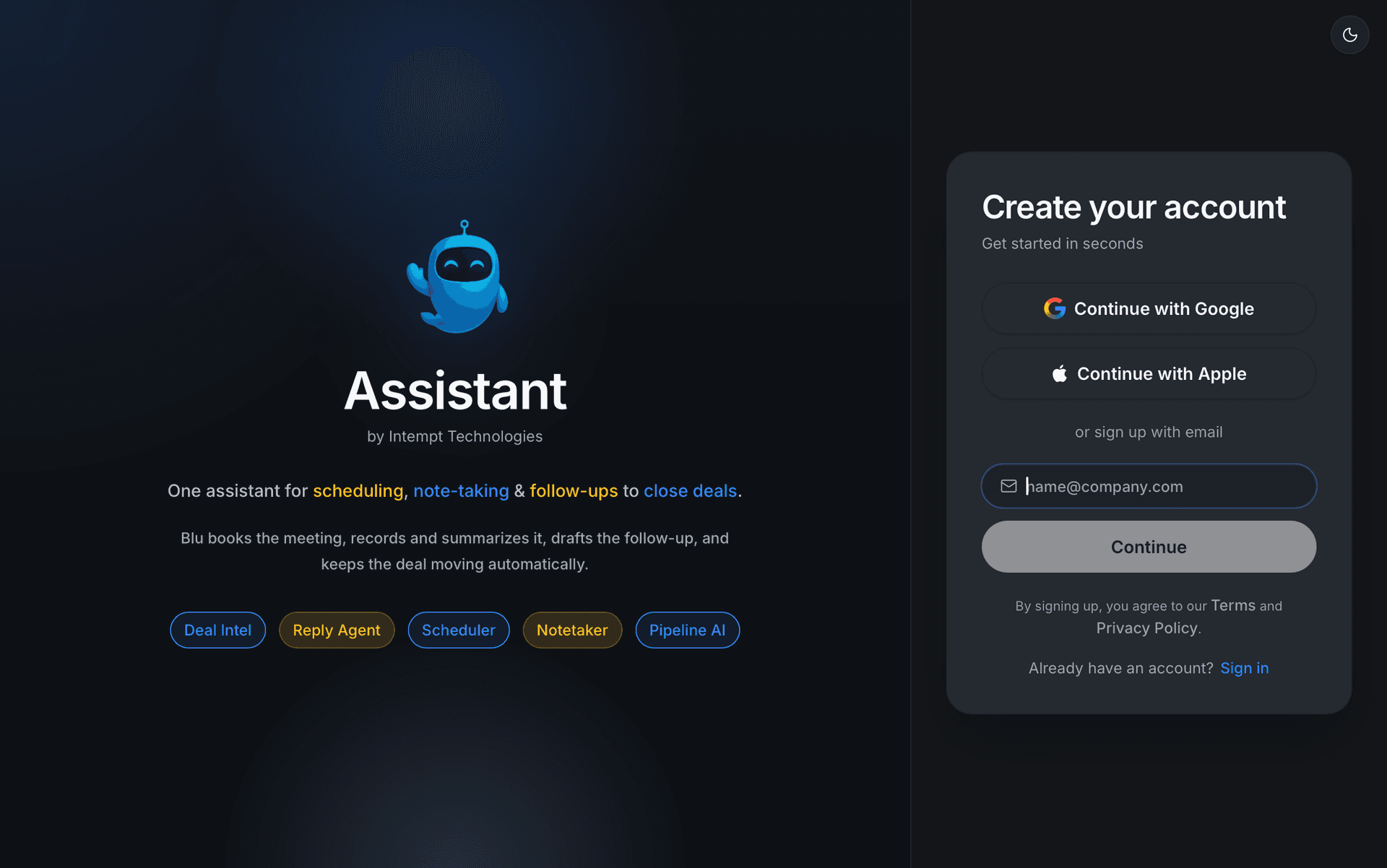
The first time Intempt opens, you land on the sign-in screen. You can continue with Google, Apple or Microsoft, or sign up with your corporate email instead.
If you use email, enter it and Intempt sends you a one-time code. Enter the code to continue; you can resend the code or switch to a different email from the same screen. If your organization requires multi-factor authentication, you'll see one more code-entry step after that.
This screen also links out to Intempt's Terms of Service and Privacy Policy if you want to review them before signing up.
First-run setup
After you sign in for the first time, you'll go through three steps before you land in the app itself:
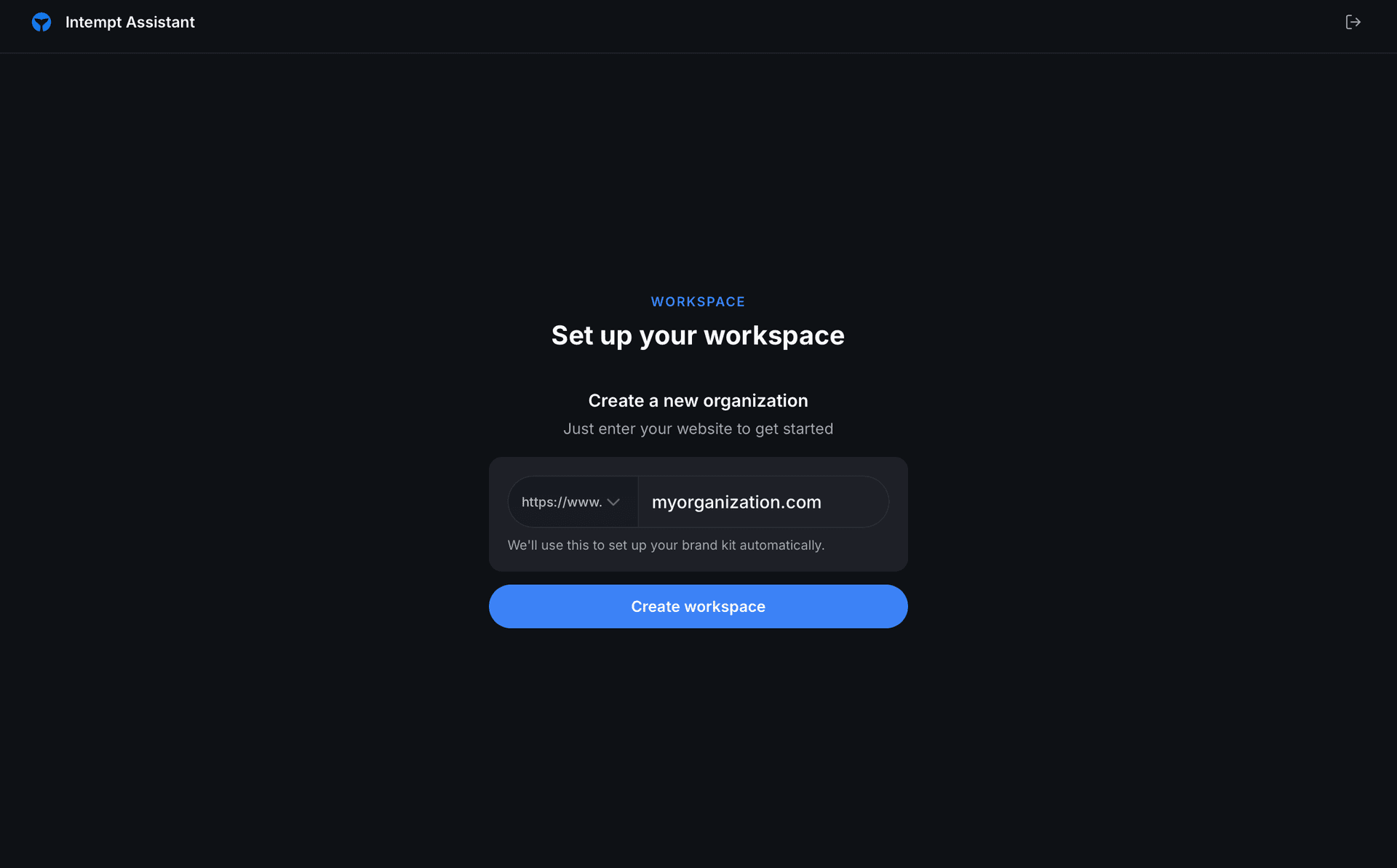
- Workspace. Enter your company's website to create your workspace.
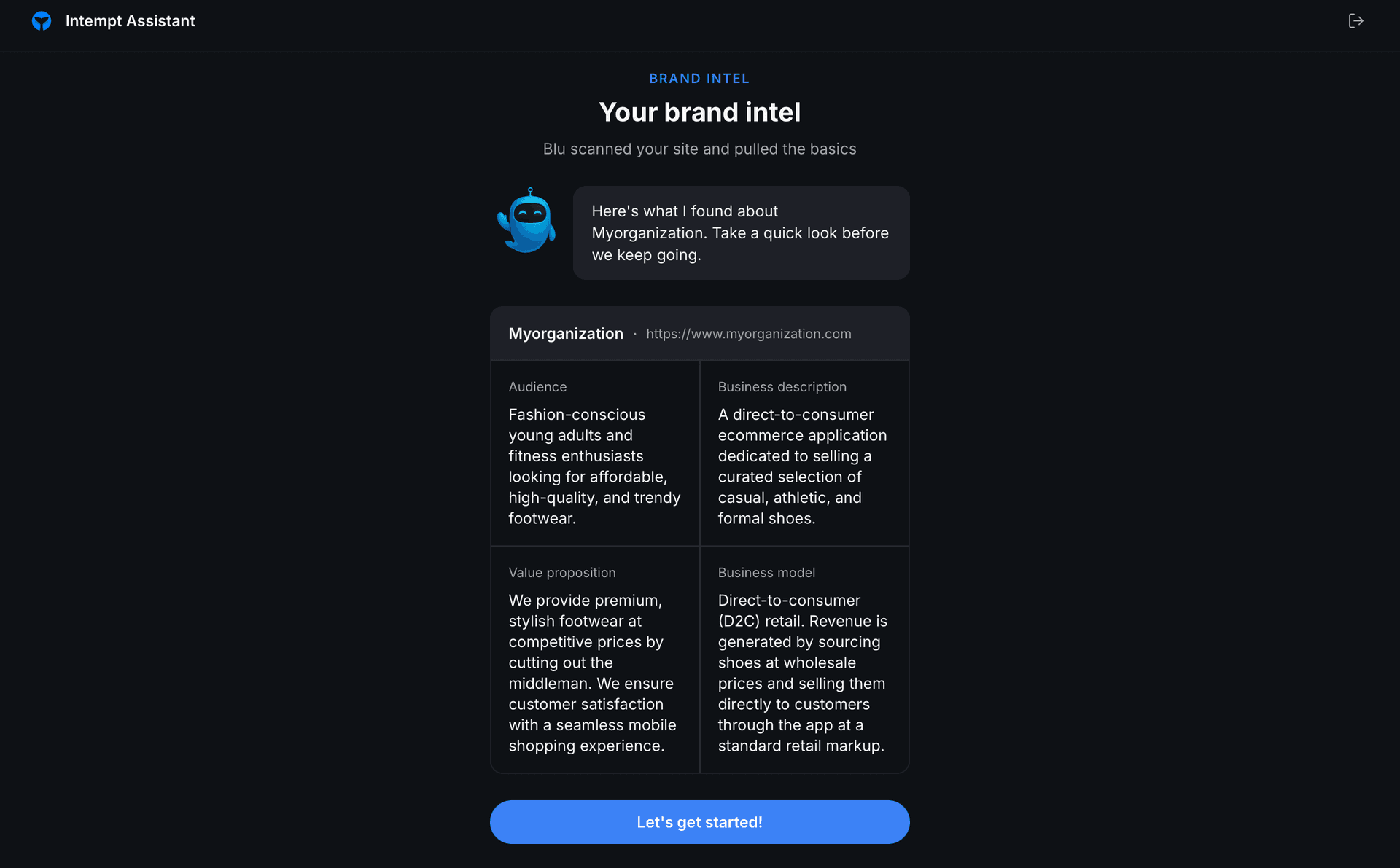
- Brand profile. Blu scans the website you entered and shows what it found across four fields: Audience, Business description, Value proposition, and Business model. The fields appear together once Blu finishes reading the site, and you can edit any of them before continuing.
- Plan. You'll see a "Pick your plan, choose your seats" screen with an annual/monthly toggle and three plan cards. Select Start with Starter (Free) to finish setup and land in the app.

📘 Good to know
Intempt does not ask for Microphone or system audio permission during this setup. Grant both in the app's Settings, on the Permissions tab. macOS files system audio under Screen & System Audio Recording, and System Audio Recording Only is enough. If you start recording before the microphone is allowed, Intempt tells you access is blocked and points you to System Settings.
Where to go next
- Desktop App Overview for a tour of the app's five windows.
- Live Meeting Assist for what happens during your first call.
- Chat on Desktop for the floating chat panel in the main window.
Desktop App Overview
The Intempt desktop app is five native windows working together: the main app, a floating recording pill, a live-call HUD, a meeting notification popup, and a menu bar panel.
Onboarding (workspace setup)
Set up your workspace, review what Blu found about your brand, and pick a plan the first time you sign into the Intempt desktop app.