
Desktop Sales Workflow Guide
Work your pipeline in the Intempt desktop app: search and filter deals on the Kanban board, move a deal between stages, create a new deal, and review a deal's full record.
Overview
Pipeline is the desktop app's Kanban board for your deals. Every deal sits in one of 8 stage columns, and you can search the board, drag a deal to a new stage, create a deal, and open any deal's full record from here.
How it works
The board loads your deals through the desktop app's background daemon, which syncs pipeline data. When you drag a deal to a new stage or create one yourself, the board updates right away.
Each stage column shows a running total of deal value in that column, plus a count badge that's highlighted when a deal in the column needs attention.
Getting started
Searching the board
Open Deals from the app menu. The screen's header reads "Deals."
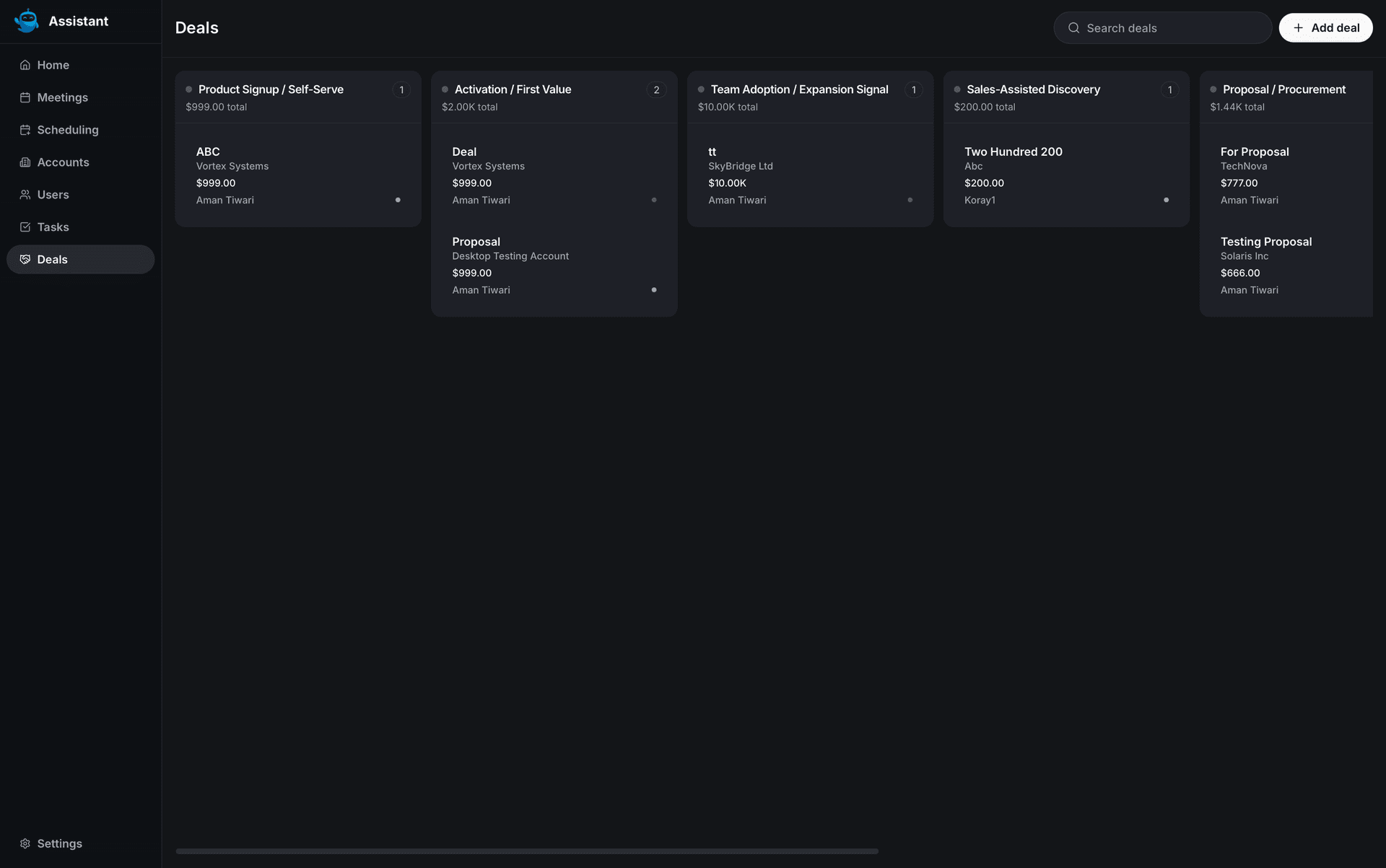
- Search. Type in the "Search deals" box to filter the board by name, account, stage, owner, type, or priority. The board filters live as you type.
- Add deal. Use the "Add deal" button to open the create-deal drawer, covered below.
Moving a deal between stages
Drag any deal card from its current column and drop it on a different stage column. This is a real stage change, not a visual-only reorder: dropping the card updates the deal's stage right away.
You can also do this with the keyboard: tab to a deal card, then use the documented keyboard drag-and-drop keys to pick it up and move it to a different column.
Creating a deal
Click Add deal to open the create-deal drawer.
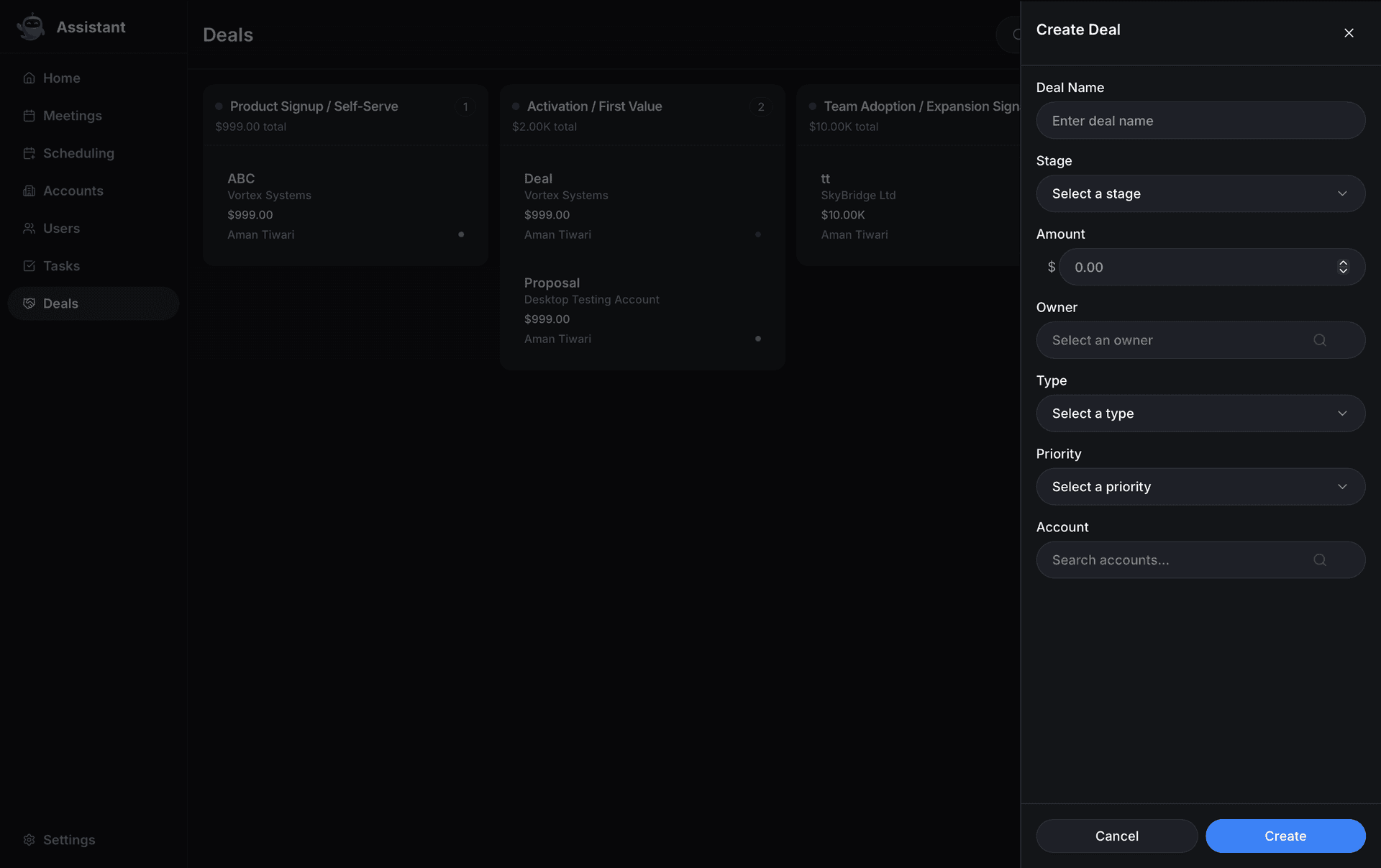
Fill in:
- Deal Name
- Stage, one of the 8 canonical stages: Product Signup / Self-Serve, Activation / First Value, Team Adoption / Expansion Signal, Sales-Assisted Discovery, Proposal / Procurement, Negotiation / Commitment, Closed Lost, or Closed Won
- Amount
- Owner, searchable list of org/project members
- Type, one of New Business, Upsell, Renewal, Cross Sell, or Other
- Priority, one of Low, Medium, High, or Urgent
- Account, searchable list of your accounts
Click Create. The deal appears in the board immediately, in the column matching the stage you selected.
Working a deal's full record
Click any deal card to open its detail view.
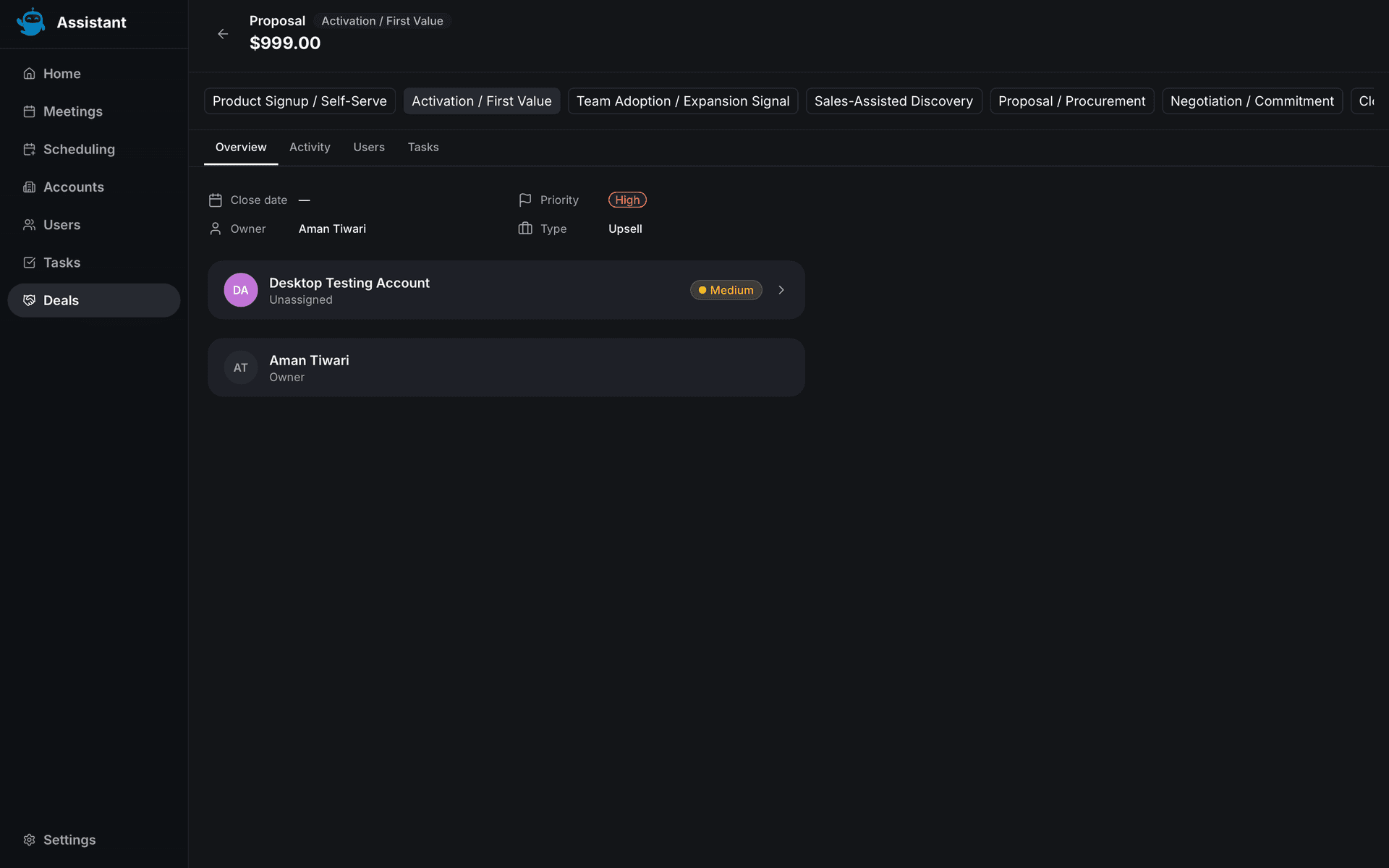
The header shows the deal name, its stage badge, and its value. Below the header, a row of stage pills lets you change the deal's stage directly from here. It's the same stage change the board's drag-and-drop uses.
Below that is a 4-tab bar:
- Overview. Close date, priority, owner, and type, plus any tags on the deal. If the deal is linked to an account, an account card sits below the properties. Click it to open that account.
- Activity. A day-grouped feed of activity on the deal. Switch between "Last 7 days", "Last 30 days" (the default), and "Last 90 days" to load a different range.
- Users. Contacts linked to the deal's account. Click "Load more" to fetch additional pages.
- Tasks. Tasks linked to the deal, reusing the same row you'd see on the standalone Tasks page. Click a task to open its own detail view.
📘 Good to know
The Amount field is always in USD. There's no currency selector on the create-deal drawer.
Where to go next
See Pipeline Overview for how Deals and Accounts work together as your pipeline, or Live Meeting Assist for what Blu does once you're on a call with one of these deals.
AI Coaching & Call Review
Review a completed call's AI summary, talk-ratio stats, and coaching flags on the Meeting Details page in the Intempt desktop app.
Desktop Scheduling
Manage your booking types and weekly availability, and copy the Blu Auto-Scheduler email address, from the Scheduling screen in the Intempt desktop app.