
Desktop Settings (Org/Project/Profile/Billing)
Switch organizations and projects, manage your org's plan and billing, and configure project-level preferences from the Intempt desktop app's Settings window.
Overview
Settings is one window with a single sidebar, grouped into three stacked sections: Profile, Organization, and Project. All three groups are visible in the sidebar at the same time — there's no toggle or switcher, you just click any tab in any group to jump to it.
Profile has 5 tabs: Profile, Connections, Permissions, Shortcuts, Regional. Organization has 3 tabs: General, Billing, Usage. Project has 7 tabs: General, Meetings, Stages, Tasks, Scheduling, Knowledge base, Notifications.
Log out sits on its own in the top-right corner of the window, above the sidebar — it isn't attached to any toggle.
Profile settings
Profile
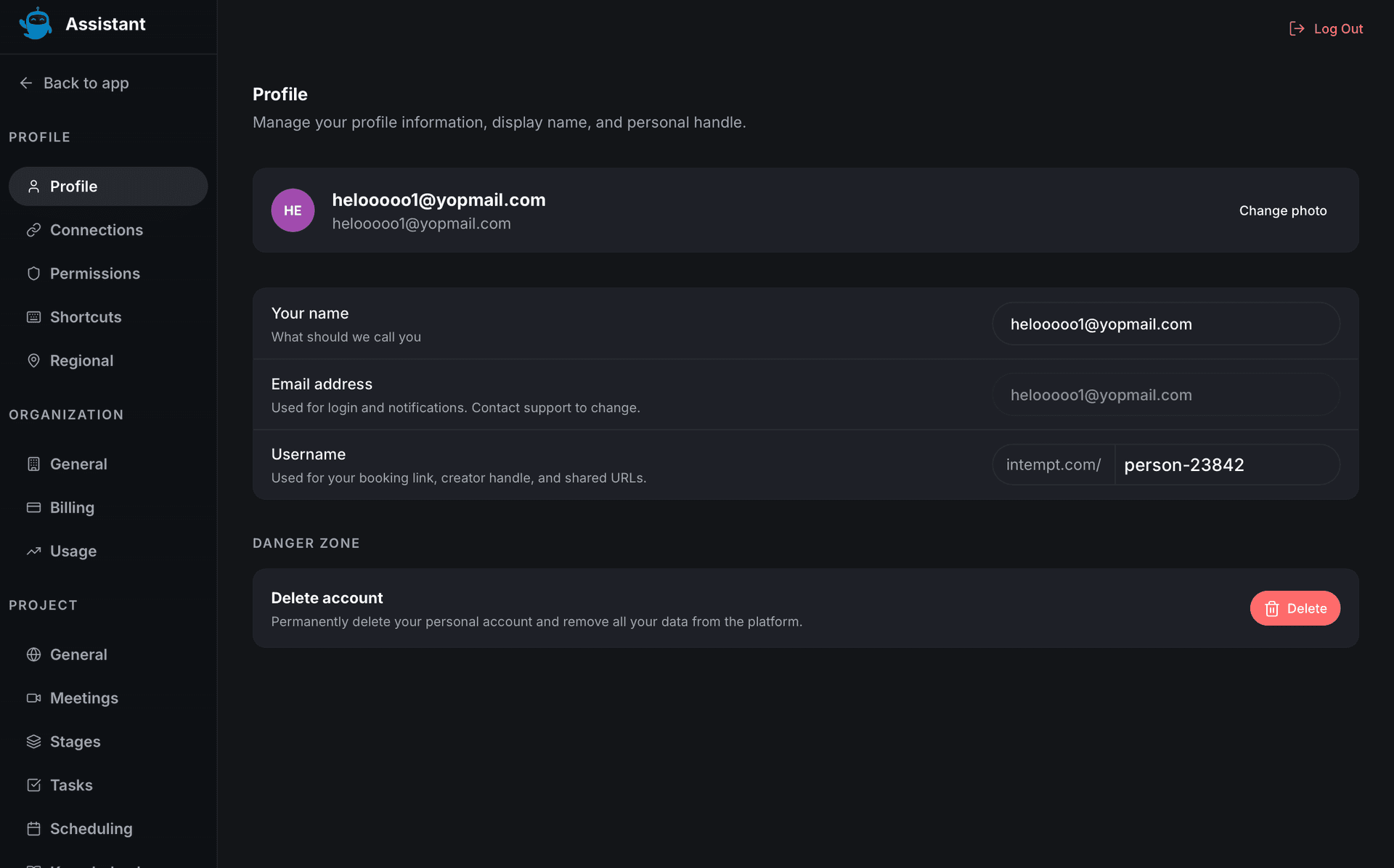
Shows your account's avatar, display name, email address (read-only — contact support to change it), and username (used for your booking link, creator handle, and shared URLs).
📘 Good to know
A Danger Zone at the bottom lets you permanently delete your personal account and its data.
Connections
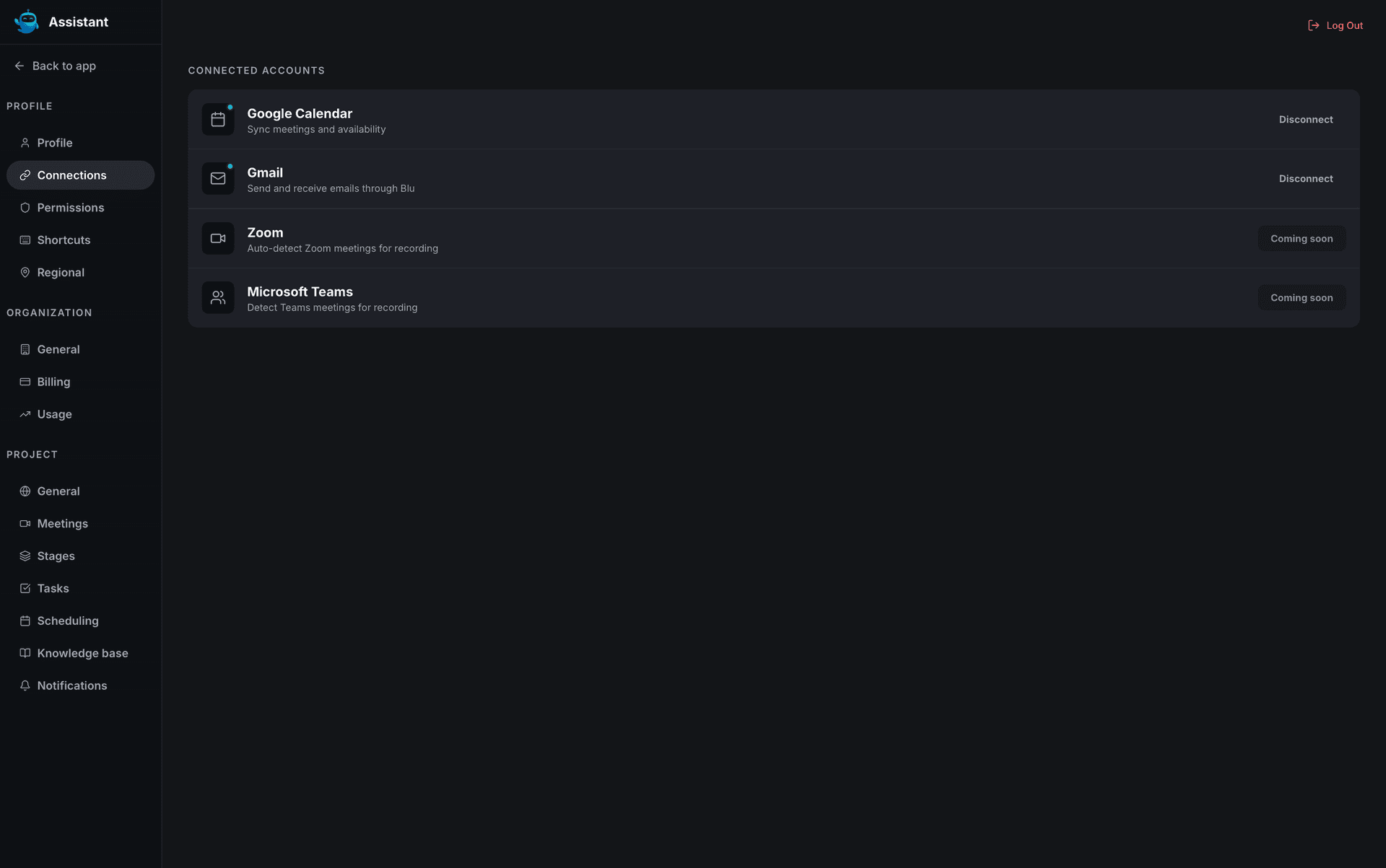
The Connected Accounts list has four entries: Google Calendar (syncs meetings and availability) and Gmail (send and receive email through Blu) are both connectable now — click Connect on either to open Google's OAuth flow in your system browser, and once approved, the row shows a green connected dot and the button switches to Disconnect. Zoom (auto-detect Zoom meetings for recording) and Microsoft Teams (detect Teams meetings for recording) are both listed as Coming soon and can't be connected yet.
Permissions
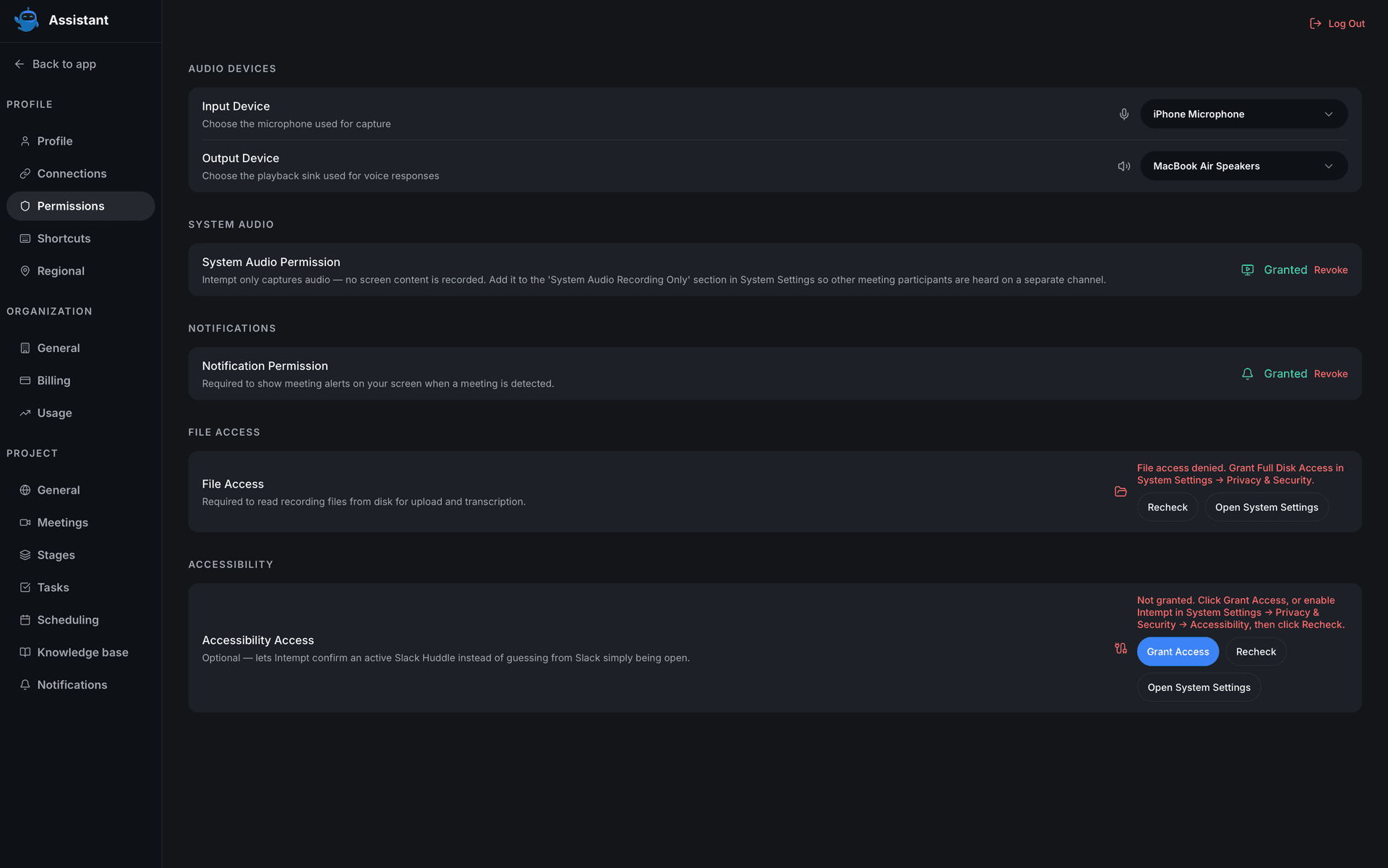
Lists your input and output audio devices; if none are detected, the input row shows a button to request microphone access and the output row shows "Not detected" in place of the device picker. Below that, four OS-level permissions Intempt needs: System Audio Permission (macOS groups this under Screen & System Audio Recording), Notification Permission, File Access (to read recording files from disk), and Accessibility Access (optional, lets Intempt confirm an active Slack Huddle). Each shows its current state with the matching action: Grant, Recheck, Open System Settings, or Revoke.
Shortcuts
A read-only, searchable reference of shortcuts grouped into four categories: General, System, Navigation, and Actions. Type in the search box to filter by label; there's no way to rebind or edit a shortcut from here.
Regional
Sets your locale preferences in three groups: Locale (Language, Country), Date & Time (Date format, First day of week, Time format), and Numbers & Currency (Number format, Currency, Currency position).
📘 Good to know
Regional preferences save to this device only, with no server sync. If you sign into Intempt on another machine, you'll need to set them again there.
Organization settings
General
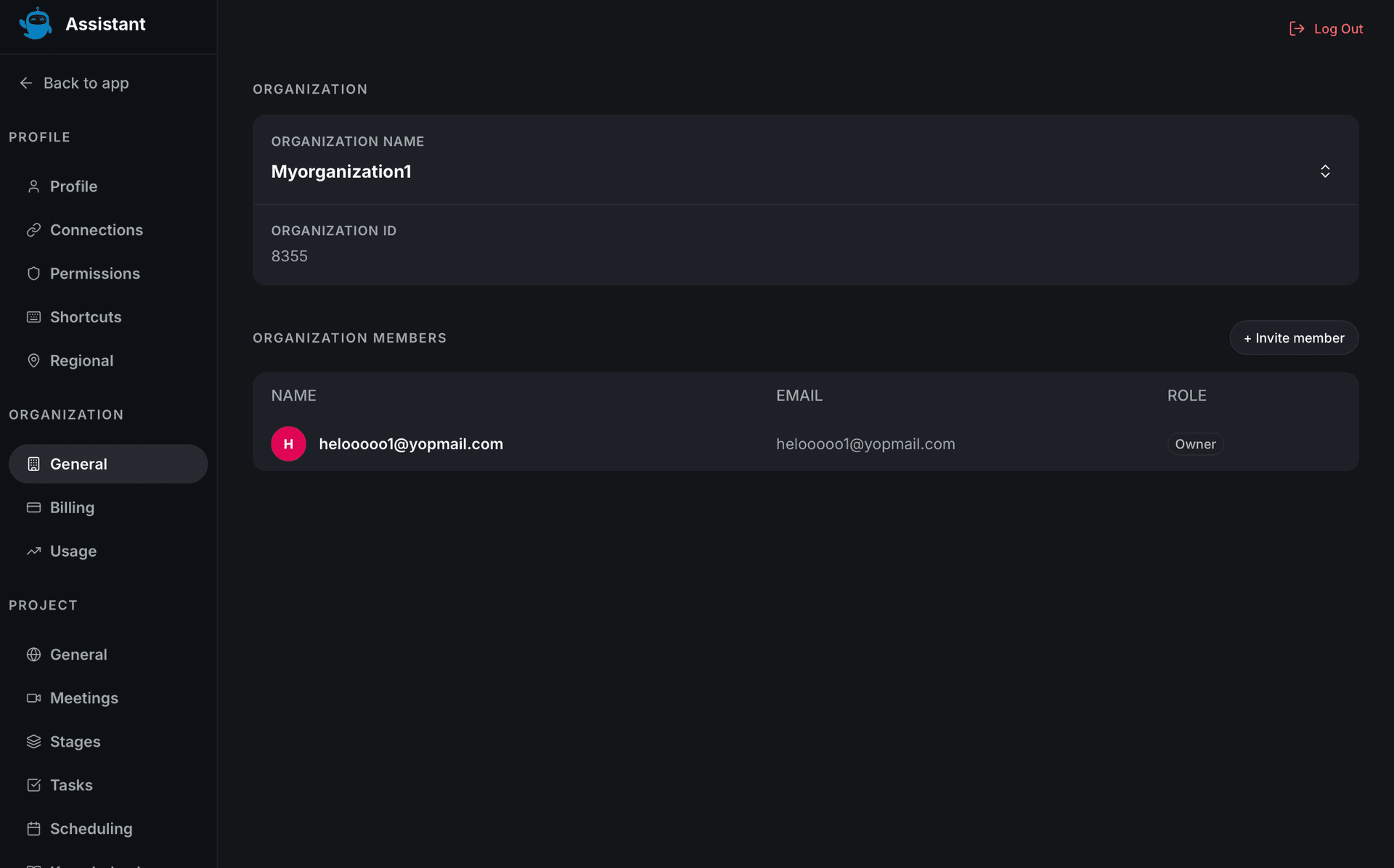
The Organization card shows your current org's name. Click it to open a dropdown of every org you belong to, sorted alphabetically, and select one to switch. Below that, the Organization ID row shows your org's real ID, read-only.
The Members section lists your org's roster, sorted by role rank then name. Only Owner gets its own label; every other role, including Admin, Billing Admin, and Read Only, displays as the generic label Member.
📘 Good to know
There's no way to invite a member, remove one, or change anyone's role from this tab, even though your organization fully supports all three elsewhere.
Billing
The Your Plan card shows a Free or Pro badge. Free-tier orgs see a single Upgrade to Pro button. Pro-tier orgs see Manage seats, Pause, and Downgrade next to the badge instead. Pause is disabled with the tooltip "Annual plans cannot be paused" if your org is on an annual billing interval.
Upgrading to Pro:
- Click Upgrade to Pro.
- Choose Monthly or Annual billing (Annual is selected by default and shows a savings note).
- Use the plus and minus buttons to set your Full seat count (minimum 1, 140 credits/mo per seat) and your Collaborator seat count (minimum 0, 70 credits/mo per seat).
- Click Open checkout. Intempt opens a Stripe checkout session in your system browser to complete the purchase.
Adding AI Pass, a monthly credit subscription on top of your plan, available once you're on Pro. From the AI Pass section, click Add AI Pass (or Change tier if you already have one active):
- Choose Monthly or Annual billing.
- Pick a tier: 100, 250, 500, 1000, or 2500 credits/mo. Each tier shows its monthly and annual price in the dialog; list prices are on intempt.com/pricing.
- Click Subscribe. Intempt opens a Stripe checkout session in your system browser.
Setting up Auto-Reload, which tops up your org's credit balance automatically when it drops below a threshold you set. Click Configure in the Auto-Reload section:
- Turn on the enable toggle.
- Set your Reload amount (credits added each time, $15 minimum).
- Set your Reload threshold (the balance that triggers a reload).
- Set a Monthly cap (the most Auto-Reload will spend per month, 0 for no cap).
- Click Save. This one does persist to your org's real billing configuration.
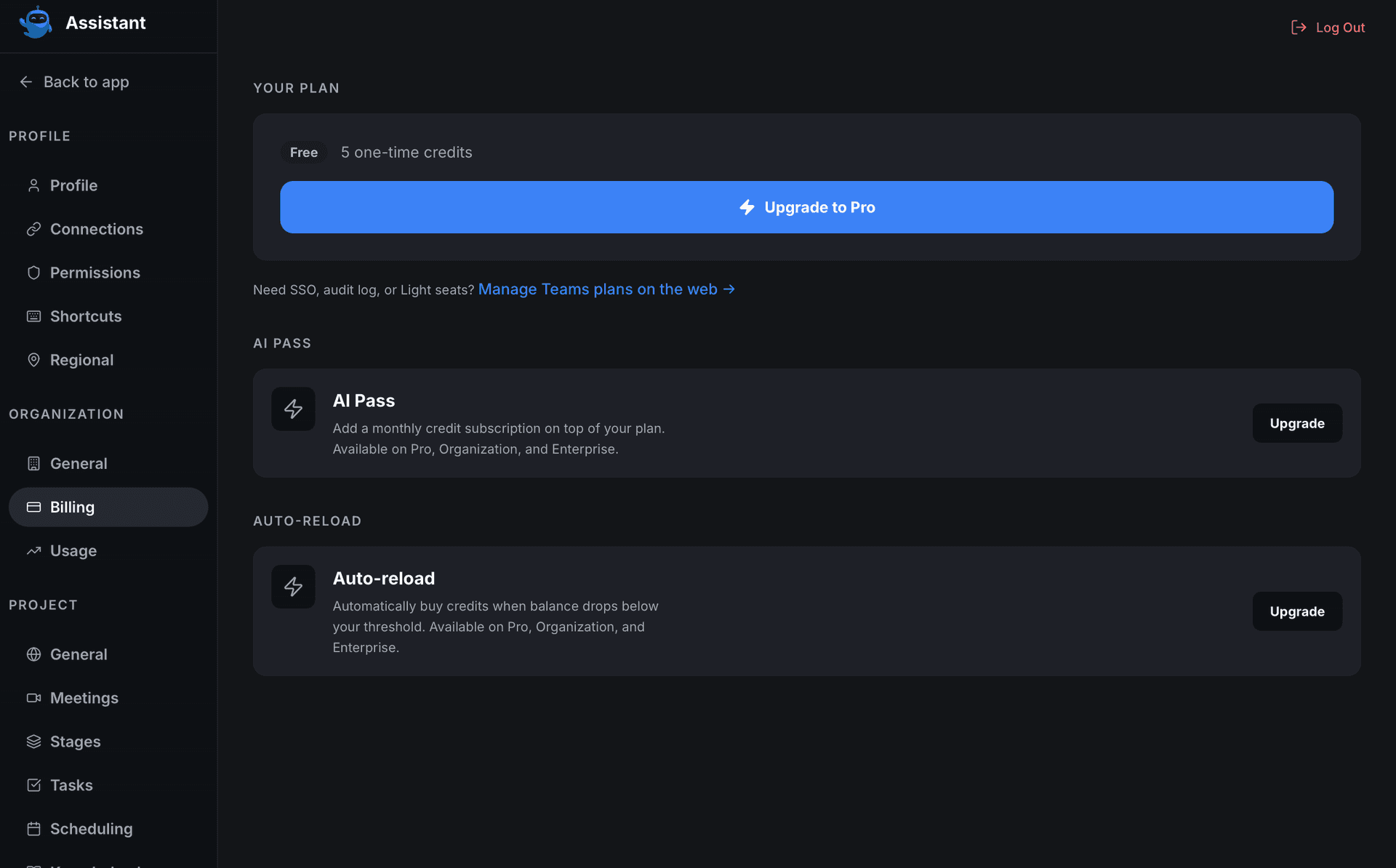
📘 Good to know
Manage seats, Pause, and Downgrade all open a dialog or panel with working fields and live price math, but none of them currently changes your subscription. Clicking Save, Confirm, "Keep Pro," or "Confirm downgrade" only closes the dialog without submitting anything.
Pro-tier orgs with a saved payment method also see a Payment section showing your card's brand and last 4 digits, but its Manage button doesn't respond to clicks yet. An Invoices section can appear too, but it never actually loads invoice data in this build, so it stays hidden even if your org has real invoices.
Usage
The Credit Balance card shows your org's total available credits, broken into three tiles: Plan included, AI Pass, and Top-ups. From here you can also click Buy credits or Auto-reload (Free-tier orgs are routed to the Upgrade to Pro dialog instead).
Below that, Spend this period shows how many credits your org has spent this billing period against your spend cap, if you've set one, or "No cap set." By Feature breaks usage into four categories: AI Ask (Blu chat), Email & content drafts, Meeting summaries, and Enrichment & discovery. Platform Usage (MAU & MAS) describes how end-user activity is metered and billed in arrears.
A View detailed usage on web link at the bottom opens the same usage data on intempt.com.
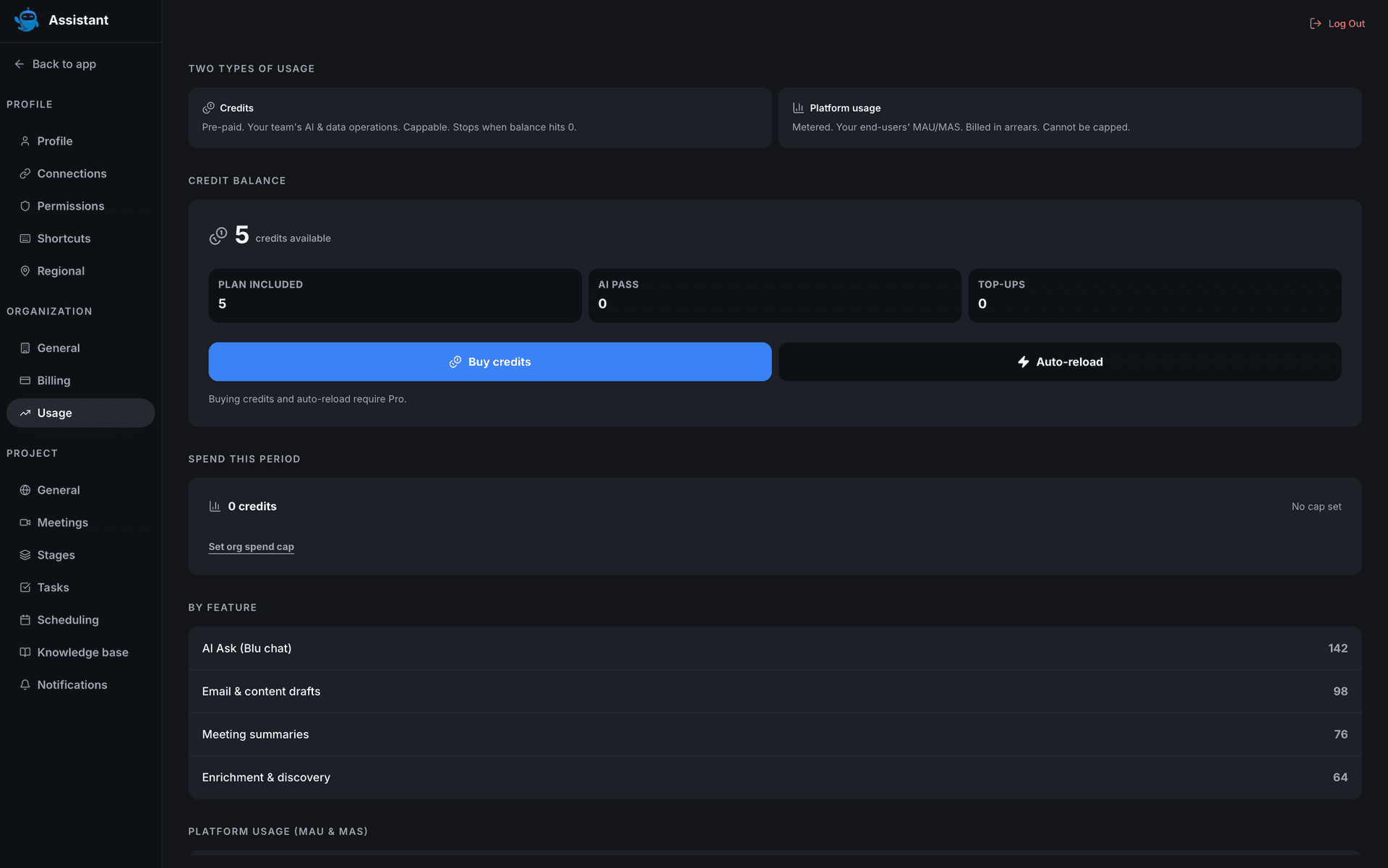
📘 Good to know
The AI Pass balance tile always shows 0, and the By Feature numbers are a fixed snapshot, not your org's real per-feature usage. The Buy Credits dialog's four preset packs ($1, $2.25, $4, and $7.50) are all below the $10 minimum purchase and will be rejected if you select one; only a custom amount of at least 1,334 credits clears that minimum. Even a qualifying custom purchase doesn't complete in this build: it doesn't open a browser to finish payment, so no charge goes through. The Spend Cap dialog's Save button has the same limitation, so setting a cap there won't change what "Spend this period" shows.
Project settings
General
The Project card works like the Organization card: click it to switch between the projects in your current org. Below it, the Members section reuses the same read-only member list as Org General, scoped to this project.
The Appearance section switches your theme between Light, Dark, and System. Below that is a Danger Zone with a Delete project action, disabled if this is your only project.
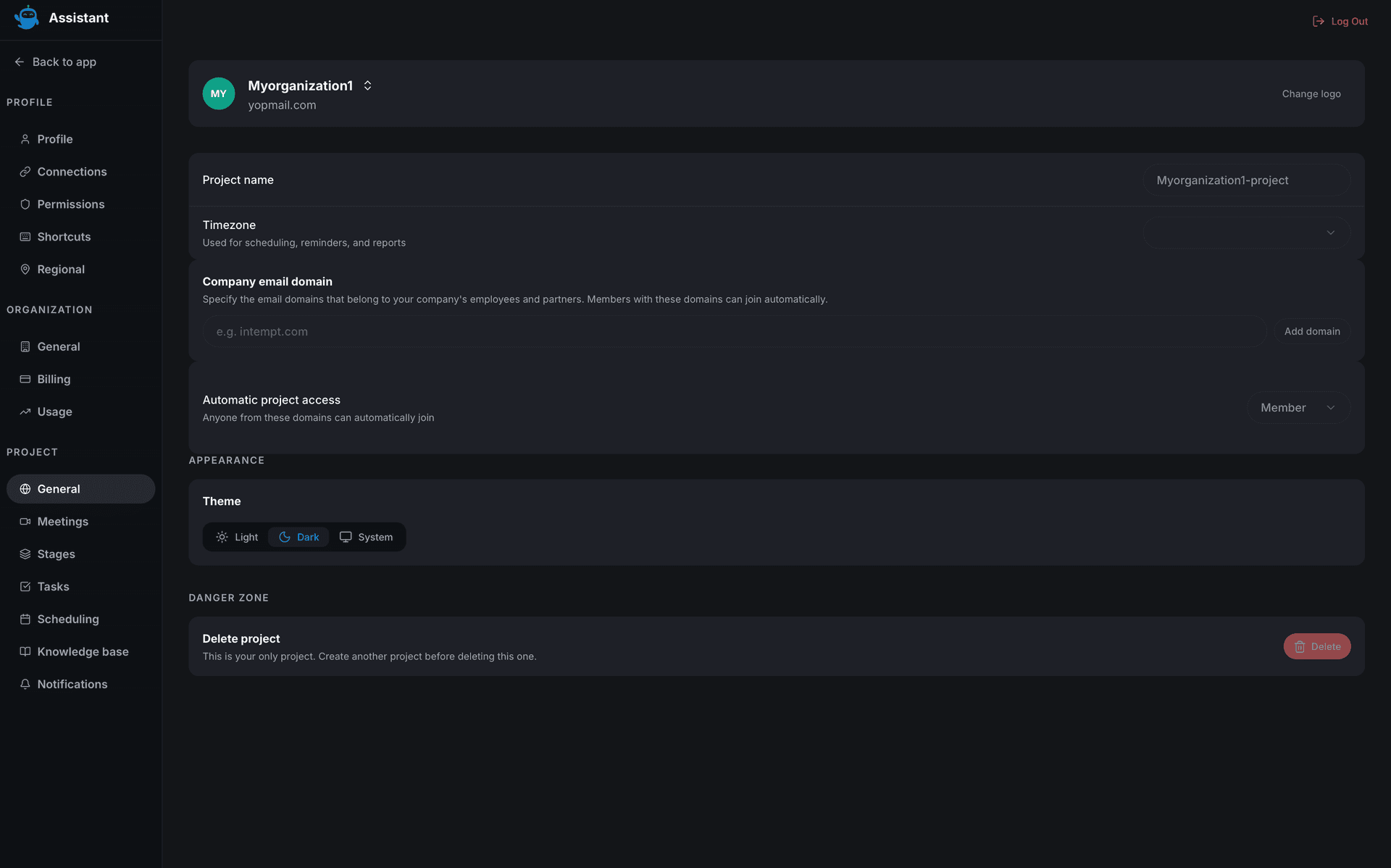
📘 Good to know
There's no "Start at system startup," "Desktop updates," or "Native notifications" section on this tab. Desktop update checks happen from the menu bar panel's "Check for Updates" option instead, not from Settings.
Meetings
Configures how Intempt records and handles your calls. Recording: auto-record calendar meetings, and choose Standard or High recording quality. Transcription: turn live transcription on or off, and set your default language. Privacy: set default meeting visibility to Private or Shared, and turn on auto-share with participants. AI Customization: set your industry (improves transcription accuracy for domain terms) and add custom vocabulary, comma-separated jargon or product names Intempt should recognize. Notifications: post-meeting summary emails and real-time alerts during live meetings. Retention: auto-delete recordings after 30, 60, 90, or 180 days, or never.
📘 Good to know
Auto-record calendar meetings here shares its underlying value with the Tasks tab's Auto-create tasks from meetings toggle. Turning either one on or off flips the other tab's toggle too.
Scheduling
Sets the weekly availability and booking rules Blu uses when it schedules meetings for you by email. Weekly Hours lets you enable or disable each day and set its start and end time. Booking Rules covers buffer time before and after meetings and your minimum notice period. Date Overrides lets you add or remove one-off exceptions to your weekly hours. Blu Auto-Scheduler covers auto-detecting scheduling intent in email threads, your default meeting duration, and how many time slots Blu suggests.
📘 Good to know
Despite living under Project settings, these preferences save to your own account, not the project. Two people working the same project each set their own independent Scheduling values. See Desktop Scheduling for the dedicated screen that manages your booking types and edits this same weekly availability.
Stages
A read-only reference of your lifecycle stages, grouped by entity (User, Account, Deal), showing each stage's name and color.
📘 Good to know
The Add stage button doesn't open anything yet, and there's no way to rename, reorder, or delete a stage from this tab.
Tasks
Automation: Auto-create tasks from meetings (extracts action items as tasks after a meeting ends) and Task reminders (sends reminders before due dates). Defaults shows your default priority (Medium) and default due date (7 days).
📘 Good to know
Auto-create tasks from meetings shares its underlying value with the Meetings tab's Auto-record calendar meetings toggle, the same collision described above. The Default priority and Default due date rows show a chevron that implies you can open and change them, but neither responds to a click yet.
Where to go next
See Desktop Scheduling for the booking-types screen that shares data with the Project Scheduling tab, or Desktop App Overview for how Settings fits into the rest of the desktop app's main window.
Viewing User Accounts on Desktop
Browse, search, and open the CRM accounts in your project, then read their Overview, Activity, Users, and Deals tabs from the Intempt desktop app.
October 9, 2026
Intempt Collective launches, four ways to pay including bank transfer and invoice, and recipes are now organized by industry.