
Recording & Capturing Meetings on Desktop
Record a call from your own device, send a notetaker into an external meeting, or upload an existing recording from the Intempt desktop app.
Overview
From the Meetings window, click New Meeting to open the menu. It gives you four ways to start a meeting: Record this device, Join meeting via link, Schedule meeting, and Upload recording. This article covers the three that get you a recording and transcript directly: recording your own call, sending a notetaker into a call already in progress, and uploading a file you already have. Scheduling a future meeting isn't covered here.
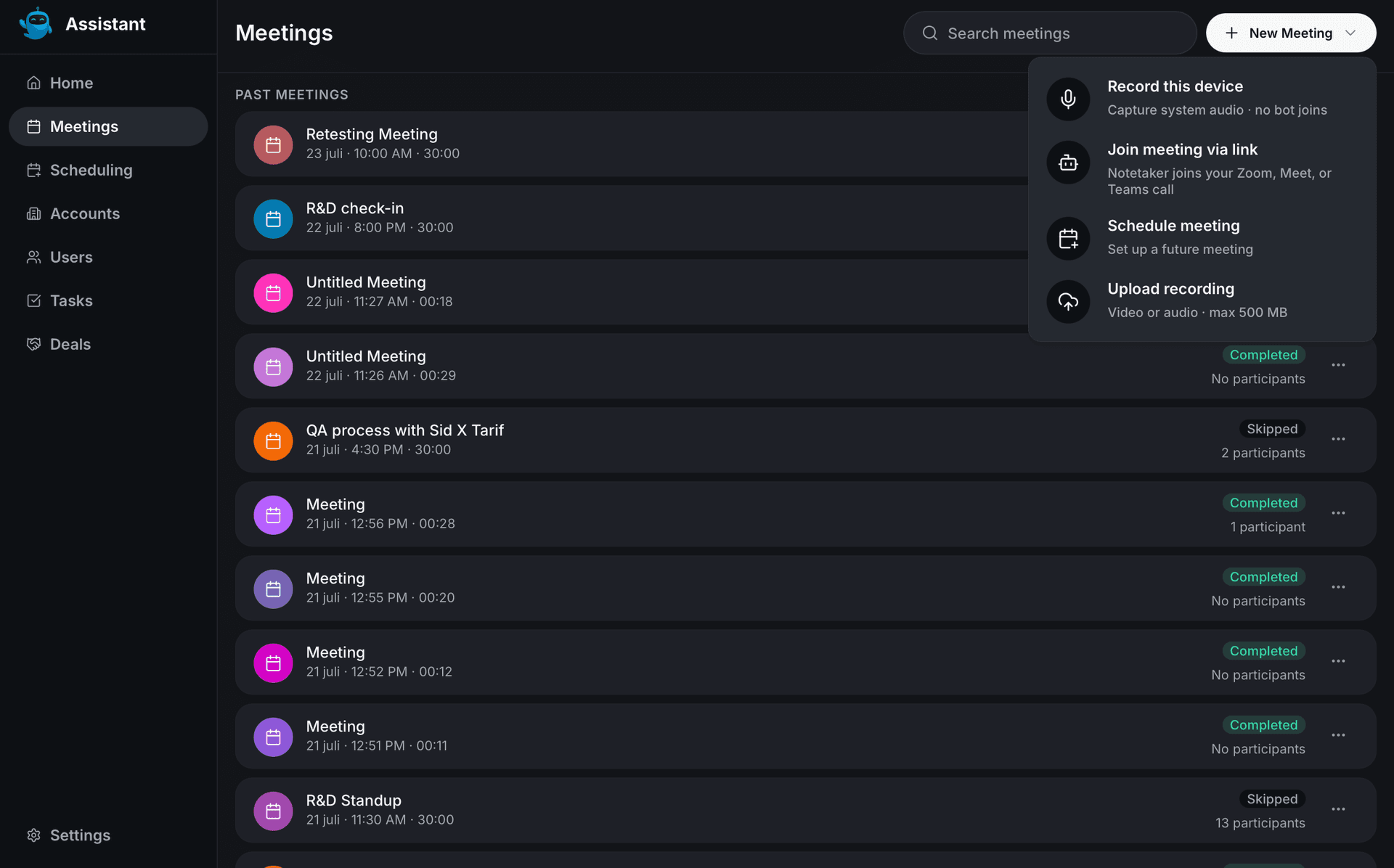
Record this device
Use this when you're on the call yourself and want Intempt to capture it locally. No bot joins.
- From Meetings, click New Meeting, then Record this device.
- Enter a title, or leave it blank and start recording anyway.
- Choose a transcription provider: Deepgram, Speechmatics, AssemblyAI, or Soniox.
- Choose the source language. The list only shows languages the selected provider supports for live transcription, so it changes when you switch providers.
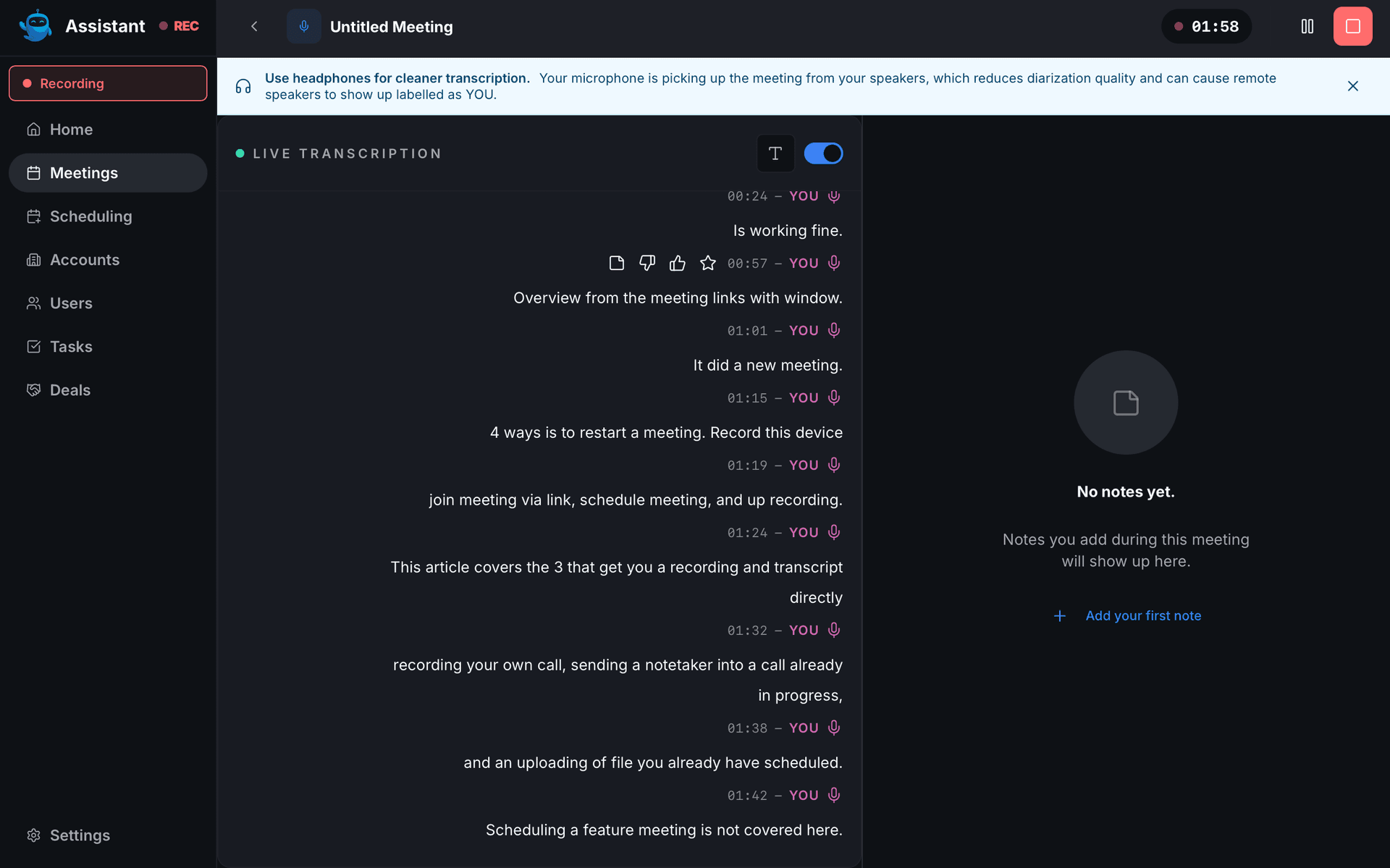
- Click Start recording. The screen switches to a live view with an elapsed timer and a running transcript.
- Click the title at the top of the live view any time to rename it.
- Click Pause to stop the transcript from updating, or Resume to pick back up.
- Click Stop recording when you're done. Intempt shows a brief processing screen, then returns you to the Meetings list with your new meeting at the top, transcript included.
📘 Good to know
Wear headphones while recording this way. Capturing system audio through open speakers can pick up the other side of the call and mislabel it as your own voice in the transcript.
Join meeting via link
Use this when a call is already happening in Zoom, Google Meet, or Microsoft Teams and you want Intempt's notetaker to join it instead of recording locally.
- From Meetings, click New Meeting, then Join meeting via link.
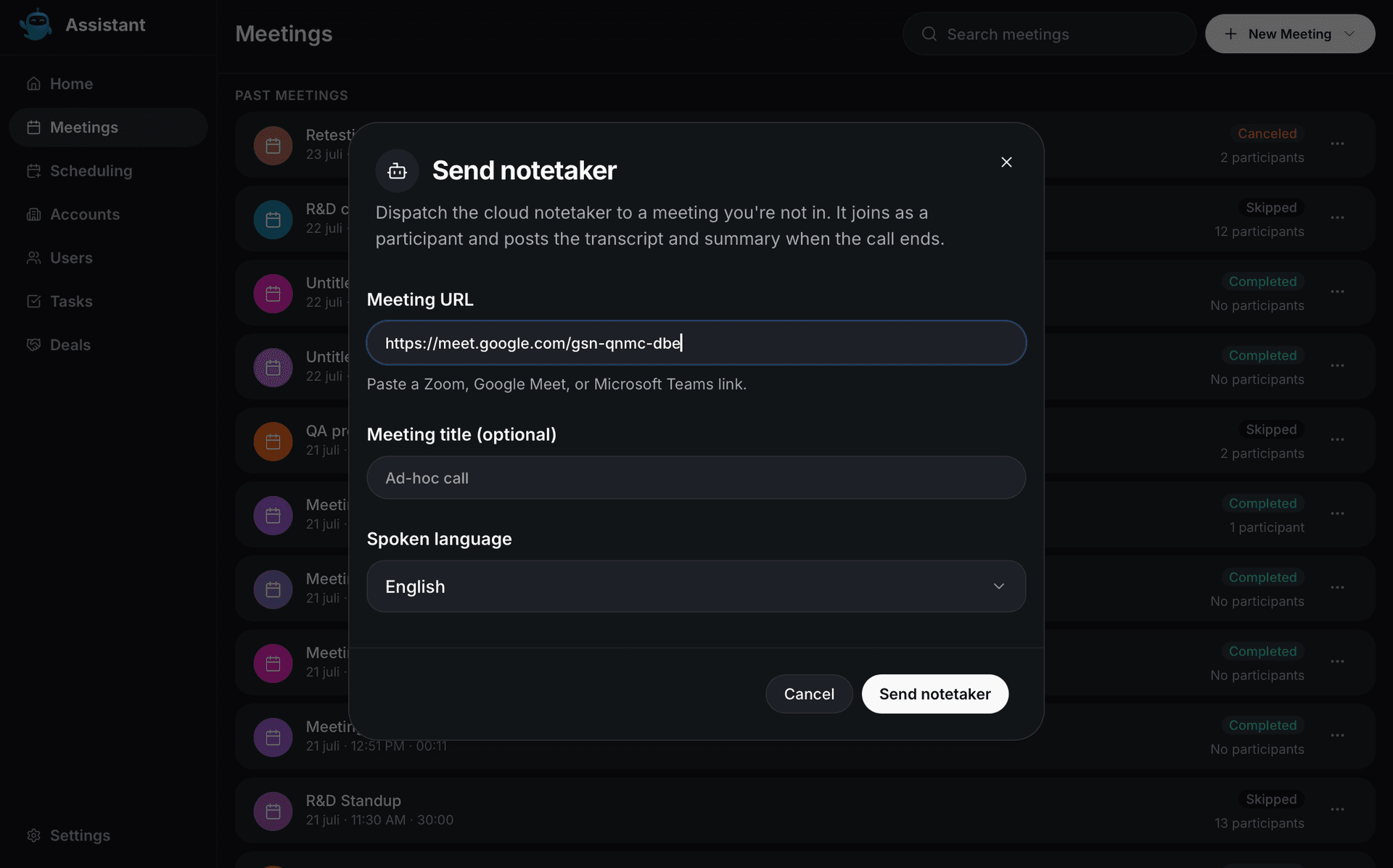
- Paste the meeting URL. Intempt only accepts Zoom, Google Meet, and Microsoft Teams links.
- Optionally, give the meeting a title.
- Choose the spoken language, or leave it on the default.
- Click Send notetaker. Intempt's bot joins the call, and a confirmation appears once it's on its way.
Upload recording
Use this for a call you already recorded elsewhere, or an audio or video file someone sent you.
- From Meetings, click New Meeting, then Upload recording.
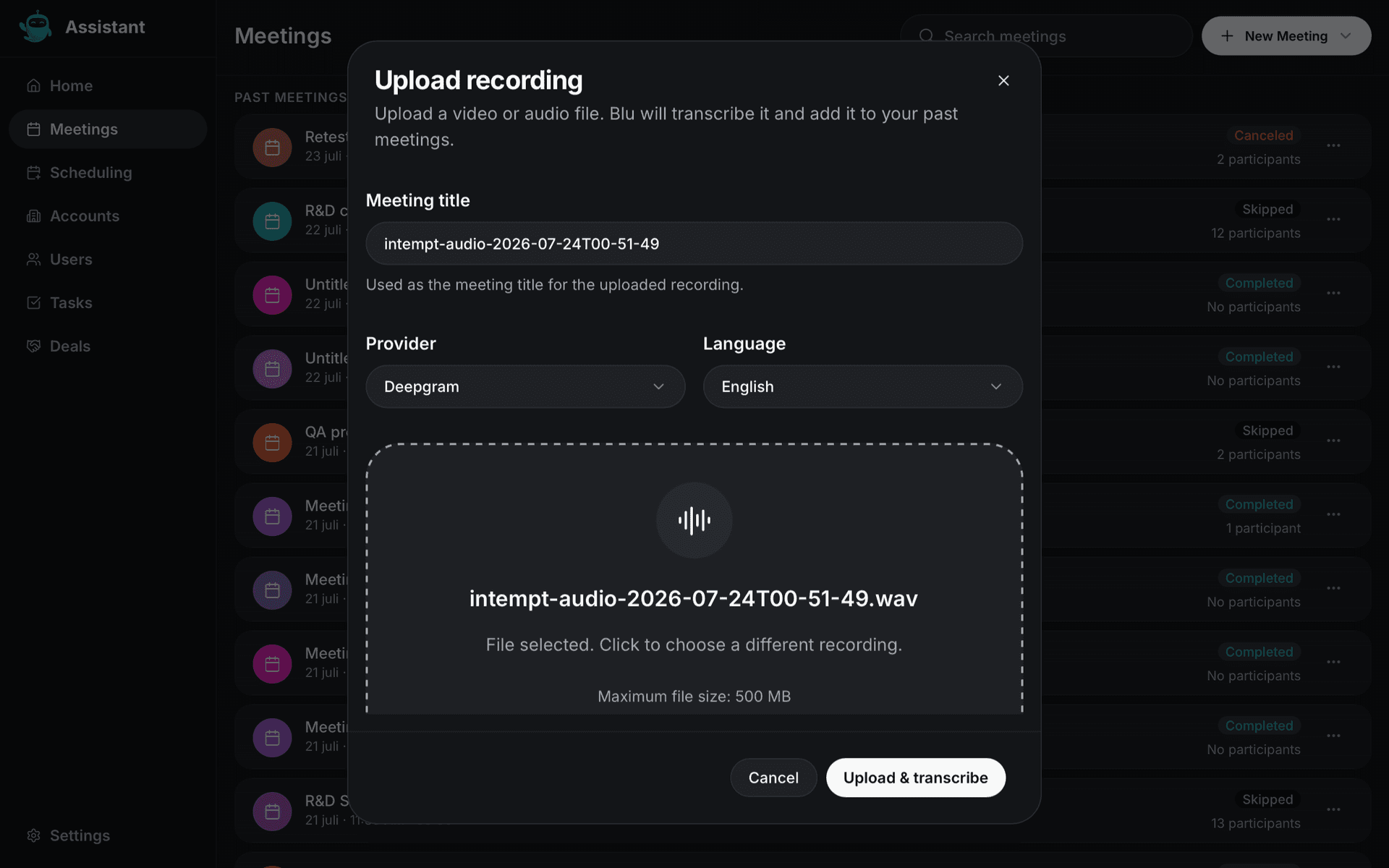
- Enter a meeting title, or click the upload area first and Intempt fills the title in from the filename.
- Set the transcription provider and language if you want something other than the defaults, Deepgram and English.
- Click the upload area and choose a file. Intempt accepts MP4, MOV, WEBM, MKV, MP3, WAV, M4A, OGG, and FLAC, up to 500 MB.
- Click Upload & transcribe. Once it finishes, Intempt opens the new meeting's detail page, transcribed and ready to review.
📘 Good to know
Recording laws vary by location, and you're responsible for getting consent where it's required before you record anyone.
Where to go next
See Setting Up Call Recording for the project-wide settings that control what Intempt's bot records and which calls it joins on its own.
See Live Meeting Assist for real-time coaching once you're on an active call.