
Integrations
Integrations connects Intempt to the sources that send you data, the platforms you sync data with, and the destinations you send data to, plus the custom domains your booking pages and tracking links run on.
Overview
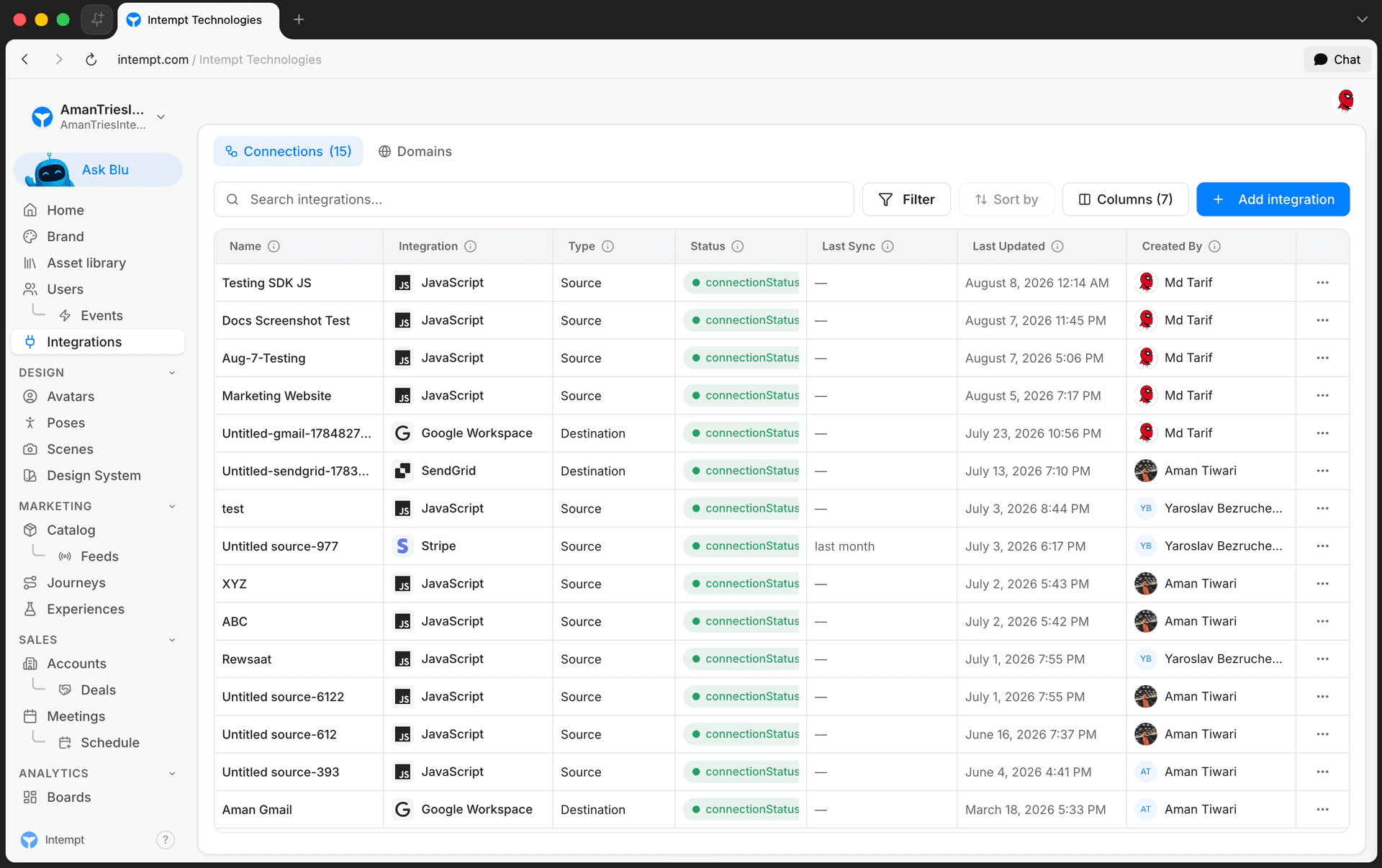
Integrations, at /integrations, is where you connect Intempt to the rest of your stack. It covers three kinds of connections: sources (the SDKs and APIs that send event data to Intempt), platforms (CRM and commerce tools you sync data with), and destinations (the tools Intempt sends data to, like email and Slack). A second tab, Domains, is where you point your booking pages, tracking links, and privacy center at a custom domain.
How it works
Connections tab
The Connections tab lists every connector on your project in one table: Name, Integration, Type (Source, Platform, or Destination), Status, Last Sync, Last Updated, and Created By. Status shows as Active, Syncing, Error, or Disabled. Search the table by name or integration type, or filter it down by status and type.
Adding a connection
Add Integration opens a panel grouped into three sections:
- Sources: Web (the JavaScript SDK), Node.js, Python, PHP, iOS, Android, and React Native. Each opens its own connect panel, where you name the source and pick What this source collects: Users and events or Events only. The choice can't be changed later. See What a source collects.
- Platforms, marked Mapping Enabled: Stripe can be connected directly from here. HubSpot and Shopify aren't offered as new connections from this menu, but once connected they're managed from the table like any other connector.
- Destinations: Gmail (sends through your connected Google Workspace account), Twilio, SendGrid, Slack, Amazon SES, and Webhook.
HubSpot, Stripe, Shopify, Slack, and Gmail connect through an OAuth popup.
Managing a connection
Each row's action menu offers:
- Edit (Platforms only): reopens the mapping configuration for HubSpot, Stripe, or Shopify.
- Reconnect OAuth (HubSpot, Stripe, Shopify, Slack, and Gmail only): re-authorizes the connection through the same OAuth popup, for when a provider revokes or expires access.
- Rename: changes the connector's display name.
- Delete: disconnects the source or destination, after a confirmation dialog.
Domains tab
The Domains tab assigns a verified custom domain to each of four capabilities: Booking (your team's booking pages), Tracking (click and open tracking links in emails), Privacy center (your privacy and preference center page), and Sending domain & email addresses (a verified org sending domain, plus the per-project email addresses your project sends from). Only verified domains can be selected; pending domains show their verification status in the picker.
Use cases
-
Sending your first event. Connect Web, iOS, Android, Node.js, Python, or PHP as a source to start tracking events from your app.
-
Syncing your CRM. Connect HubSpot as a platform to bring contacts, companies, and deals into Intempt.
-
Tracking revenue. Connect Stripe as a source to bring payment, subscription, and invoice events into Intempt.
-
Triggering transactional email from a journey. Connect SendGrid or Gmail as a destination so a journey step can send it.
-
Posting alerts to your team. Connect Slack as a destination to route notifications to a channel.
-
Recovering a broken connection. Use Reconnect OAuth on a HubSpot, Stripe, Shopify, Slack, or Gmail connector after the provider revokes access, instead of deleting and reconnecting it.
-
Auditing your connections at a glance. Scan the connectors table's Status and Last Sync columns to spot anything that's stopped syncing.
-
Triaging failures. Filter the connectors table to Destinations with an Error status to see what needs attention.
-
Branding your booking and tracking links. Assign a verified custom domain on the Domains tab so booking pages and email tracking links run on your own domain instead of Intempt's.
-
Renaming a connector. Use Rename to match your team's naming convention without disconnecting and reconnecting it.
Where to go next
-
Destinations for more on what destinations do and when they fire.
-
Basic Intempt installation for installing the JavaScript SDK as a source.
-
REST API for sending events without an SDK.
-
SendGrid, Gmail, Twilio, and Slack for connecting each destination.
-
Custom Domains for verifying a domain before assigning it on the Domains tab.
Home Overview
Home is the first page you land on in a project: a personalized greeting plus a dashboard view for Design, Marketing, and Sales.
Accounts
Accounts is Intempt's CRM company-record module in the console: one record per company or group, with a filterable list, bulk actions, and a multi-tab detail page tied to that account's users, tasks, and deals.