

Present the most compelling in-app purchase promotions based on the user's behavior, demographics, and geo location to maximize conversion opportunities.
About the Growth Play
Presenting personalized in-app offers is crucial for maximizing user engagement and conversion rates in mobile apps
This use case guides you through steps to enable in-app personalization, encouraging users to explore new features, share content, and subscribe to paid plans.
Benefits
- Increased user engagement. Personalized offers keep users engaged by presenting relevant content and promotions.
- Higher conversion rates. Tailoring in-app offers to individual user behavior and preferences increases the likelihood of feature adoption and subscriptions.
- Enhanced user satisfaction. Users are more likely to have a positive experience when presented with offers that match their interests and needs.
- Improved revenue growth. Effective in-app offers can drive subscriptions and feature adoption, leading to increased revenue.
How it works
To illustrate the use case, we will use a made-up music streaming app called Music.ly.
Step 1: Set up tracking, define events & create segments
1. Install Intempt's iOS SDK
Integrate Intempt's iOS SDK into your mobile app to start tracking user activities. Follow the iOS SDK integration guide to ensure proper setup.
2. Identify key events
Determine which user activities you want to track, such as playing, liking, sharing, and visiting the subscription page.
Set up event tracking:
Configure these events in Intempt's dashboard. For example:
played_song: Triggered when a user plays a song.
liked_song: Triggered when a user likes a song.
shared_song: Triggered when a user shares a song.
visited_subscription_page: Triggered when a user visits the subscription page.
3. Create segments in Intempt
Navigate to the Segments section and create new segments based on the tracked events. For instance:
Listened to 5 songs but not liked: Users who have played at least 5 songs but have not used the "Like" functionality.
Listened to 10 songs but not shared: Users who have played at least 10 songs but have not used the "Share" functionality.
Visited subscription page multiple times: Users who have visited the subscription page at least 5 times but have not subscribed.
Step 2: Set up personalizations
1. Create a new server-side personalization campaign
Go to the Personalizations section and create a new server-side personalization campaign
2. Create experiences and add content using the code editor
Each campaign will require multiple experiences to be set; each will contain the content you want to display for the use
Use the code editor to create and style the in-app messages or popups.
Good to know
Refer to Server-side personalizations for a complete guide on creating server-side personalizations.
Personalization: Feature Adoption Prompts
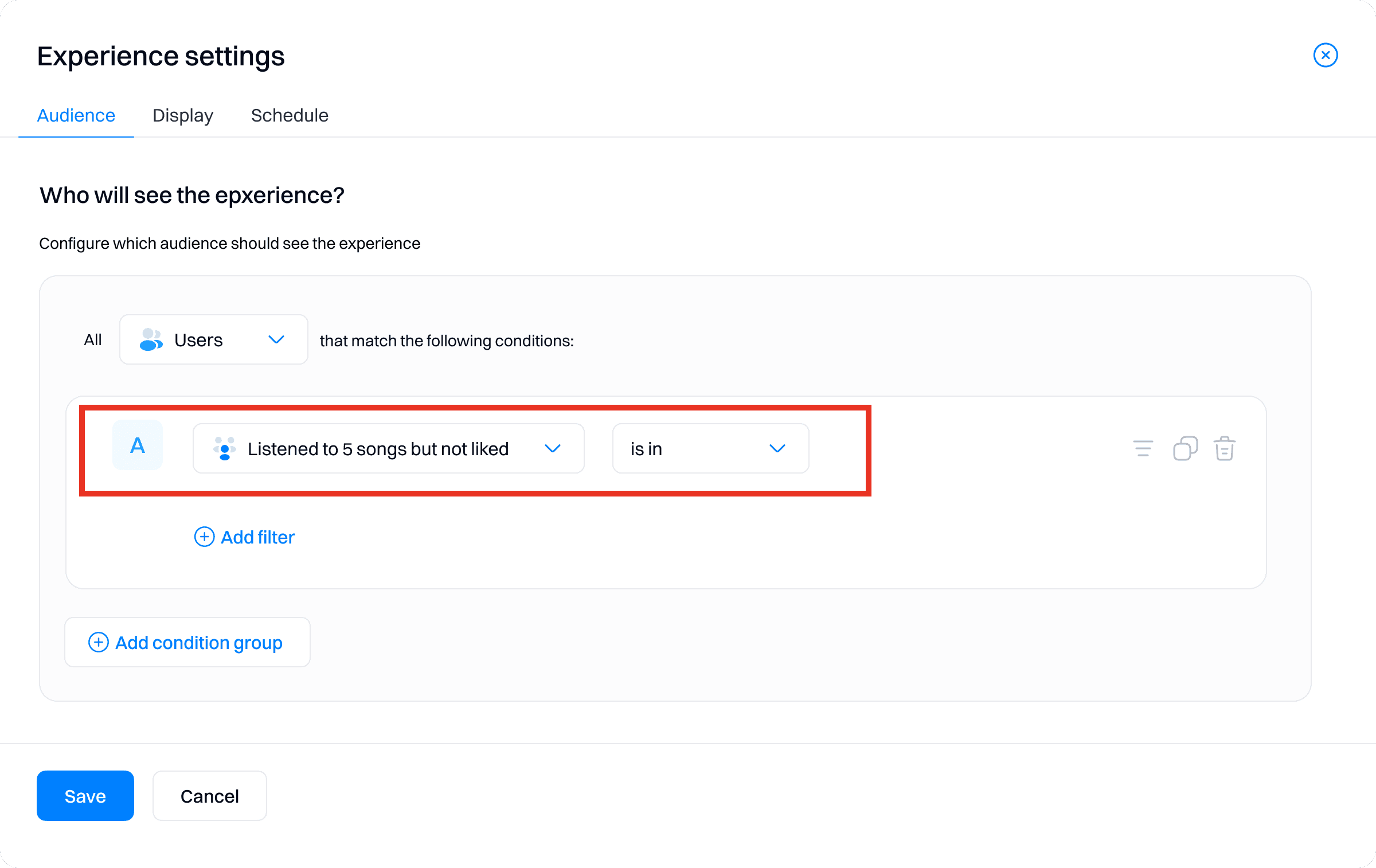
3. Experience for Like Feature Adoption
Target segment: Listened to 5 songs but not liked
Changes:
In-App Message:
Show a feature adoption screen encouraging the use of the "Like" functionality.
Content:
Message: "Ready to share your favorite songs? Can't stop listening to your beat? Share it with your friends so they can get the same experience!"
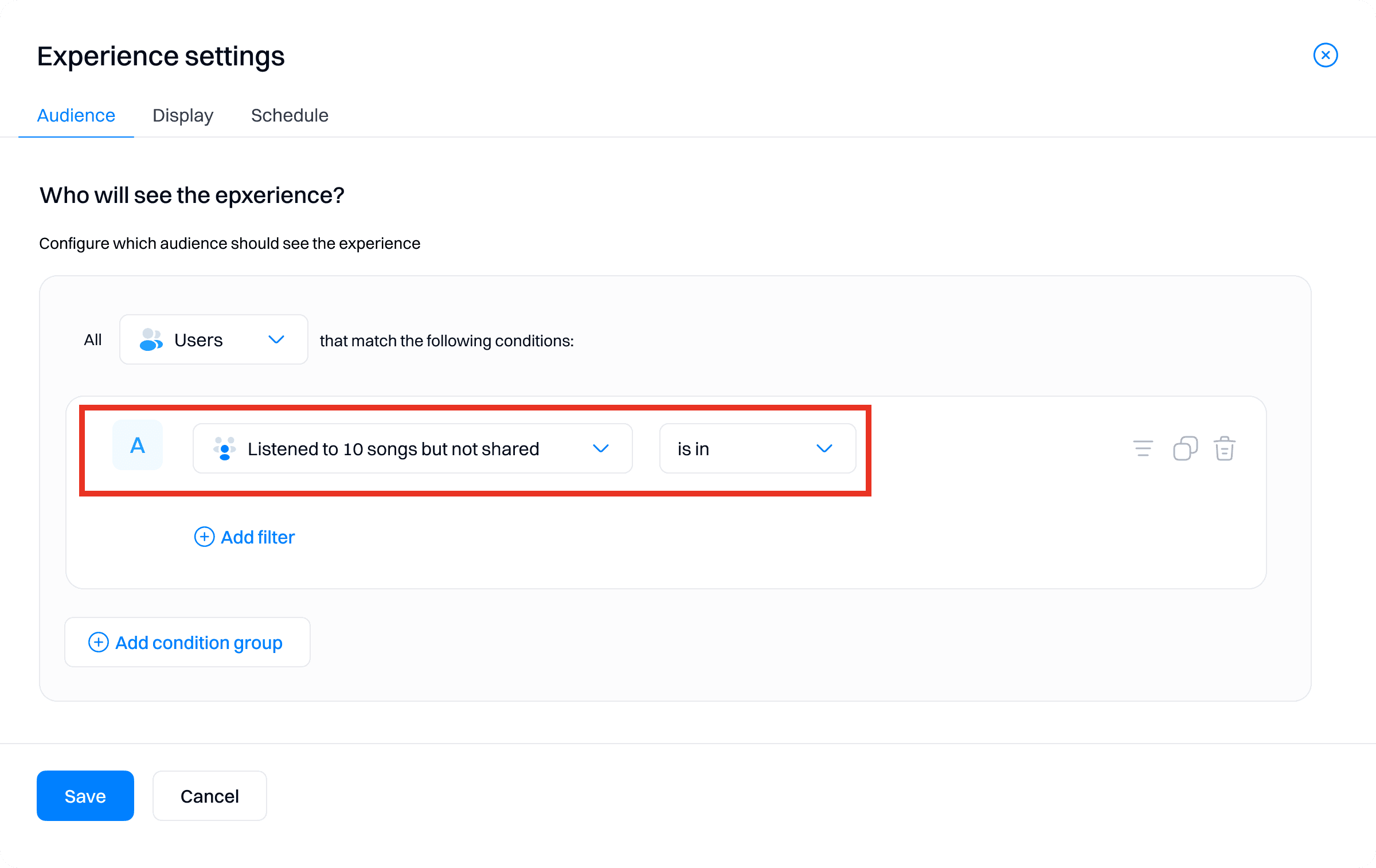
4. Experience for Share Feature Adoption
Target segment: Listened to 10 songs but not shared
Changes:
In-App Message:
Show a feature adoption screen encouraging the "Share" functionality.
Content:
Message: "Ready to share your favorite songs? Can't stop listening to your beat? Share it with your friends so they can get the same experience!"
Personalization: Subscription Offers
5. Experience for Subscription Trial Offer
Target segment: Visited subscription page multiple times
Changes:
In-App Popup:
Show a 3-day trial offer to users who frequently visit the subscription page but have not subscribed.
Content:
Message: "Enjoy a 3-day free trial of our Premium plan! Try offline downloads, higher audio quality, and ad-free listening."

Step 3: Configure targeting and display settings
1. Set targeting conditions
For each experience, configure the audience targeting based on the relevant segments. Ensure that the conditions match the segments created in Step 3.
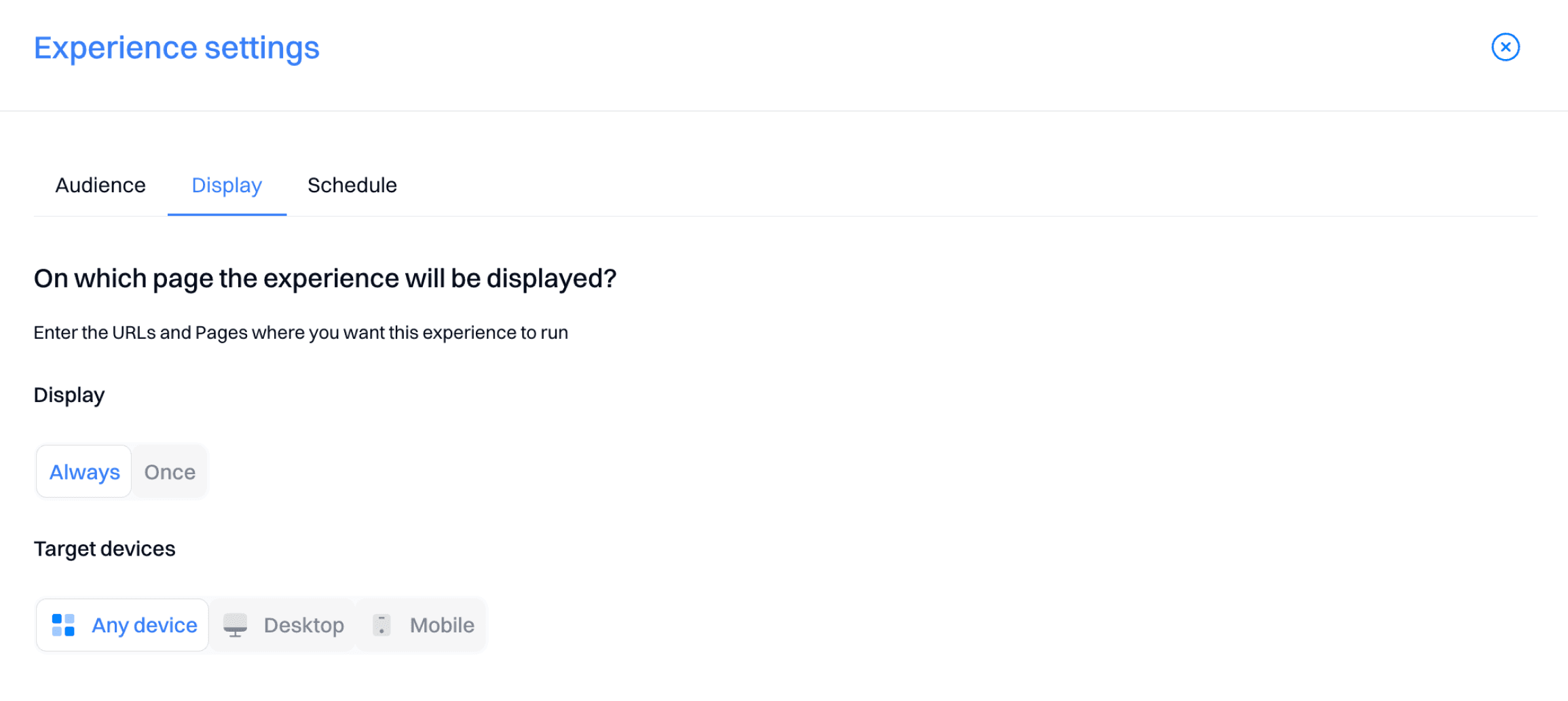
2. Define display rules
Specify the conditions under which the personalized experiences will be displayed, such as when a user plays a song or visits the subscription page.
Set the display frequency to ensure the personalized content is shown consistently to the targeted users.
Step 4: Launch and monitor the personalization campaign
1. Start the personalization campaign
Once all experiences are set up and configured, start the personalization campaign in Intempt.
2. Monitor performance
Use Intempt's Personalization Analytics to track the performance of each experience. Key metrics to monitor include:
Unique views: Number of users who viewed the personalized content.
Conversion: Number of users who completed a desired action, such as liking a song or subscribing to a plan.
Conversion %: Percentage of users who converted based on the total audience targeted.
Lift: Improvement in conversion rate compared to the control group.
3. Adjust and optimize
Based on the analytics data, make adjustments to the experiences to improve performance. For instance, if the conversion rate for the Listened to 5 songs but not liked segment is low; consider refining the content or targeting criteria.
Frequently asked questions. Answered.
You can personalize feature adoption prompts, subscription offers, trial promotions, and pretty much any in-app message or pop-up. The idea is to show each user the offer most relevant to their behavior, whether that's encouraging them to try a feature they haven't used or nudging them toward a subscription they've been considering.