
Accounts
Accounts is Intempt's CRM company-record module in the console: one record per company or group, with a filterable list, bulk actions, and a multi-tab detail page tied to that account's users, tasks, and deals.
Overview
Accounts, at /accounts, is Intempt's company-record module in the console. Where a User is one person, an Account is the company or group they belong to: its own record with a list, a detail page, and its own attributes. Accounts and Users are separate but linked: an account's Users tab is the same Users table, filtered down to that one company.
How it works
Browsing the Accounts list
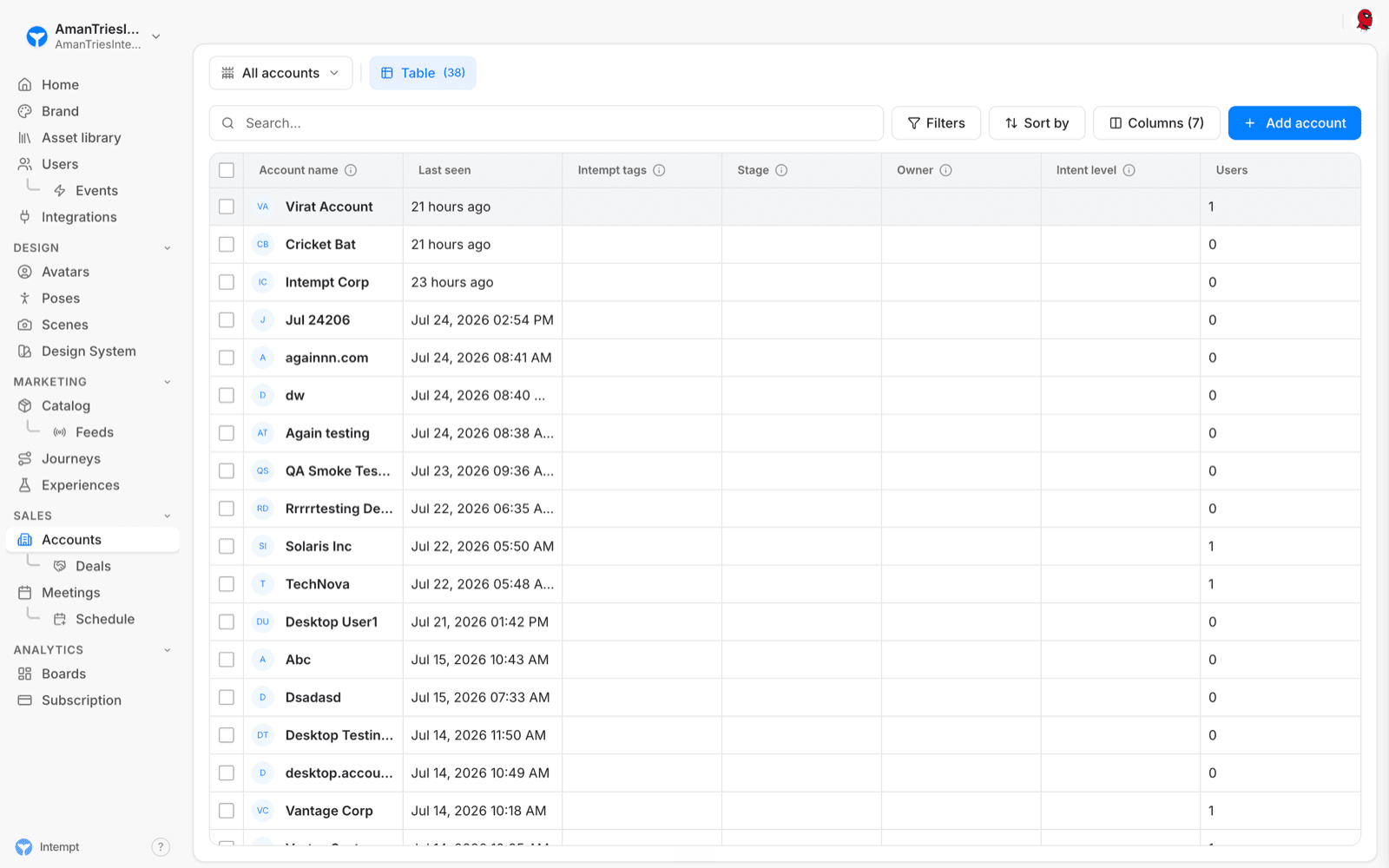
The default columns are Account name, Last seen, Intempt tags, Stage, Owner, Intent level, and Users. Columns lets you add First seen, Active days, Session activity, or any configured account attribute. Search the list, sort any column, and apply filters to narrow it down. There's no grid view here, only the table, and it loads more rows automatically as you scroll.
Adding an account
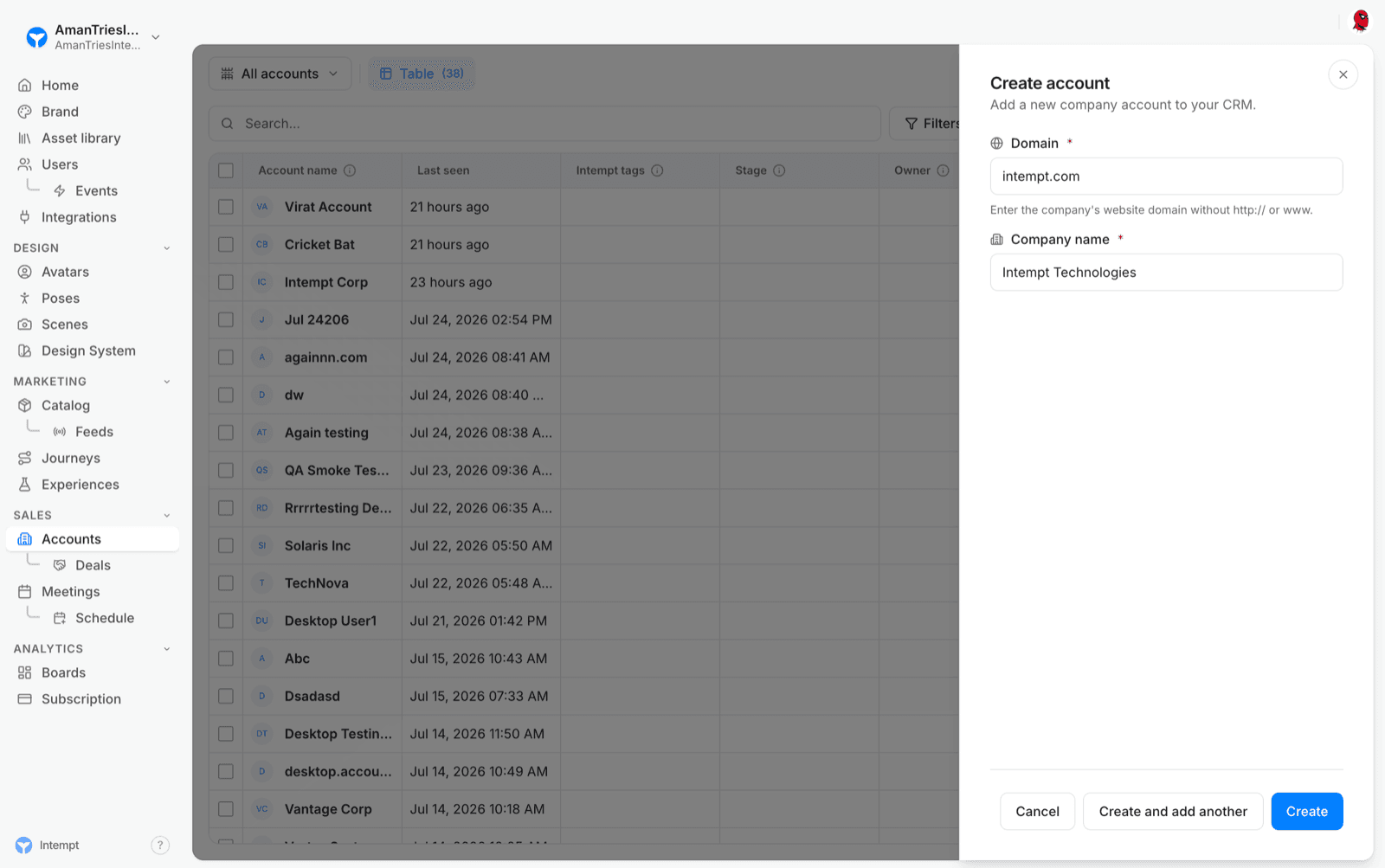
The Add account form has two required fields: Domain and Company name. Create adds the account and closes the form; the new row appears at the top of the list right away, with no success toast. Create and add another does the same but keeps the form open and reset, so you can add the next one without reopening it. A failed create shows its error inline in the form, not as a toast.
Selecting and acting on accounts in bulk
There's no per-row menu on an account. Selecting one or more rows opens a bulk action bar instead:
- Tag. Applies one or more existing tags to every selected account, or creates a new tag from the same panel.
- Enrich. Runs a data enrichment job against the selection: Enrich Companies, Validate Domain, or Find Key Contacts. Each option requires the account to already have a domain on file. A successful run shows a toast reading "Enrichment completed."
- Assign owner. Assigns the selected accounts to a team member.
- Delete. Removes the selected accounts after you type the account name (or names) to confirm.
There's no way to select specific account rows and save them as a segment the way you can on Users. The closest equivalent is filtering the list and using Save as new list, covered next.
Saving and switching views
Changing columns, filters, or sort marks the view dirty. Save writes the changes back to the currently selected list; Save as new list creates a new one instead, through a panel titled "Save as new view" with its own Save view button. Cancel discards the unsaved changes.
Account Details page
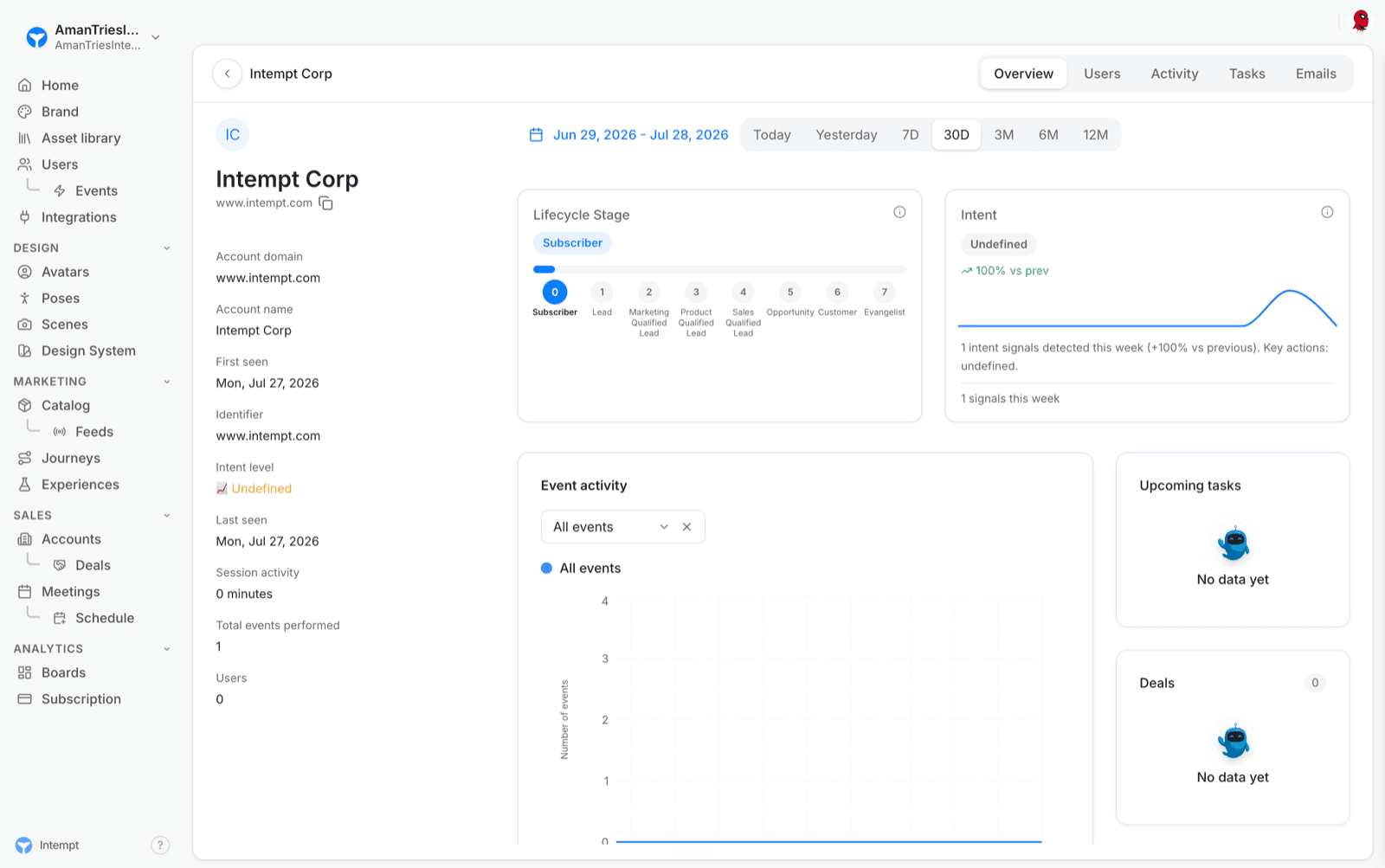
Click an account to open its Details page: a header with its avatar, name, and domain (with a copy button, shown only if a domain is on file), and five tabs: Overview, Users, Activity, Tasks, and Emails.
Overview tab
A sidebar next to the header lists whatever attributes the account has on file, things like domain, first seen, last seen, session activity, and total events performed each only show up once they have a value. A date range picker (Today, Yesterday, 7D, 30D, 3M, 6M, 12M) controls the data in the two cards below it.
The Lifecycle Stage card shows the account's current stage on an eight-step tracker: Subscriber, Lead, Marketing Qualified Lead, Product Qualified Lead, Sales Qualified Lead, Opportunity, Customer, Evangelist. The Intent card shows "Undefined" until enough signals are detected, then a trend line and a short note on what changed week over week.
Below both cards: an Event activity chart you can filter by event type, an Upcoming tasks card, and a Deals card, each showing "No data yet" until there's something to show.
Users tab
The same Users table used by the standalone Users list, filtered to this account. It's the same underlying data, not a separate copy.
Activity tab
A day-by-day feed of every event tied to the account.
Tasks tab
A filterable table of tasks tied to this account, with the same column and filter controls as the main Tasks module.
Emails tab
The email thread history between your team and this account.
Use cases
-
Finding your most valuable accounts. Sort the Accounts list by Intent level or Users to see who's most engaged right now.
-
Cleaning up incomplete company records. Select accounts missing a domain and check what Enrich can fill in once one's on file; enrichment only runs on accounts that already have a domain.
-
Handing off ownership when a rep leaves. Select their accounts and use Assign owner to move the whole book to someone else in one action.
-
Getting oriented on a company before a call. Open an account's Overview tab to check its lifecycle stage, intent trend, and recent event activity in one place, instead of piecing it together from the Users tab.
-
Checking who else at a company to loop in. Open the account's Users tab to see every contact tied to it, not just the one you've been emailing.
-
Following up on open work for an account. Check the Tasks tab for anything still open before moving a deal forward.
Where to go next
- Users for the individual-contact module an account's Users tab draws from.
- Segments for why an Account-scoped segment picker only ever offers "All accounts" today.
- Attributes for how account-level fields like Stage and Intent level are configured.
Integrations
Integrations connects Intempt to the sources that send you data, the platforms you sync data with, and the destinations you send data to, plus the custom domains your booking pages and tracking links run on.
Users
Users is Intempt's universal contact database in the console: one profile per person across every event they've ever triggered, with a filterable list, bulk actions, and a multi-tab detail page shared by Marketing, Sales, and Analytics.