
Attribute mapping
Attribute mapping lets you map incoming fields from a source to Intempt user and account attributes, so data from every source lands on one unified profile.
Overview
Attribute mapping lets you map incoming fields from a source to Intempt user and account attributes, so data from every source lands on one unified profile.
Why use attribute mapping?
Attribute mapping matters once you connect more than one data source. Each source has its own naming for the same data point. HubSpot might call an email field contact_email, while Shopify calls it customer.email. Left alone, you'd end up with separate attributes for what's really a single value, which makes segmentation and reporting harder.
Mapping both fields to one Intempt attribute keeps a single source of truth per data point, so segments, journeys, and analytics all read from the same value regardless of where it came from.
How it works
When you connect a source, Intempt reads the fields it exposes (for example, HubSpot contact properties) and pre-fills a mapping to your existing attributes. Learn more about attribute types in Attribute reference.
Mapping attributes
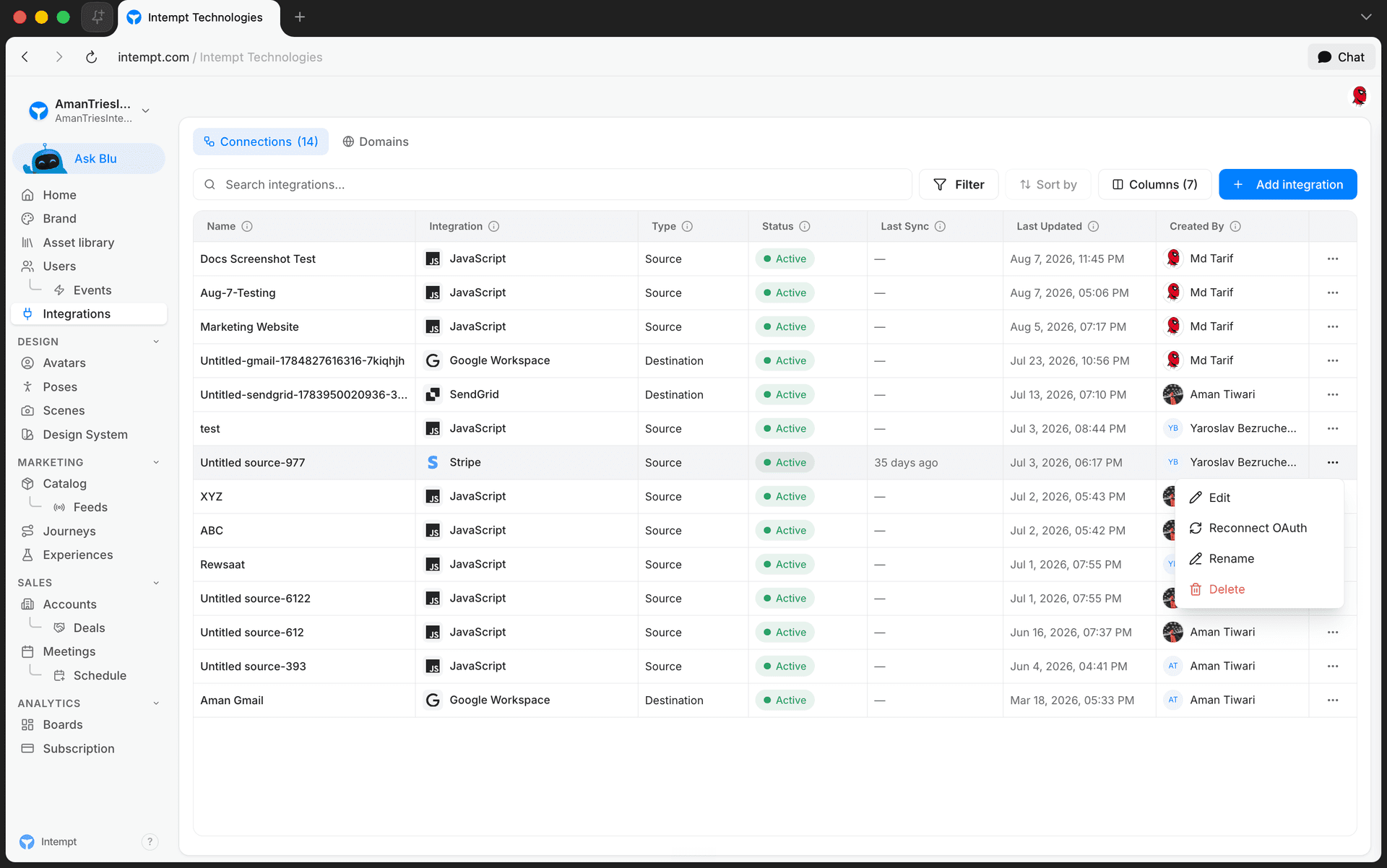
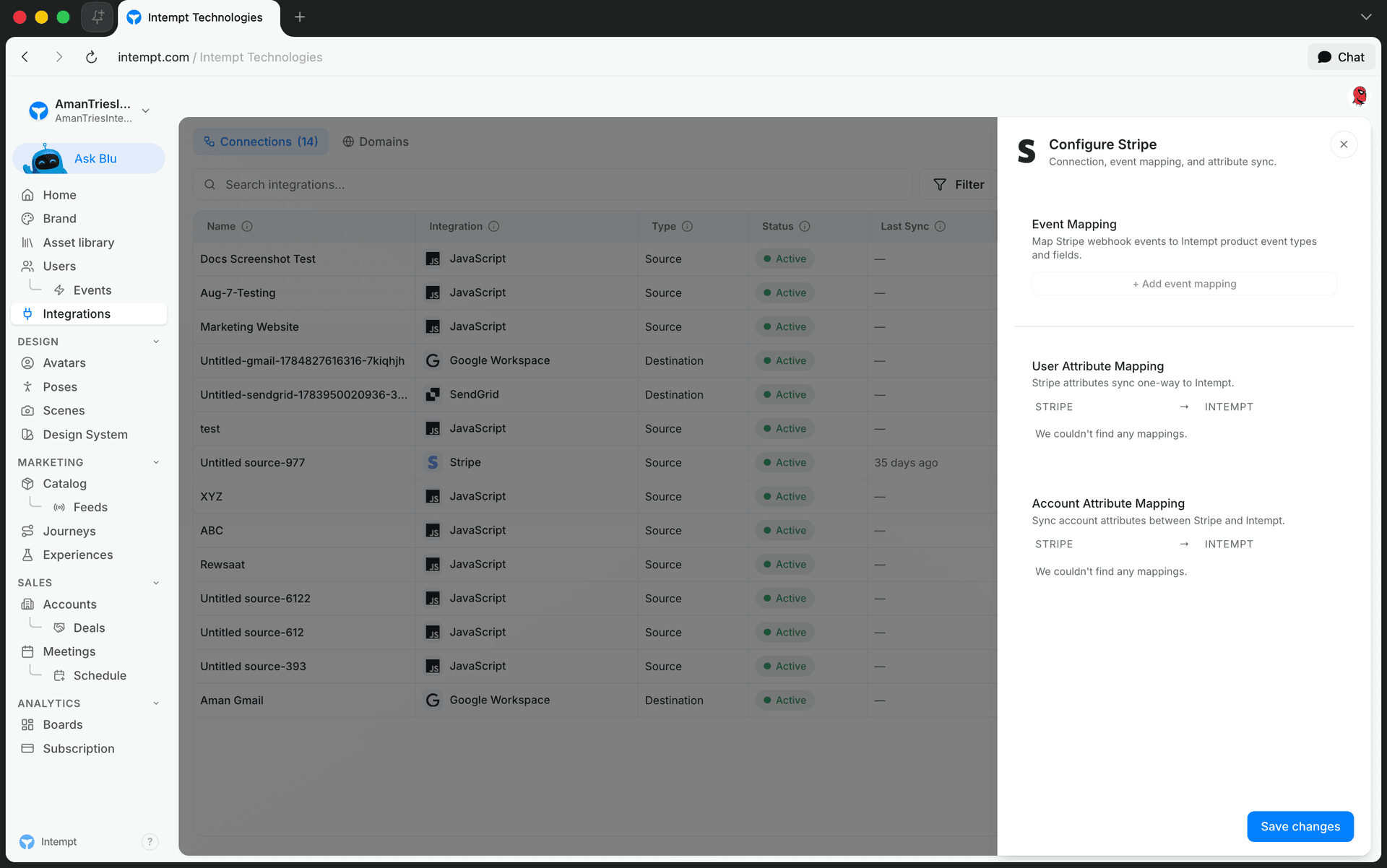
Attribute mapping is available for HubSpot, Stripe, and Shopify sources. Go to the Integrations section -> Connections tab, find the connected source in the table, open its actions menu, and choose Edit to open its configuration panel (labeled Map Users And Accounts for HubSpot, or User Attribute Mapping / Account Attribute Mapping for Stripe and Shopify).
Every source shows two mapping sections:
- User attribute mapping. Maps user-level fields from the source to Intempt user attributes.
- Account attribute mapping. Maps account-level fields from the source to Intempt account attributes.
Each row pairs a source field (read-only, on the left) with a dropdown to pick the Intempt attribute it maps to (on the right). If a source hasn't sent any fields for a section yet, that section shows "We couldn't find any mappings" instead of rows.
📘 Good to know
The Intempt attribute dropdown only lists attributes whose data type matches the source field (for example, a text field won't offer a number attribute), and it excludes attributes already used by another row in the same section.
Updating the mapping
To remap a field, open its Intempt attribute dropdown and pick a different attribute, then click Save changes at the bottom of the panel to apply it.
HubSpot: extra mapping controls
HubSpot sources use a richer version of attribute mapping, with Users and Accounts tabs instead of stacked sections:
- Add Mapping. You can add new rows beyond the auto-detected ones, unlike other sources where rows come only from the source's own fields.
- Mandatory rows. The
email(user) anddomain(account) mappings are always present and can't be removed. - Sync accounts toggle. Turns account-level syncing on or off; when off, the Accounts tab's rows are disabled.
Where to go next
- Attributes: how attributes are structured and grouped.
- Attribute reference: the full list of attribute types.
- Managing attributes: editing and organizing attributes after they're created.
- Sources: connecting a new source.
Attribute reference
Attributes are properties that help you define the specifics of an event, a user, or an account. Intempt has many attributes defined in its Data Model.
Managing attributes
The Attributes page lists every user, account, and event attribute in your project, with tools to search, filter, sort, create, edit, and delete them.