
Managing attributes
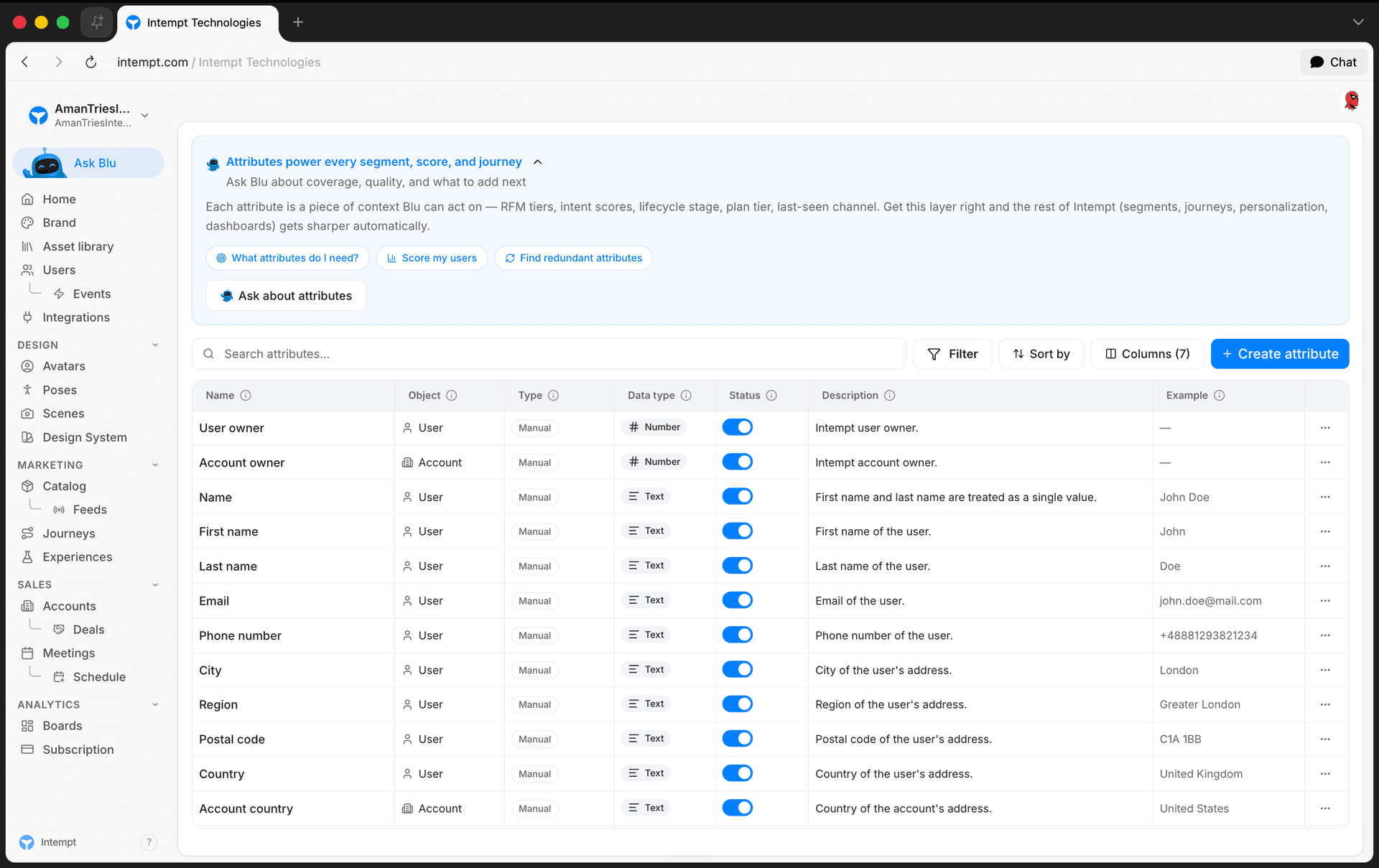
The Attributes page lists every user, account, and event attribute in your project, with tools to search, filter, sort, create, edit, and delete them.
Overview
The Attributes page lists every user, account, and event attribute in your project. Use it to search, filter, and sort your attributes, and to view or edit each one's configuration.
📘 Good to know
For what each attribute type and data type means, see Attribute reference and Data types.
The attributes list
Each row is one attribute. The table shows these columns:
| Column | Shows |
|---|---|
| Name | The attribute's name. |
| Object | Whether the attribute belongs to a User or an Account. |
| Type | Manual, RFM, Qualify, Likelihood, Next Best Product, Metric, or Calculated. |
| Data type | Text, Number, Date, Boolean, Array, or Object. |
| Status | Visible or Hidden. |
| Description | An optional explanation of the attribute, if one was added. |
| Example | An optional sample value, if one was added. |
Click Columns above the table to check or uncheck which of these fields are shown.
Searching, sorting, and filtering
Use the search box to find an attribute by name.
Click Sort to order the list by any column currently shown, ascending or descending.
Click Filter to narrow the list. Each filter row picks a property (Name, Object, Type, Data type, Status, Description, or Example), an operator (Is, Is not, Contains, Does not contain, Starts with, Ends with, Matches regex, Is set, Is not set, or Has any value), and a value. Combine rows within a group with and / or, and add more groups to combine conditions further. The Filter button shows a badge with the number of active conditions.
Creating an attribute
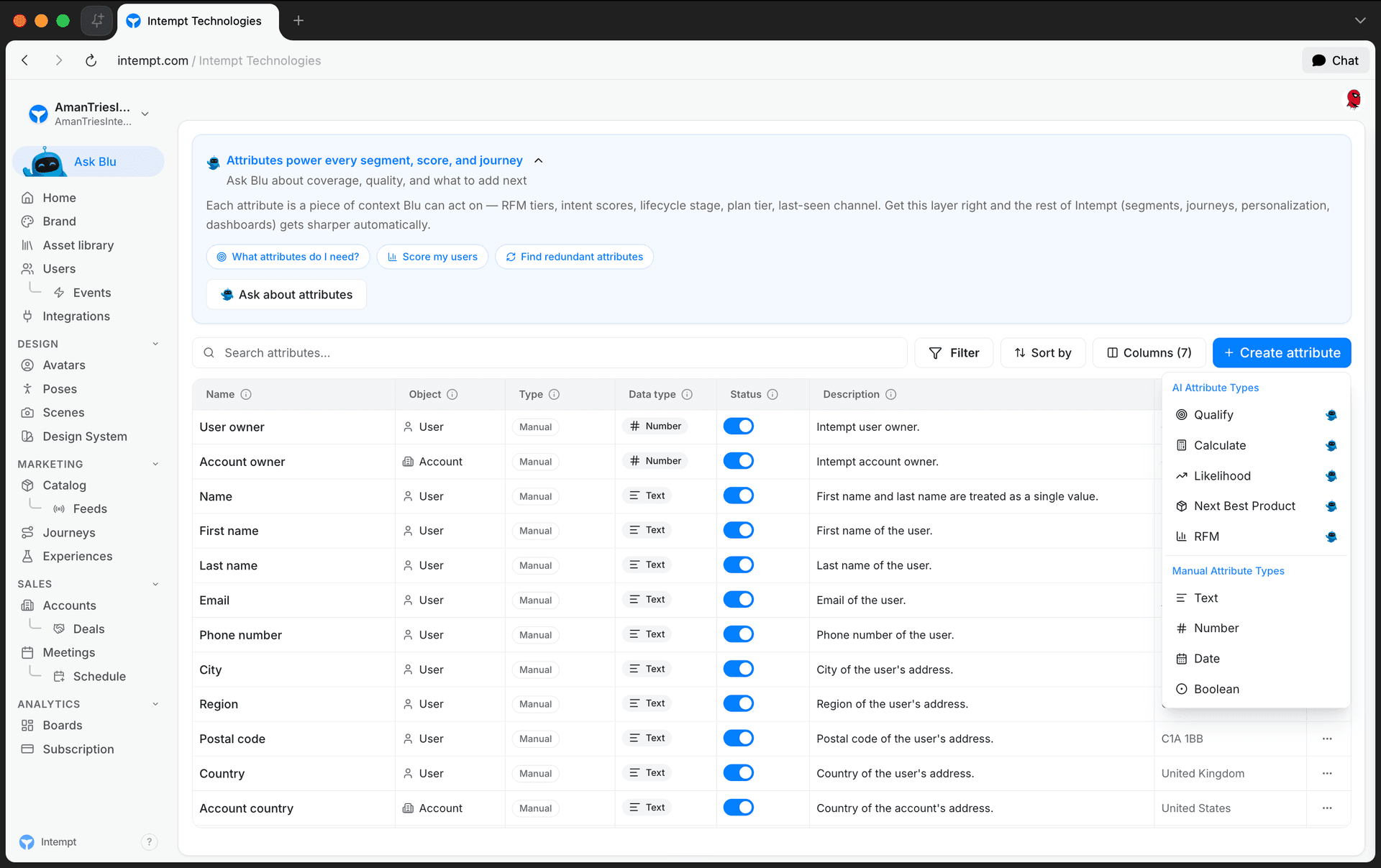
Click Create attribute. The menu has two sections:
- AI Attribute Types: Qualify, Calculate, Likelihood, Next Best Product, and RFM. These open their own setup screen, with fields specific to each scoring model.
- Manual Attribute Types: Text, Number, Date, and Boolean.
Picking a manual type opens a panel where you:
- Name the attribute. Type into the name field at the top.
- Choose the Object. User or Account.
- Add a Description. Optional.
Click Create attribute to save. If the name matches an attribute that already exists, Intempt shows a warning before you can create it.
Editing an attribute
Click any row to open the attribute's details in the side panel. It has three tabs: Configuration, Analytics, and Users.
For manual attributes, the Configuration tab is editable:
- Object is fixed once the attribute is created and can't be changed.
- Field name holds the attribute's primary name plus any aliases. Press Enter or a comma to add an alias, and click the star next to a name to make it primary. The primary name is used in exports and Liquid variables; every alias still ingests data into this same attribute. See Attribute mapping for how incoming source fields get merged this way.
- Description is optional and editable.
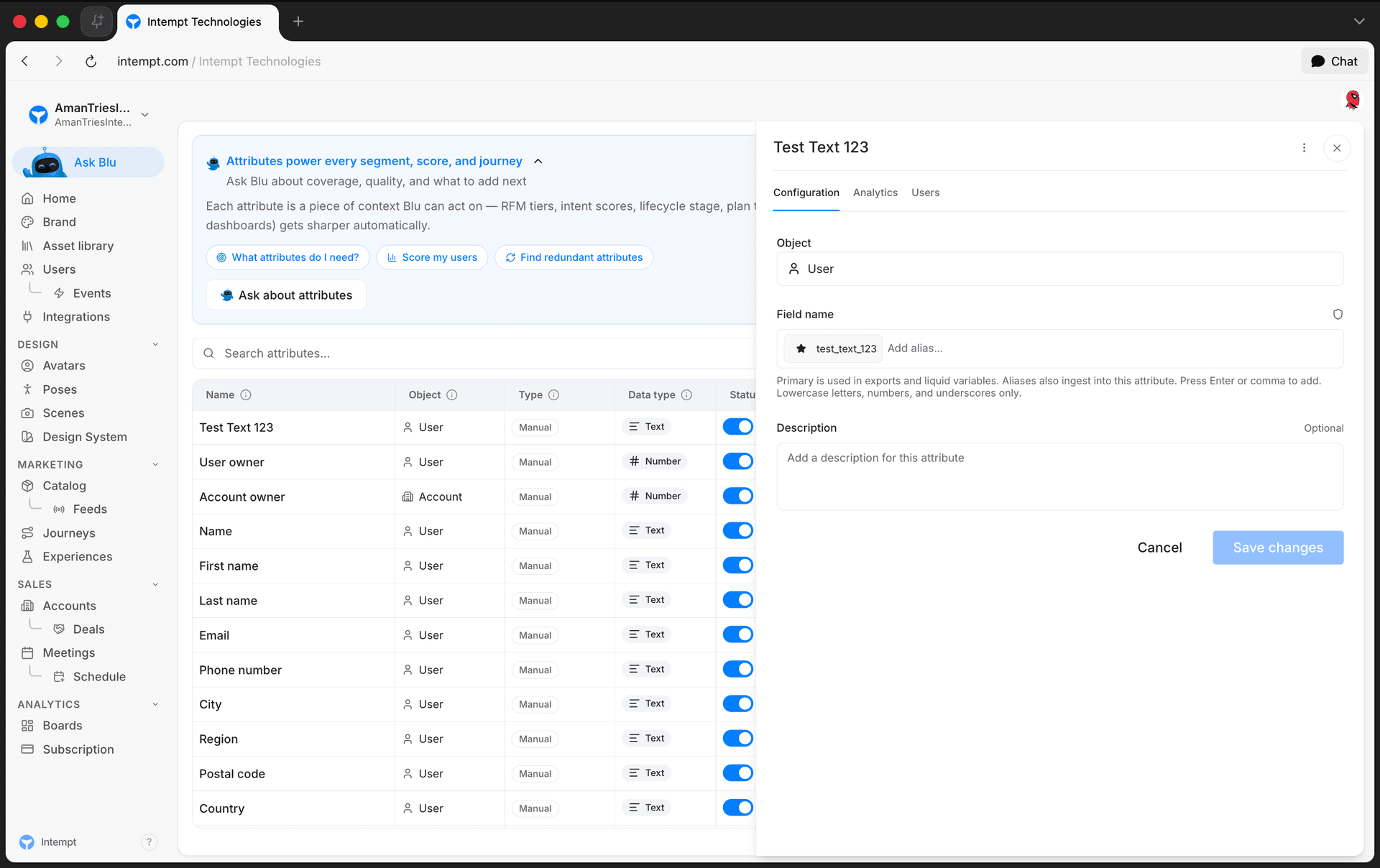
Changes only save once you click Save changes; Cancel discards them.
📘 Good to know
System attributes show the same Configuration fields, but read-only. There's no Save/Cancel and no delete option.
For AI-scored and predicted attributes (RFM, Likelihood, Next Best Product), the Configuration tab shows that type's own setup screen instead of the manual fields above. For every other type (Metric, Calculated), the tab repeats the read-only Object, Type, Data type, Status, Description, and Example fields already shown in the list.
Seeing who has an attribute
Switch to the Users tab to search and browse the users this attribute is set on. Click a user to open their profile. If there are more users than fit on screen, click View all to load the rest.
Deleting an attribute
Open the attribute, click the ⋮ menu next to its name, and choose Delete. Confirm in the dialog that appears; deleting an attribute can't be undone. System attributes don't show this menu, so they can't be deleted.
📘 Good to know
You can also ask Blu about your attributes directly from the page, for example which attributes to add next, how to design scoring attributes, or which ones look redundant.
Where to go next
Attribute mapping
Attribute mapping lets you map incoming fields from a source to Intempt user and account attributes, so data from every source lands on one unified profile.
RFM Scoring & Scored Audiences
Create an RFM attribute to score users or accounts by Recency, Frequency, and Monetary value, then use the score to target audiences.