
Event editor guide
How to create, edit, duplicate, and delete named events with the Event editor, the condition builder that turns raw autotracked, custom, or source events into reusable, targetable events.
Overview
The Event editor is where you turn a raw event, whether autotracked, custom, or from a connected source, into a named, reusable event. Build one and you can reuse it as a condition in segments, journeys, and personalization instead of re-defining the same filter every time.
Intempt shows three event types on the Events page, each with its own badge:
- System: autotracked events (page views, clicks, form activity) that Intempt captures automatically once the SDK snippet is installed.
- Ingested: raw custom events sent with
track()orrecord()that haven't been turned into a named event yet. - Created: a named event built in the Event editor from a System or Ingested event plus filter conditions.
If you don't have System or Ingested events flowing yet, there's nothing to build an event from. See Setting up autocapture and Sending custom events first.
Creating an event
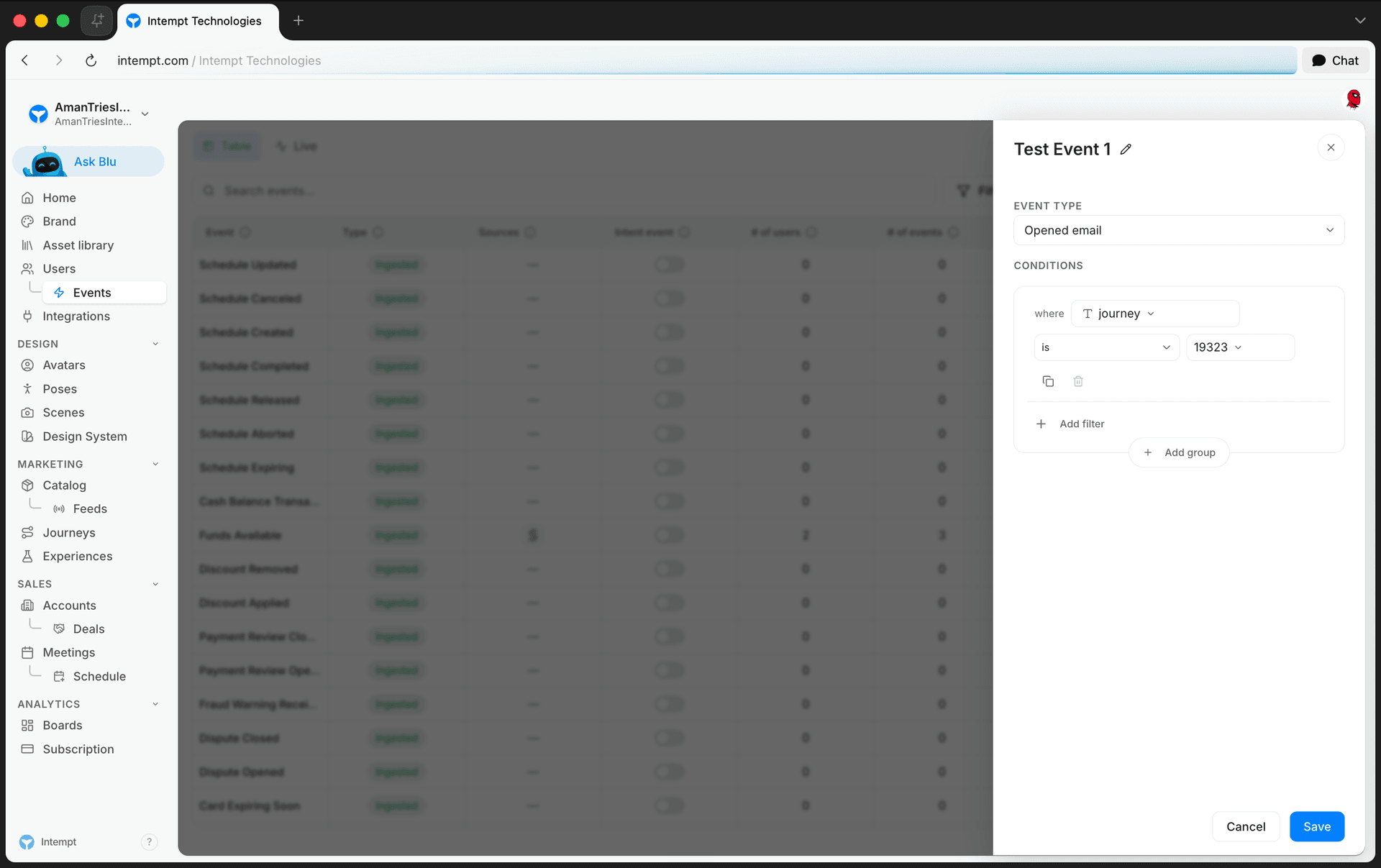
Open Events and click Create Event. Name the event, then search for and select the base event it's built on from the Event type field, which lists every event already in your project. Add at least one filter condition to narrow it down.
📘 Good to know
Save stays disabled until the event has a name, a base event selected, and at least one filter condition with a value filled in. For the full walkthrough of building filter conditions, condition groups, attribute operators, and the event formula, see Creating an event.
Editing an event's conditions
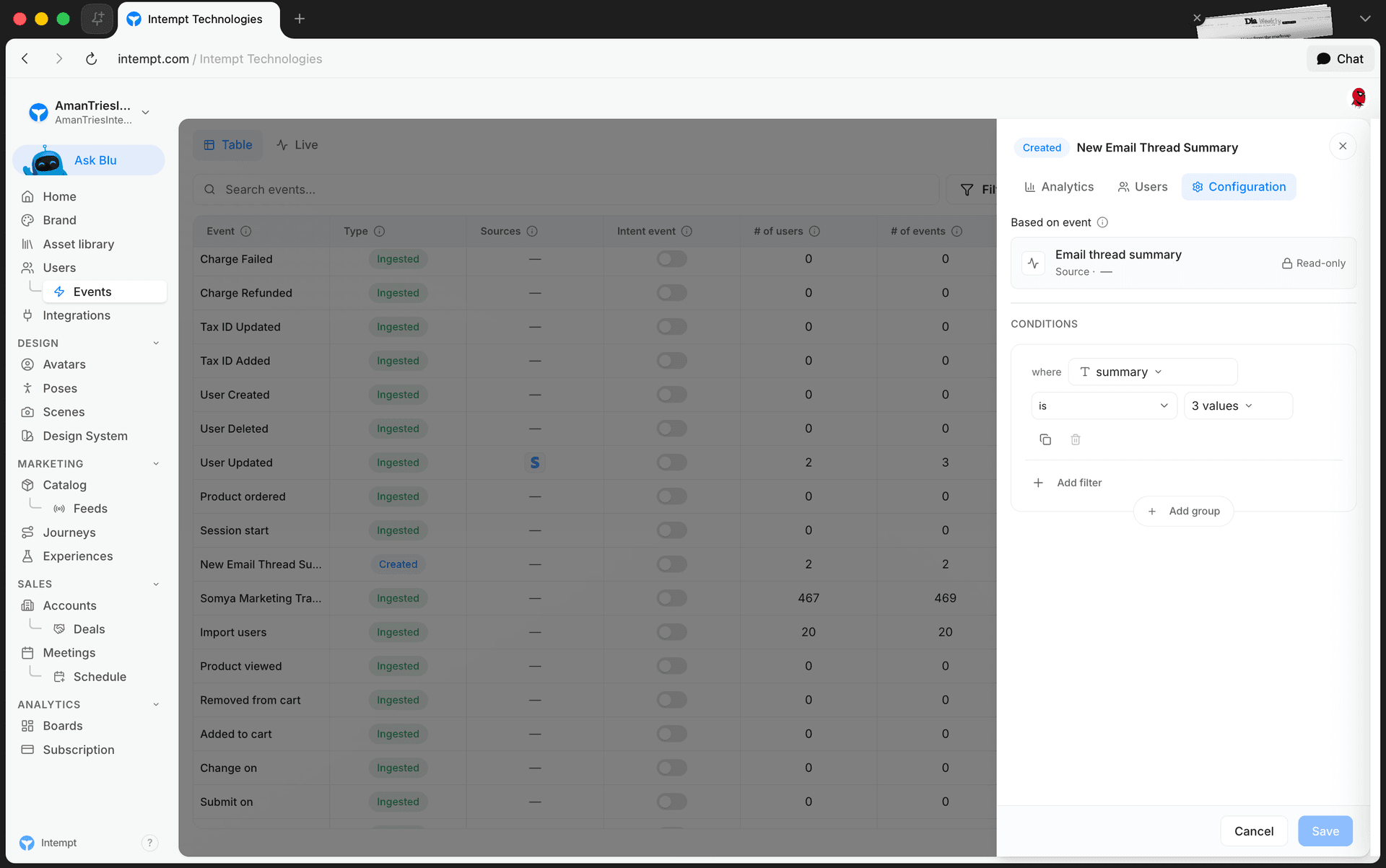
Open an event you've built with the Event editor from the Events table to bring up its detail panel. Alongside Analytics and Users, a Configuration tab lets you edit its filter conditions after it's been saved.
📘 Good to know
The base event an event was built on is locked once it's created, changing it would invalidate the conditions underneath it. To build against a different base event, create a new event instead. You can rename an event any time by clicking its title in the detail panel; that saves immediately.
The Configuration tab only appears for events that have at least one filter condition. A System event has nothing to configure, so it never shows the tab, and an Ingested event only gets one once you've turned it into a Created event.
Duplicating an event
From the Events table, open a row's menu and choose Duplicate event to start a new event pre-filled with the same base event and conditions. This only works for events that already have a saved filter, since that's what gets copied. A System event has no filter to copy, so duplication isn't available for it.
Deleting an event
Open the event's detail panel and choose Delete event from the ⋮ menu next to its title. System events can't be deleted.
If the event is used elsewhere, in a segment, journey, or experience, the confirmation dialog lists every dependent item grouped by type before you confirm. Deleting from that dialog removes the event and all the listed dependents together; there's no way to delete just the event and leave the dependents in place.
📘 Media pending
Screenshot of the delete confirmation dialog hasn't been captured yet.
Where to go next
- Creating an event: the full step-by-step walkthrough of the condition builder: filters, condition groups, attribute operators, and the event formula.
- Complete guide to event tracking: install autocapture and send custom events before you build an event from them.
- Events overview: the Events page itself: table view, Live view, and an event's Analytics/Users tabs.
- Event types: the full list of autotracked and source events available as a base event.
- Live data feed: watch raw events arrive in real time before building a named event from one.
Creating an event
All custom and autotracked events are automatically added to the 'Events' list as soon as they are sent to Intempt. However, if you want to create more granular (filtered) versions of these events,...
Event tracking on Single Page Applications (SPA)
In traditional Multi-Page Applications, each user action that requires a new data view leads to a new request to the server, which then responds with a new HTML page. This process requires a full p...