
- Track real product behaviors like views, logins, and feature usage to identify upgrade intent.
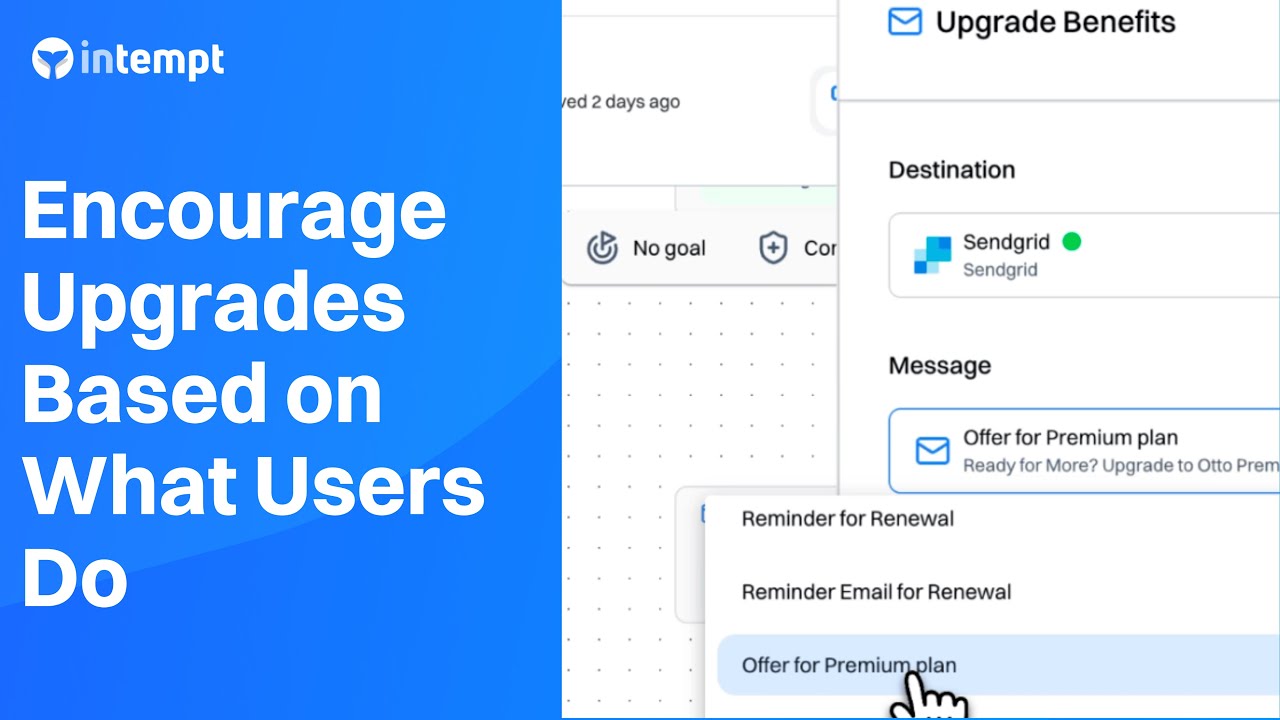
In-app upgrade prompts stop working the moment they become permanent fixtures, which for most products is about a week after launch.
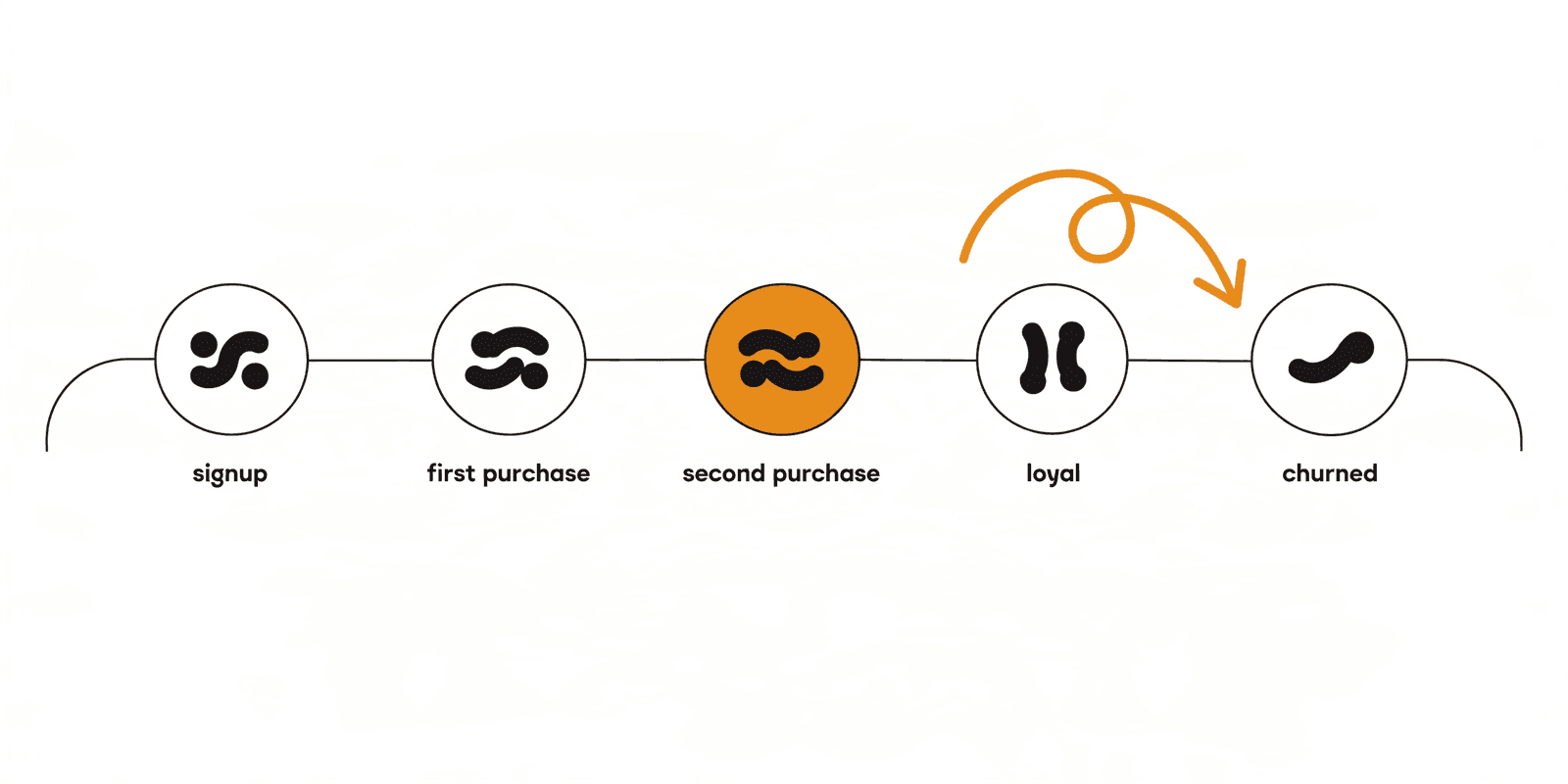
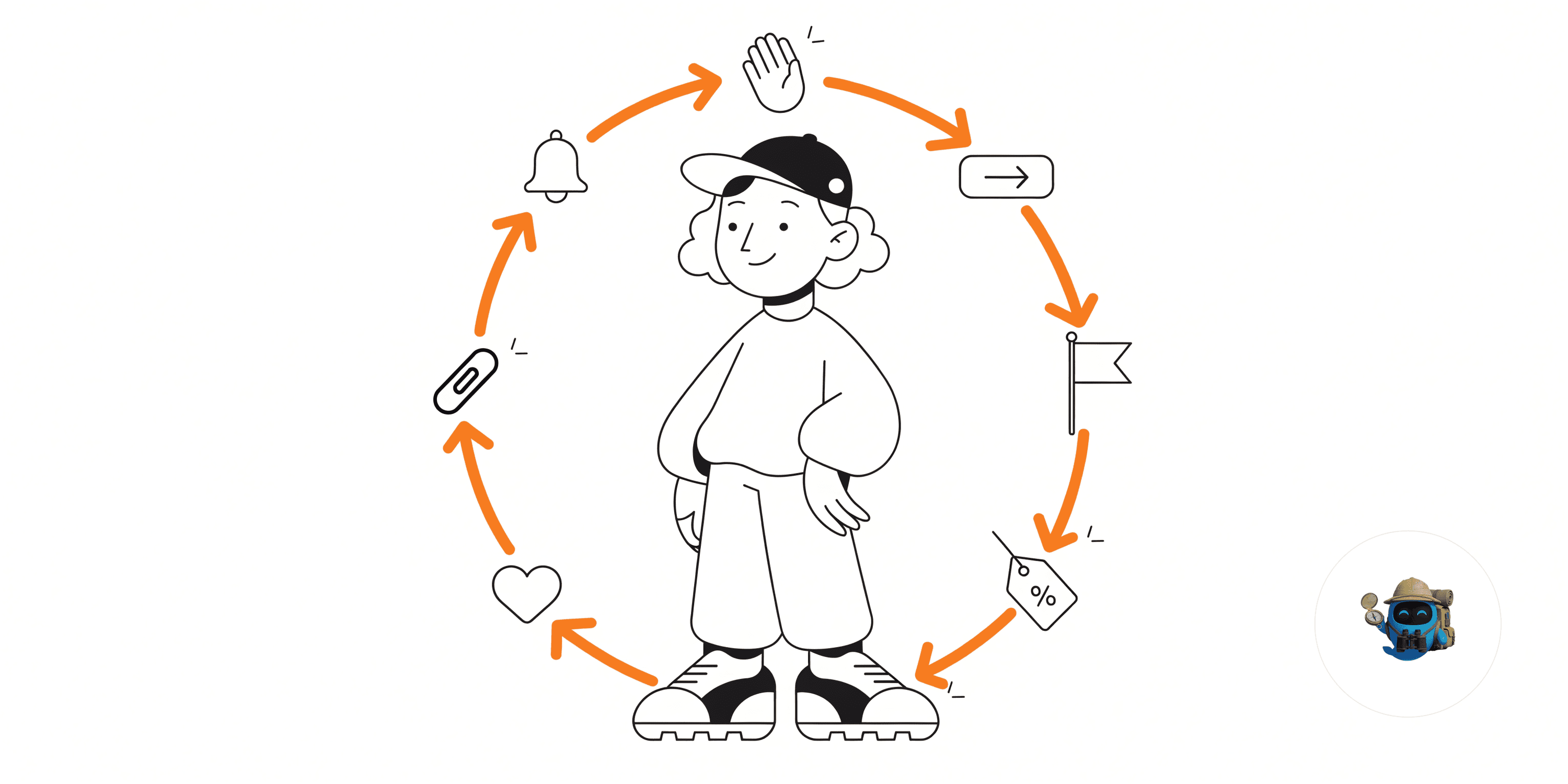
Adjust CTA buttons or messages on the website and in-app based on the user's lifecycle stage, encouraging them to take the next step in their journey.
Overview
Most expansion strategies rely on sales triggers or usage thresholds, but the real signals are already in front of you, buried in everyday product usage behavior.
This Growbook shows you how to use Intempt to track those behaviors, segment users by lifecycle stage, and tailor CTAs or UI messages that move each user to the next logical step: from free to paid, basic to premium, or inactive to reactivated.
We'll use Otto, a demo SaaS platform for project management, to illustrate the approach.
Create real-time segments such as "Upgrade Curious" or "Low Usage Paid Users."
Adapt website and in-app CTAs and Banners to each user's lifecycle stage using Experiences.
Trigger expansion journeys with personalized messages, offers, or walkthroughs.
Measure conversion and lift using Experience and Journey Analytics to optimize over time.
Result: A dynamic upgrade system that adjusts to user behavior and increases expansion revenue.
Benefits
Expand revenue without adding friction: Encourage upgrades and usage nudges right inside the product.
Show the right CTA to the right user: No more one-size-fits-all upsell banners.
Use real behavior as a trigger: Target based on what users do, not who you think they are.
Boost retention through deeper usage: Expansion and engagement go hand in hand.
How It Works
Track engagement, segment by lifecycle stage and plan usage, then vary the CTA per segment instead of running one permanent banner.
Step 1: Track product user engagement
Instrument the usage that maps to plan limits, since hitting a limit is the moment the prompt earns attention.
Install Intempt's JavaScript SDK:
Begin tracking user and account activity across your app or site.
Check or define key Events:
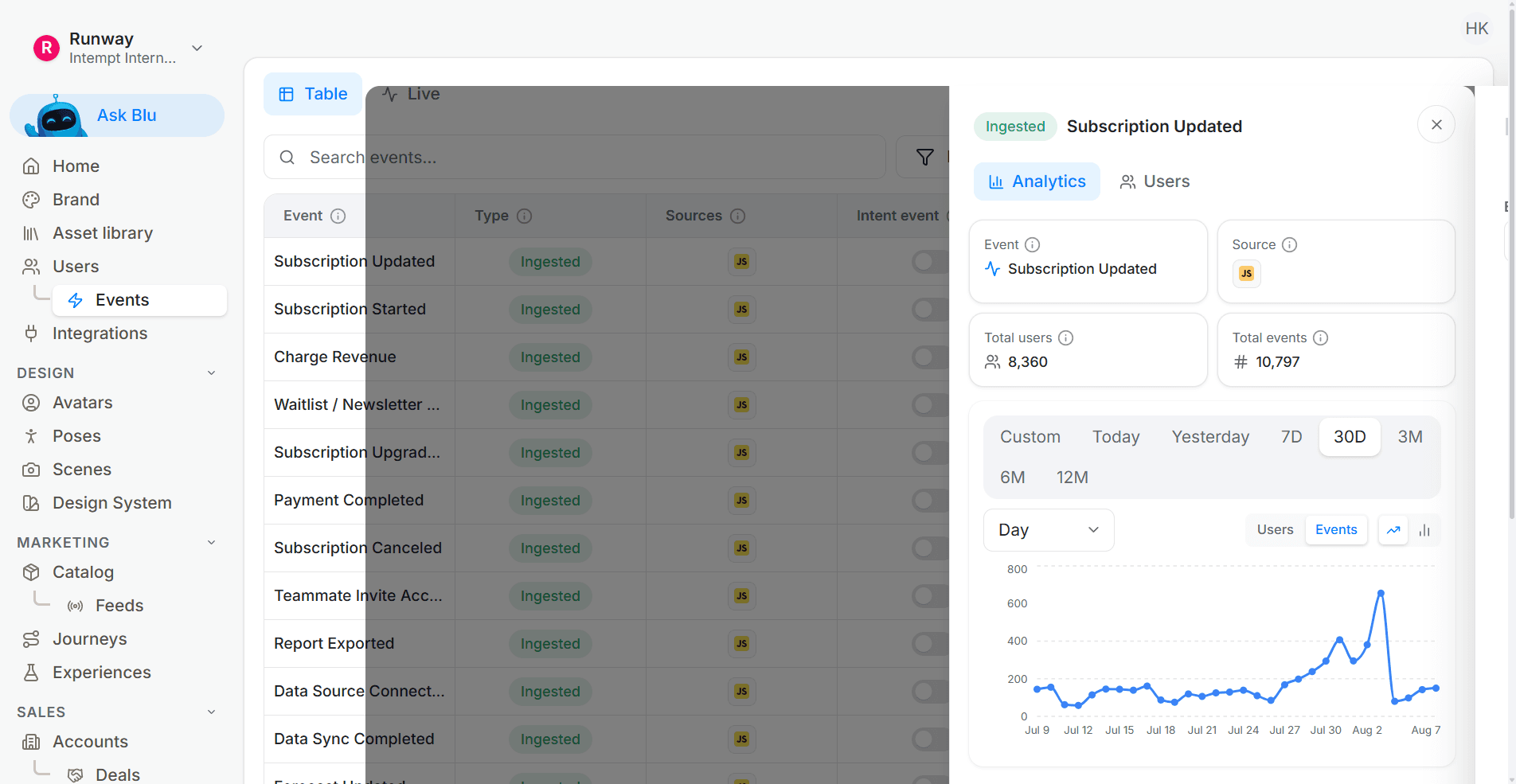
confirm the following are tracked- 'login', 'created ml task', 'invited team member', 'exported report', 'subscribed to premium plan', 'viewed upgrade plan', 'subscribed newsletter, book demo', 'product viewed'.
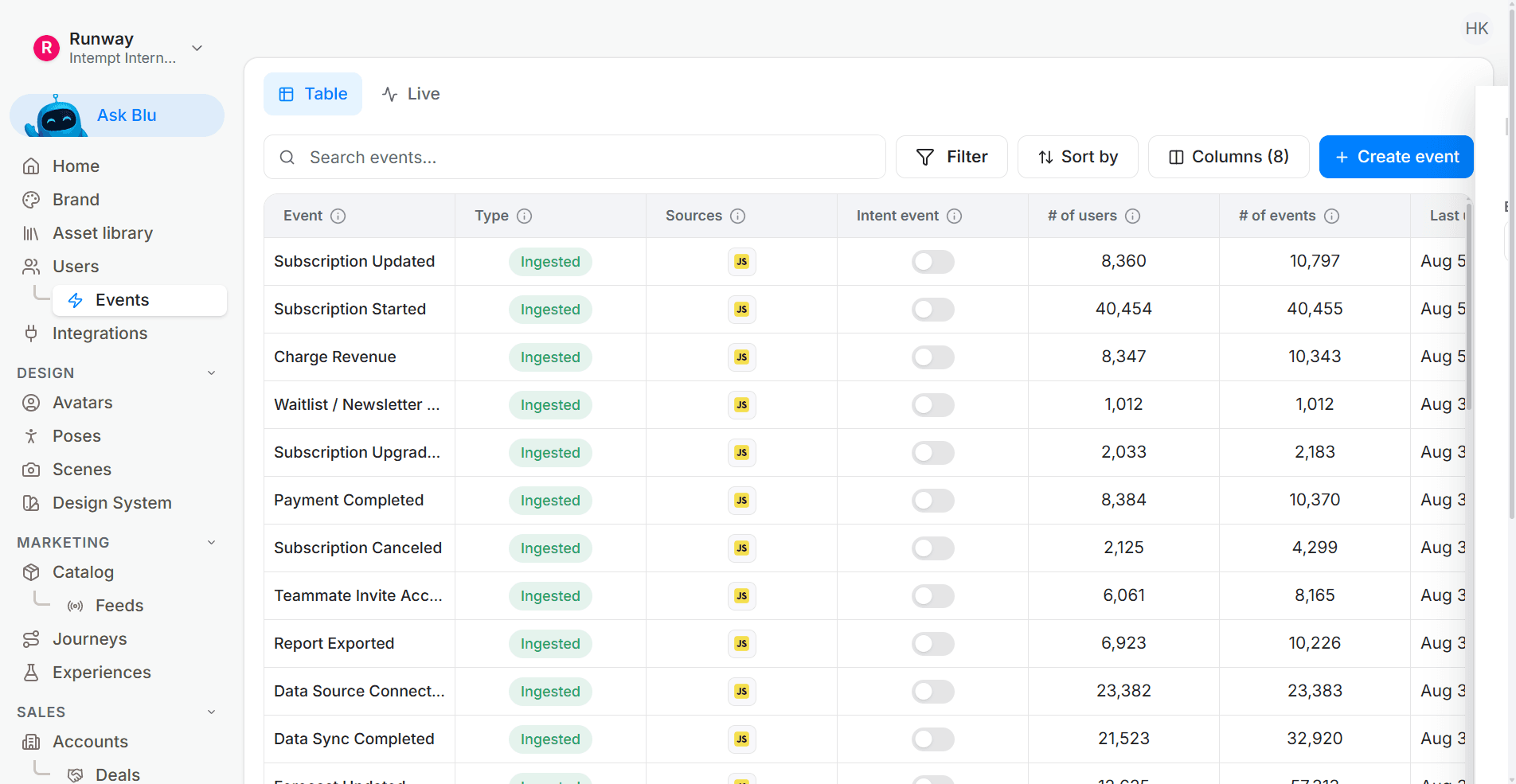
Create additional events:
Where a plan-limit event does not exist yet, define it explicitly, since the prompt has nothing to fire on without it.
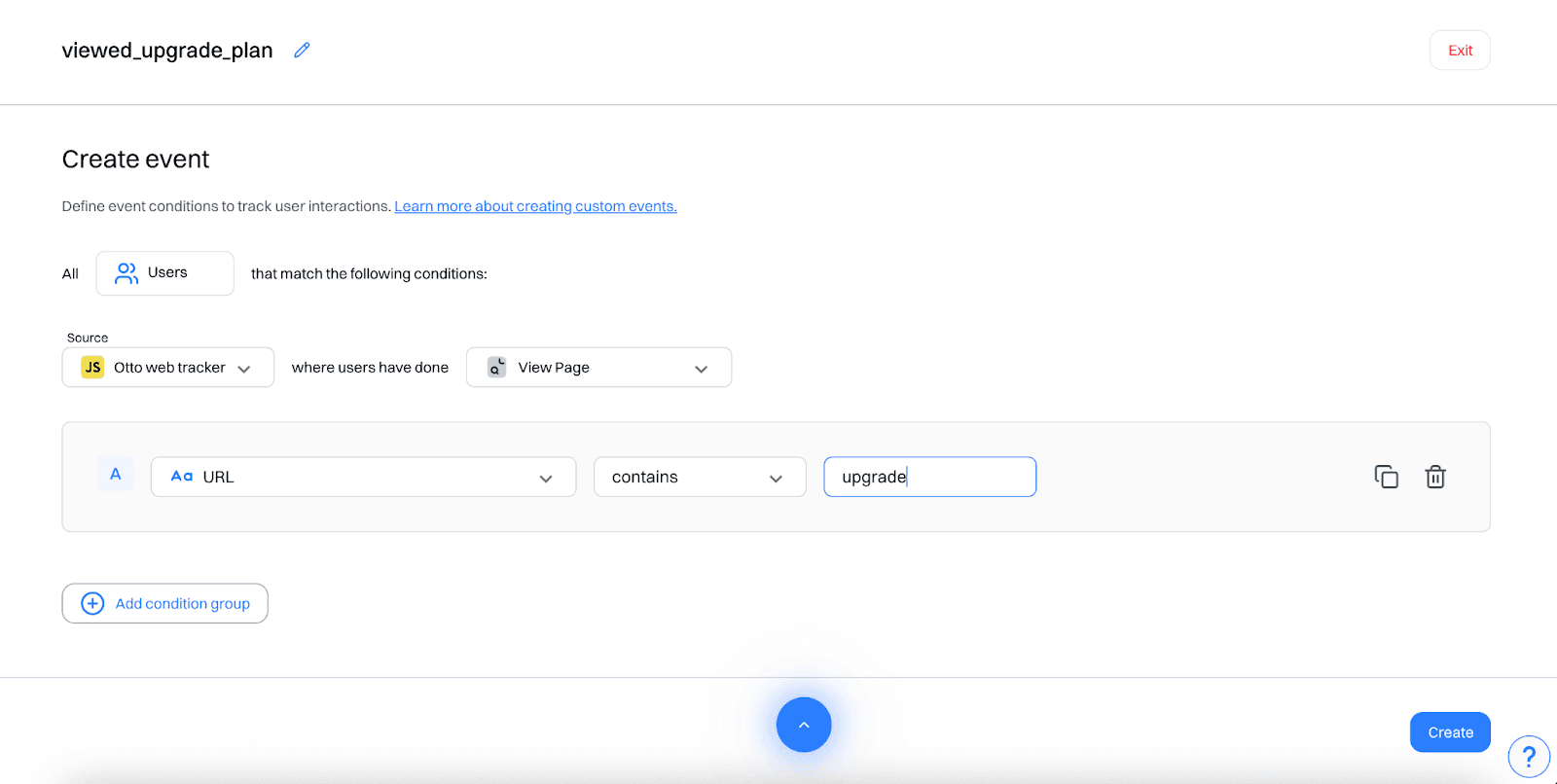
These events help capture activation, collaboration, reporting, and upgrade intent - all key indicators of expansion potential.
Step 2: Segment users by behavior
Go to segments and create real-time segments like:
"Basic plan power users": Users who have subscribed to basic plan, viewed product, logged in at least 10 times in the last 1 month and created ml task at 5 times in the last 1 month
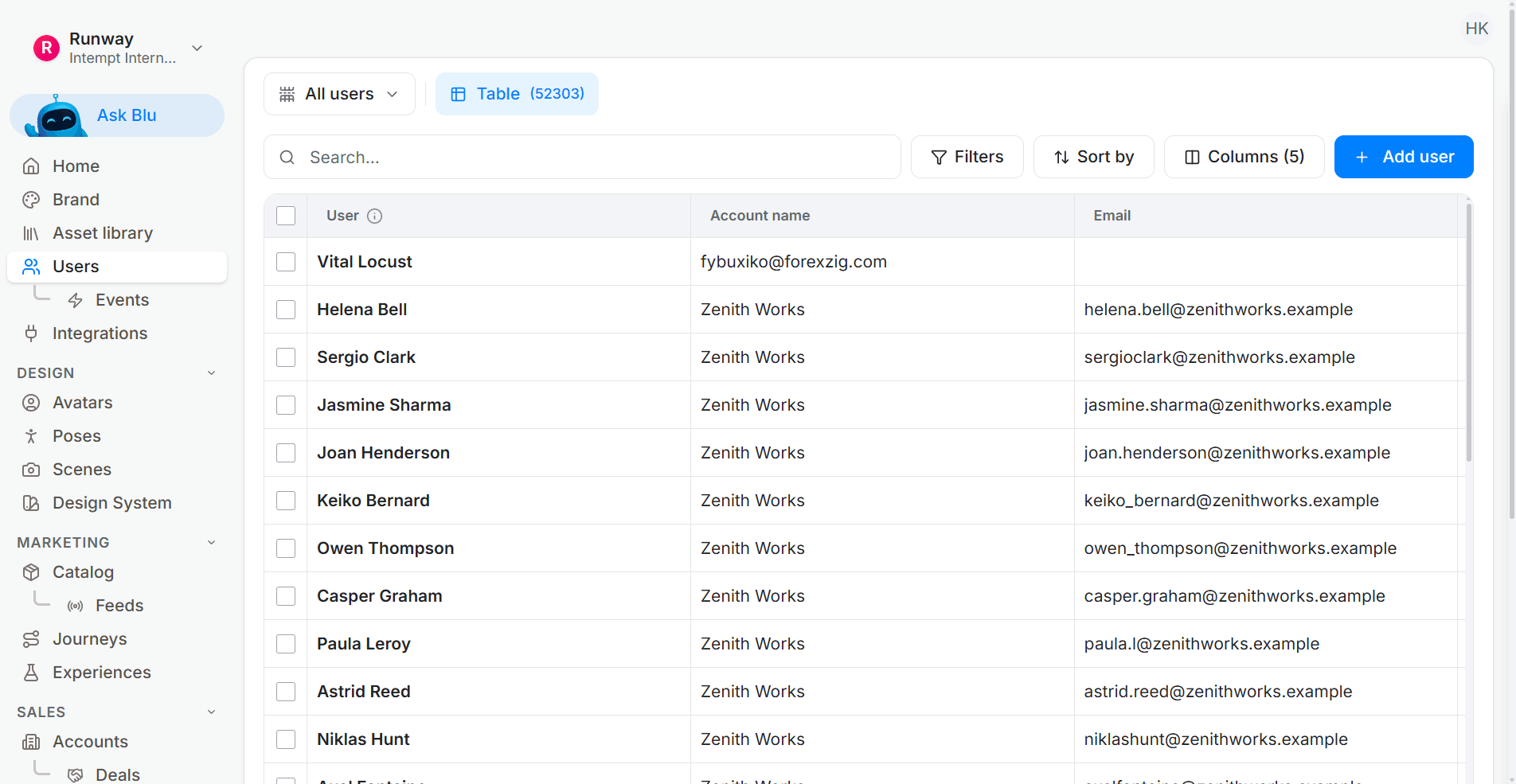
"Upgrade curious": Users who have viewed upgrade plan at least once in the last 5 days, subscribed newsletter and has not subscribed to premium plan.
"Low usage paid users": Users who have subscribed to premium plan, have not logged in in the last 10 days and have not created object in the last 10 days
These segments update dynamically based on real-time user behavior.
Step 3: Personalize CTAs across web and in-app
In the Experiences module, create different experiences for each segment and target both your website and in-app product interface.
(Click the toggle to select Personalization)
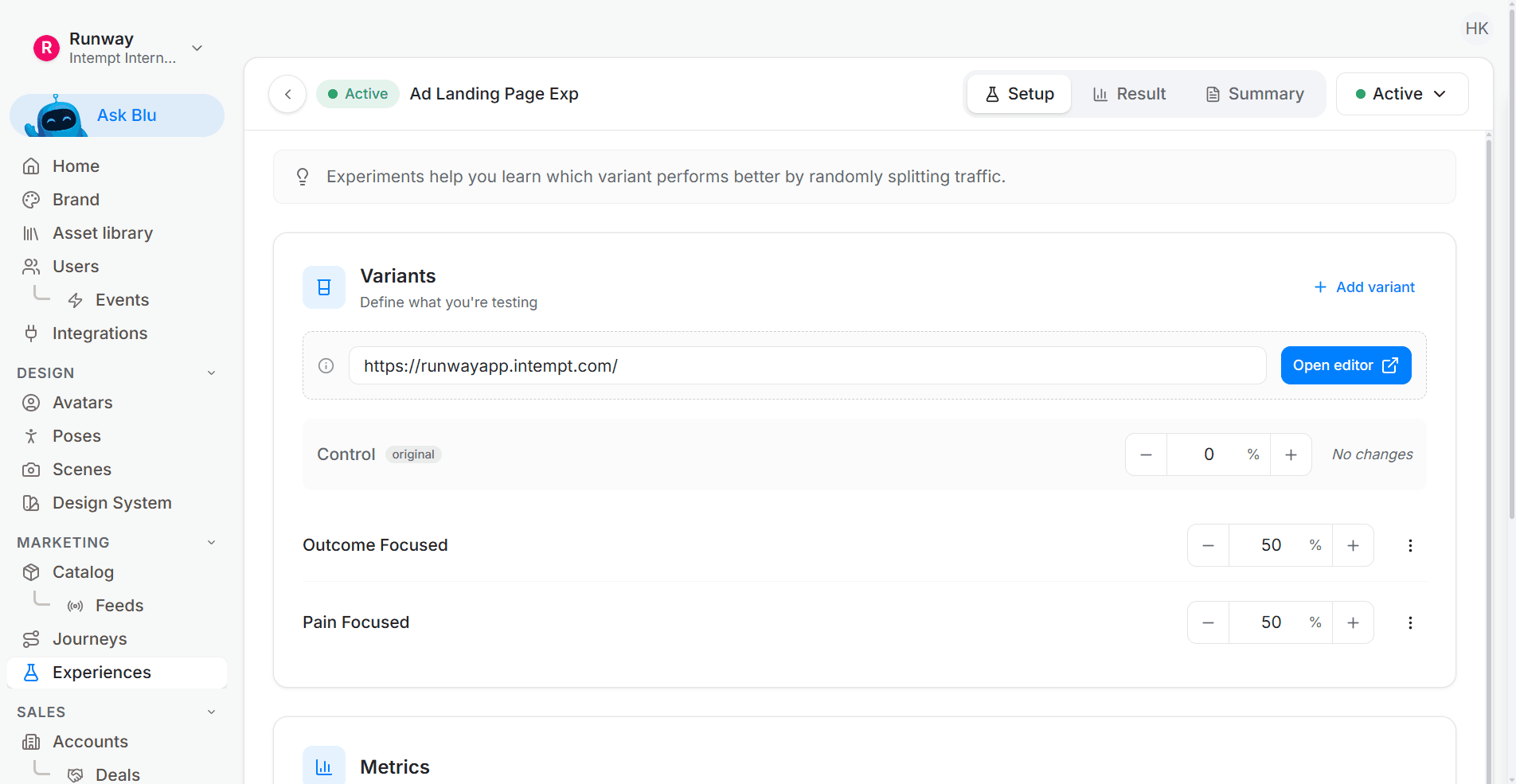
Example 1: Basic Plan Power Users
Target Segment: "Basic plan power users"
CTA (Web): "Upgrade to open up team workflows and advanced reports".
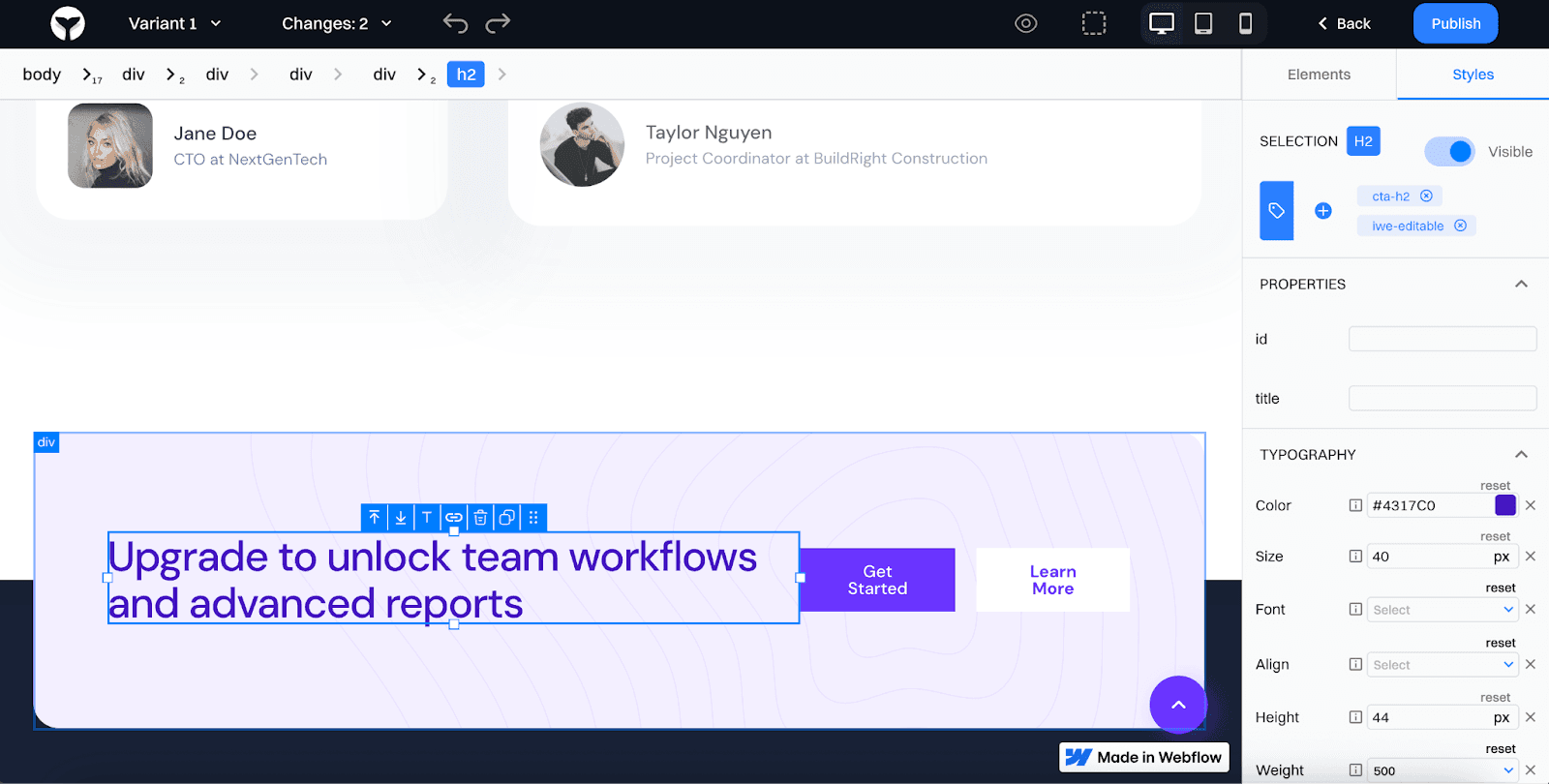
→ Location: Homepage banner
Banner (In-App): Sidebar module or dashboard panel: "Ready for more? Open up Premium Reports"
Location: In-app sidebar
Example 2: Upgrade Curious
Target Segment: "Upgrade curious"
CTA (Web): "Still deciding? Try Premium free for 7 days"
Location: Pricing page sticky footer
Banner or Popup (In-App): Display after using a limited feature: "This feature is part of Premium - want early access?"
Location: Feature-gated modal
Example 3: Low Usage Paid Users
Target Segment: "Low usage paid users"
CTA (Web): "Not getting full value? Explore what you've missed"
Location: Homepage banner or Help center sidebar
Banner (In-App): Tooltip: "Still haven't tried automations? Here's a 2-minute setup."
Location: Triggered on dashboard inactivity or feature hover
Good to know:
You can also personalize- In-App Nav Bar Buttons: e.g. "Explore More Features" for upgrade-curious users and In-Product Tours: Restart onboarding or add contextual nudges for low-usage users
Step 4: Trigger real-time expansion journeys
Go to Journeys and trigger automated nudges for each segment.
Journey 1: Encourage Upgrade
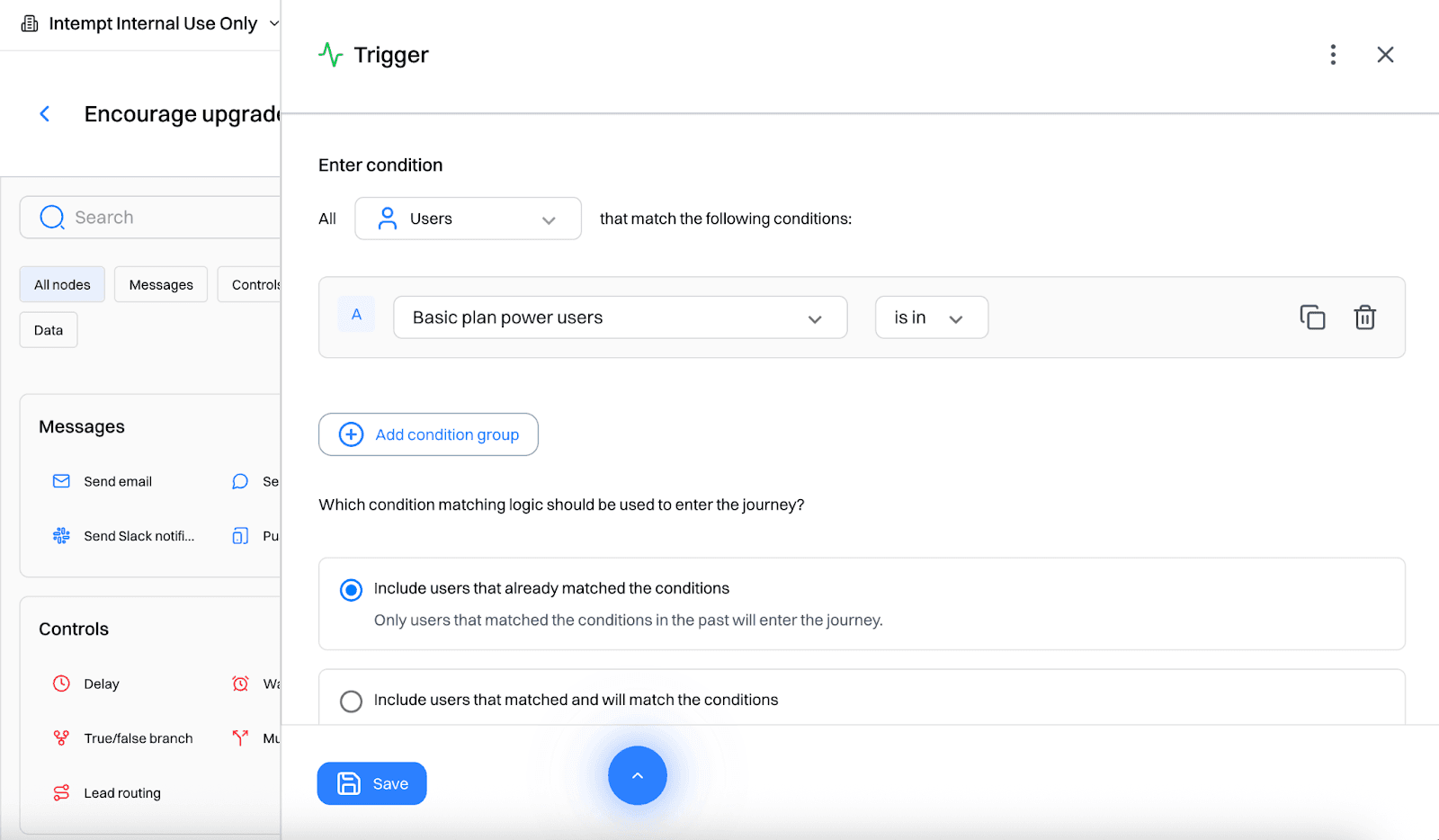
Trigger: Segment = "Basic plan power users"
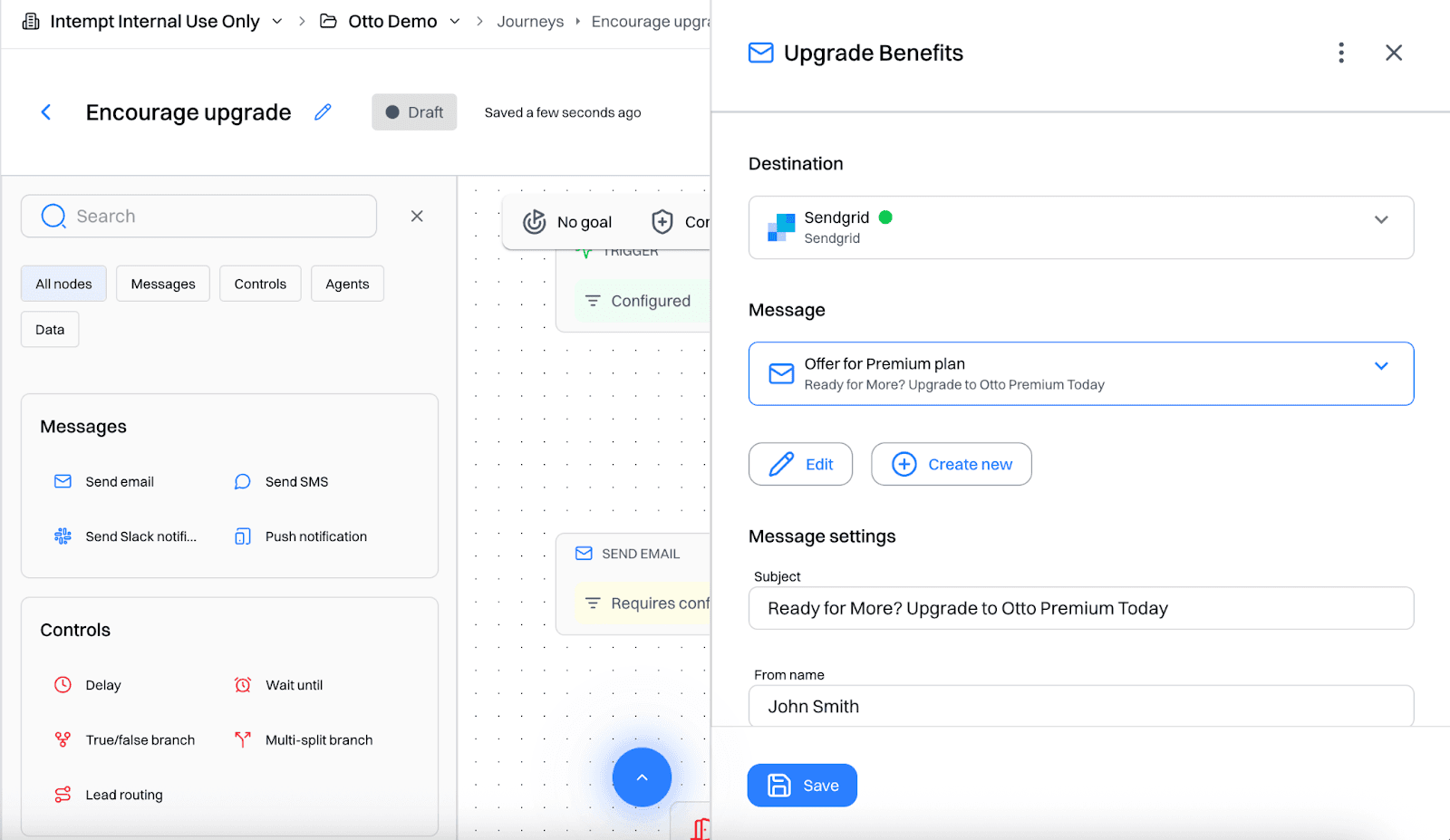
Day 0: Email with upgrade benefits
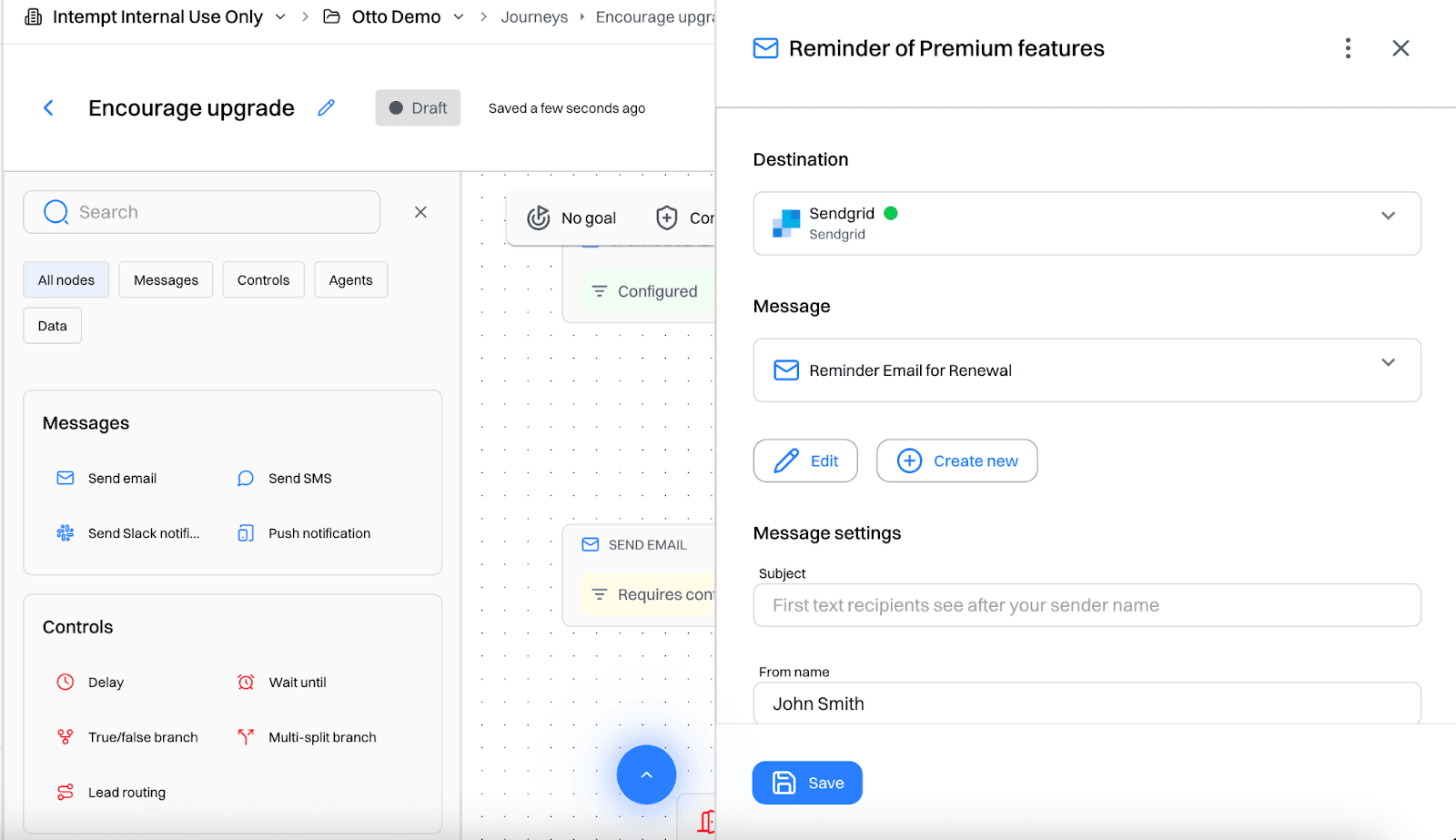
Day 2: Reminder email highlighting premium features
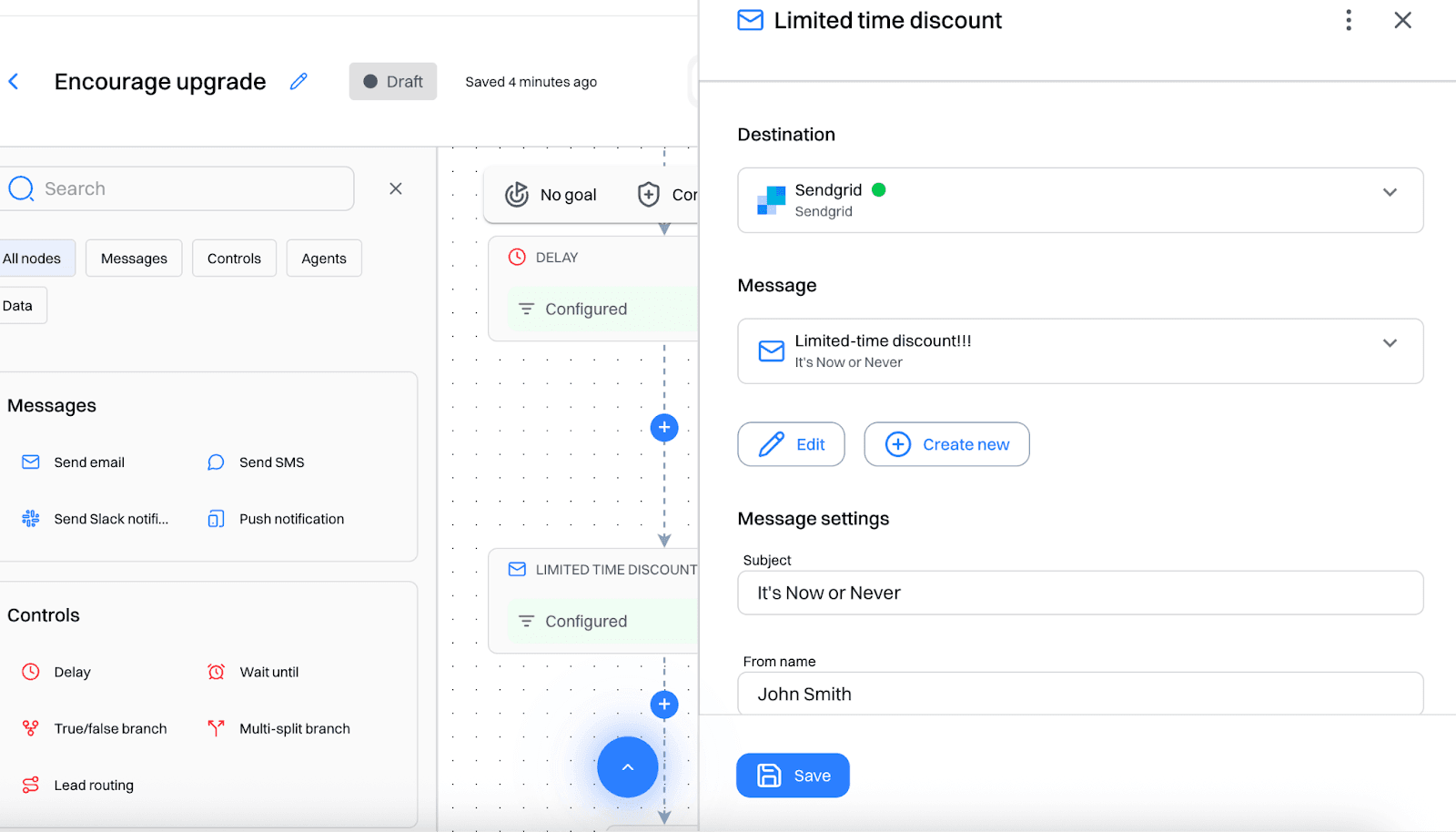
Day 5: Limited-time discount CTA
Journey 2: Reactivate Low Usage Paid Users
Trigger: Segment = "Low Usage Paid Users"
- Day 0. Friendly check-in email: "Need help getting more out of Otto?"
- Day 3. Video walkthrough of underused features
- Day 7. "Schedule a success session" CTA
Step 5: Track and optimize performance
Read conversion per segment and per placement, because a prompt that works for a power user annoys a new one.
Use Experience Analytics to monitor:
- Conversion rate on CTA clicks
- Lift vs control version
- Top-performing copy per segment
Good to know:
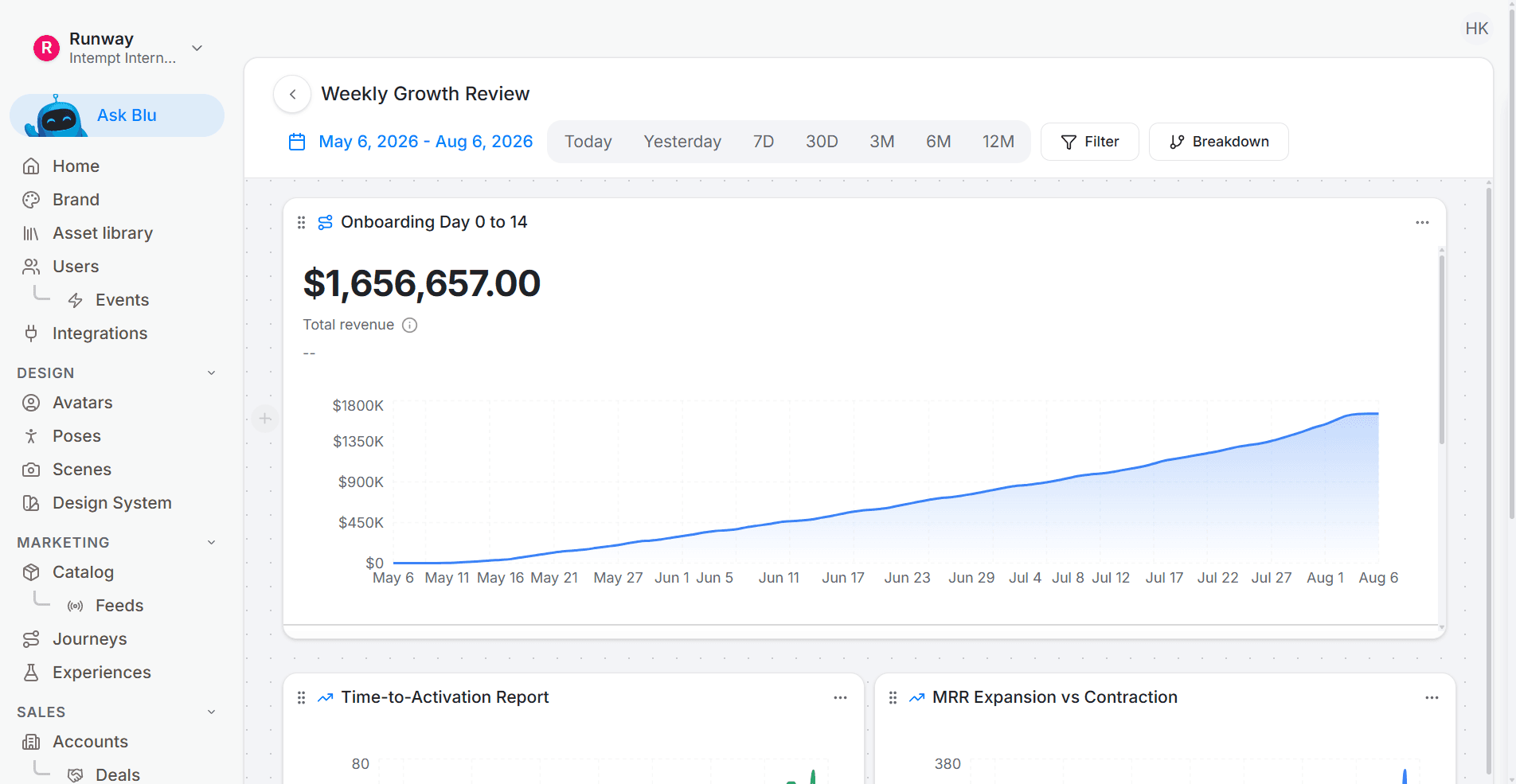
Add all the campaign analytics inside a dashboard for a unified view
In Journey Analytics, monitor:
- Entry volume
- Message open/click rates
- Upgrade or reactivation conversions
Change the timing before the copy: a prompt at the wrong moment does not improve by being better written.
Test placement and timing
A permanent upgrade banner is invisible within a week. A prompt that appears when a user actually hits the limit of their plan is a different message, even with identical copy.
Knowing that a user just hit a plan limit means reading usage as it happens, which is the latency the agentic GTM platform works at. The upgrade prompt optimization recipe tests placement and timing together, which is the pair that actually moves the number.
In-app upgrade prompts convert on timing far more than on wording. Start with Intempt.
Frequently asked questions. Answered.
Combine plan status with engagement signals. For example: users subscribed to the basic plan, logged in at least 10 times in the last month, and used a core feature (like creating tasks) at least 5 times in the last month. These are users getting real value from your product who are likely candidates for expansion.