
Events
An event is any interaction a user has with your website or app, built from autotracked or custom events plus filters, and used to target segments, journeys, and experiences.
Overview
An event is an interaction a user has with your website or app: a page view, a signup, a purchase, a button click. Events are created from a combination of autotracked or custom events and filter conditions, then reused wherever you need to target or measure a specific action, including segments, journeys, and experiences.

How it works
Table and Live views
The Events page has two views:
- Table – the default view. Every event you've defined, in a sortable, filterable list with columns for the event's name, its type (autotracked or custom), the sources it comes from, whether it's marked as an intent event, how many users have triggered it, how many times it's fired, when it was last updated, and who created it.
- Live – a real-time feed of events as they arrive, so you can confirm a tracking call is firing correctly without waiting for the table to refresh. The feed can be paused, resumed, and cleared, and you can create a new event definition directly from a live row, with that event's properties auto-mapped into filter conditions.
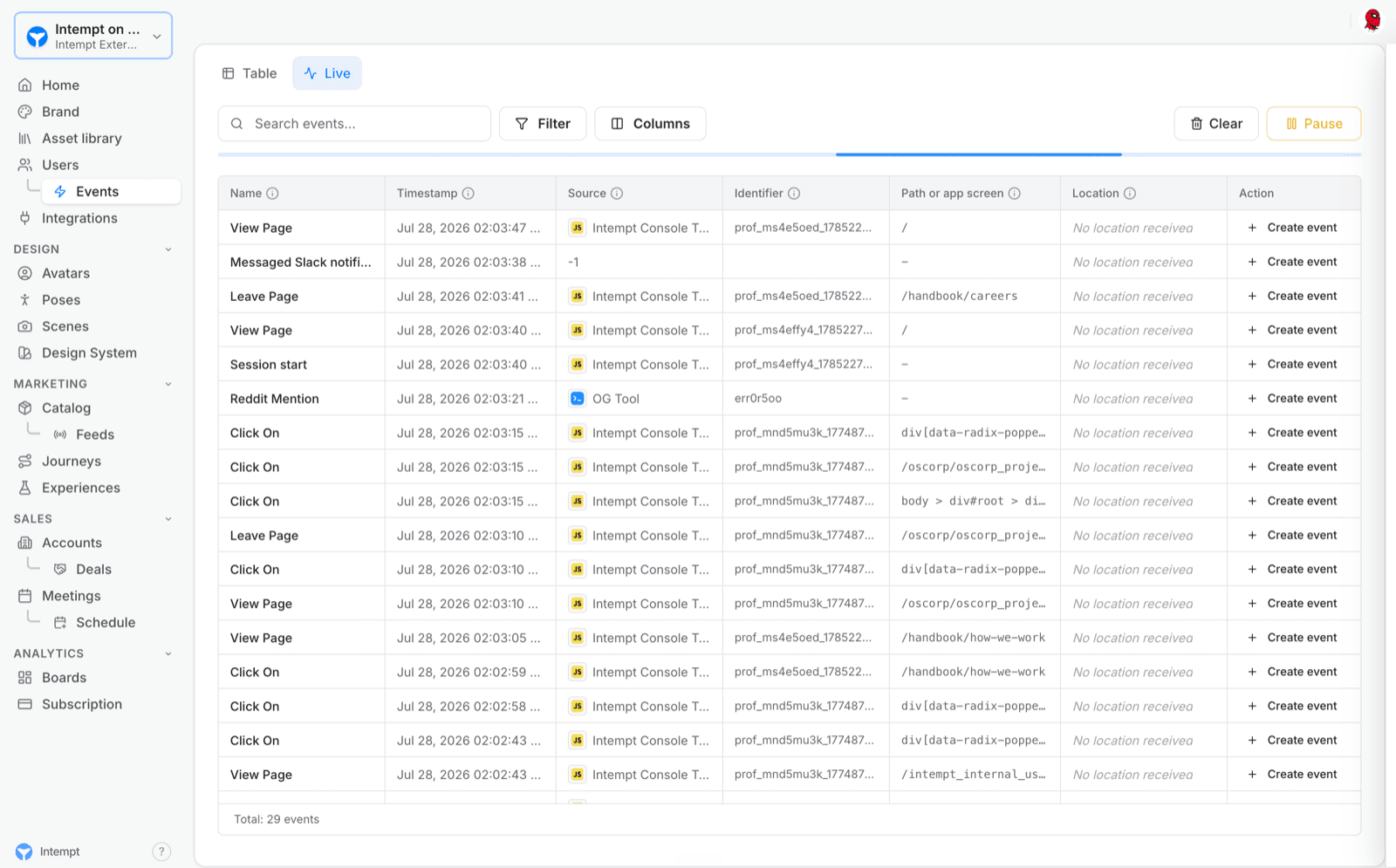
Creating an event
Click Create Event, pick the source and base event type you want to build from, then add one or more attribute-based filter conditions, grouping them with AND/OR logic if you need more than one. Save it, and it joins the Table alongside every autotracked and custom event that already arrives on its own.
Opening an event
Selecting an event from the table opens its detail panel with up to three tabs: Analytics (performance metrics for that event) and Users (who has triggered it) always appear; Configuration (its name, type, and filter conditions) only appears for a created event that has at least one filter condition set, so a raw autotracked event with no conditions shows just the first two.
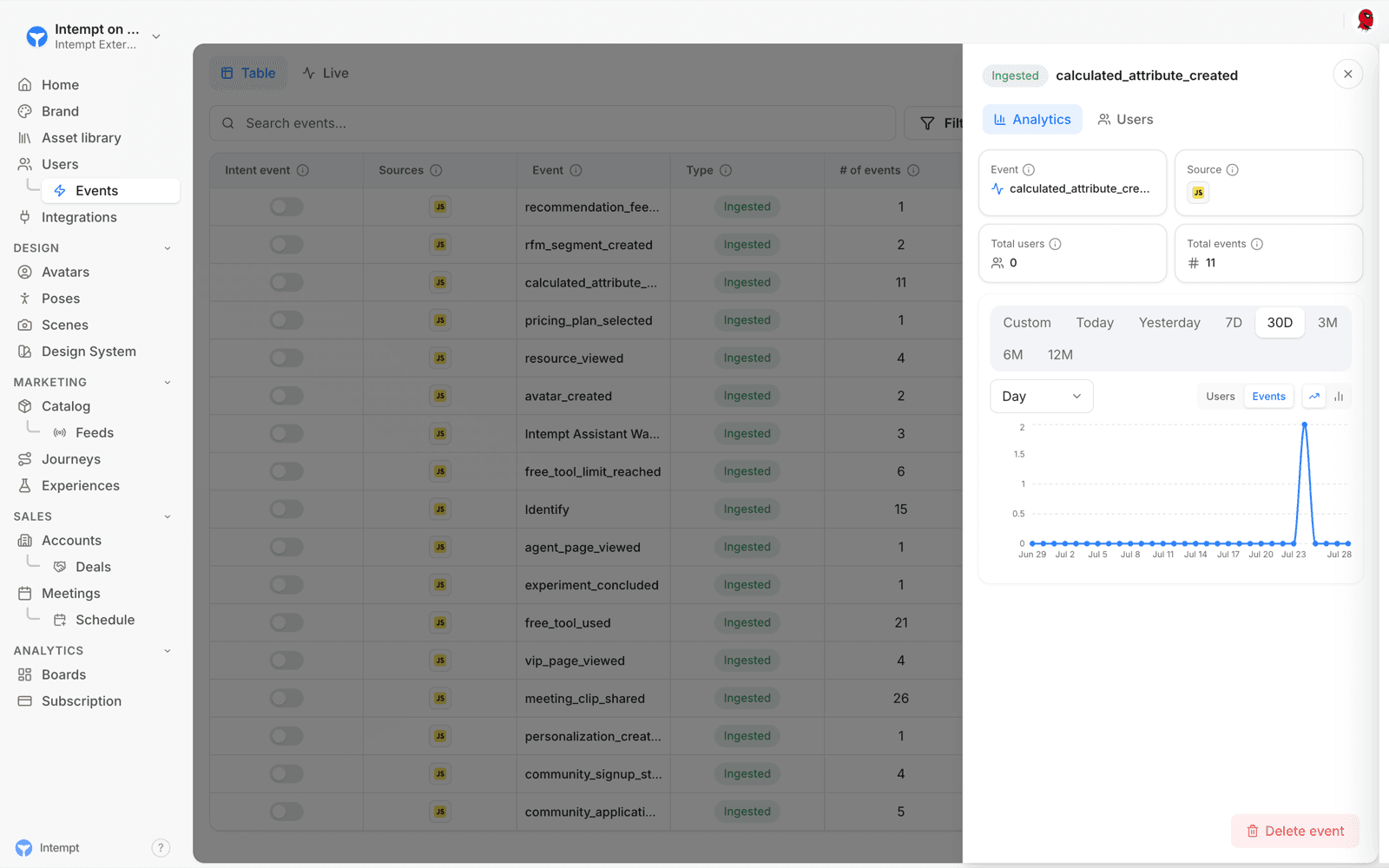
Use cases
- Tracking a specific customer action. Define an event like Signed Up or Add to Cart and see how many users triggered it and how often.
- Isolating high-value actions. Apply a filter condition to an event, for example a purchase amount over $50, to narrow it to the cases you care about.
- Targeting based on behavior. Use an event as a condition when building a segment, a journey trigger, or an experience.
- Verifying a new tracking call. Watch the Live view as you trigger the action on your site or app, and confirm the event arrives with the right properties.
- Creating an event from real traffic. Turn a row in the Live view directly into a saved event definition instead of configuring one from scratch.
- Auditing who did what. Open an event's Users tab to see exactly which users have triggered it.
Where to go next
- Event types – the autotracked and custom event types Intempt supports, and where each one comes from.
- Creating an event – step-by-step walkthrough of defining a new event and its filter conditions.
- Event comparison – compare two events side by side.
- Live data feed – more detail on the real-time Live view.
- Complete guide to event tracking – setting up autocapture and custom tracking from scratch.
- How to create an event tracking plan – planning which events and attributes to track before you instrument anything.
- Messaging events – the events Intempt auto-creates for your messaging channels.
Event editor guide
How to create, edit, duplicate, and delete named events with the Event editor, the condition builder that turns raw autotracked, custom, or source events into reusable, targetable events.
Event tracking on Single Page Applications (SPA)
In traditional Multi-Page Applications, each user action that requires a new data view leads to a new request to the server, which then responds with a new HTML page. This process requires a full p...