
- Onboarding gets measured by checklist completion, which is a proxy that can move while activation does not. The useful measure is the first outcome a user would miss if you removed it, and the step that best predicts them reaching it.
In-app onboarding is judged by checklist completion almost everywhere, which is a number that can rise while activation stays flat. The SaaS onboarding playbook covers the broader activation motion this use case plugs into.
Simplify the onboarding experience to help users reach A-ha moments faster, adopt sticky features, and enable shortcuts based on the features the user interacts with the most. The same behavioral triggers carry over into personalized in-app upgrade prompts once a user has adopted enough of the product to see a paywall.
Overview
An effective onboarding process is crucial for improving user conversion and activation rates. This use case focuses on creating a personalized onboarding experience for new users, helping them navigate key features, and ensuring they receive the most relevant guidance based on their behavior.
Benefits
Users reach a real outcome sooner, and you learn which step actually predicts them staying. Keeping them past that point is a separate job, covered in our guide to customer retention strategies.
- Increased user engagement: Personalized onboarding keeps users engaged by presenting relevant steps based on their interactions.
- Higher feature adoption: Tailoring the onboarding process to individual user behavior increases the likelihood of feature adoption.
- Enhanced user satisfaction: Users are more likely to have a positive experience when guided through the app in a personalized manner.
- Improved retention rates: Effective onboarding helps users understand the app's value, leading to higher long-term retention.
How It Works
The walkthrough below uses a fictional project management app called "Otto" so the onboarding flow has something concrete to point at.
Step 1. Set up tracking for user activity, define events & segment users
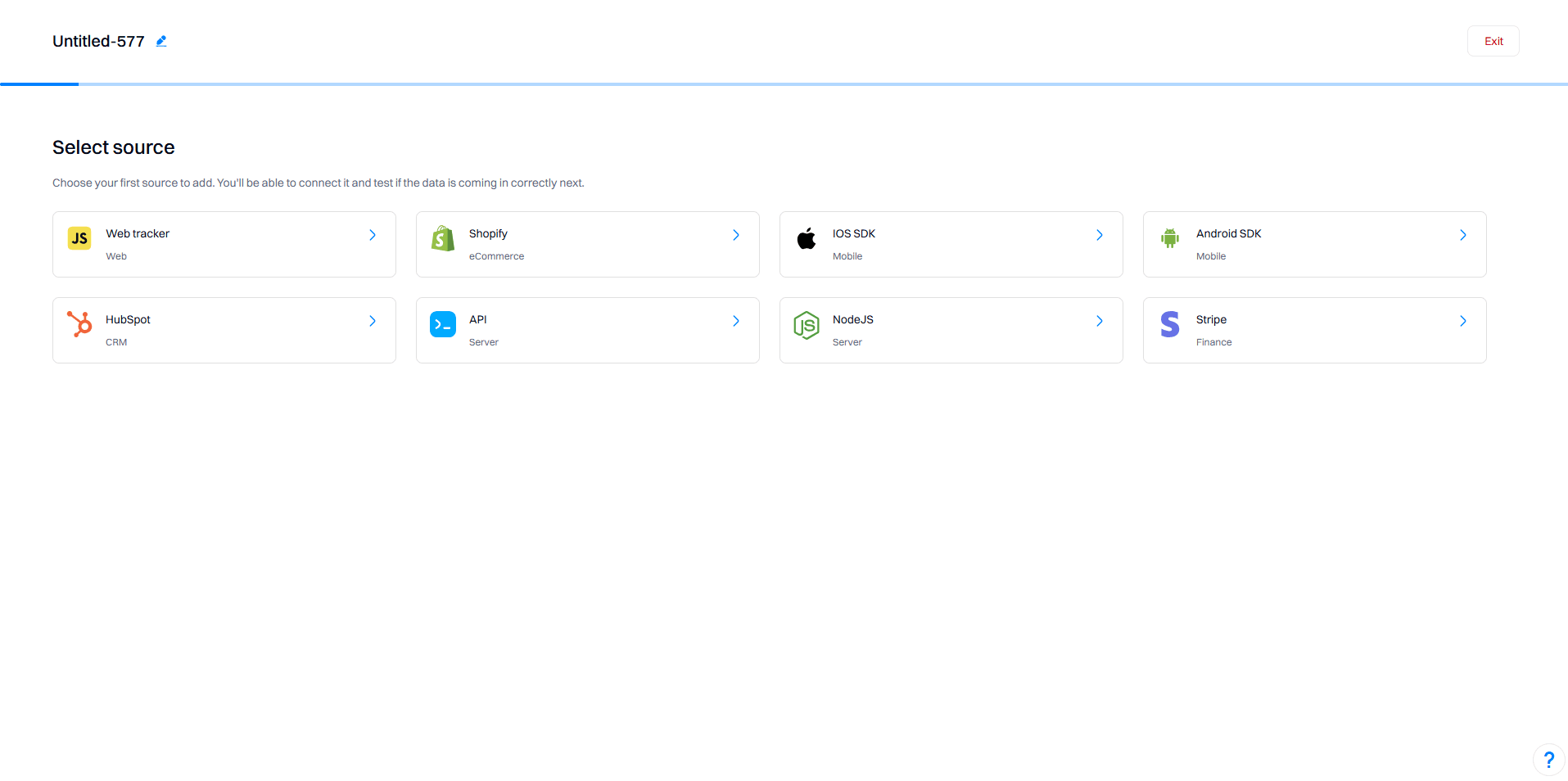
Install Intempt's SDK
The setup is the standard one: install the SDK, define the events that mark progress, and build the segments from them. The docs cover creating a segment and web personalization in more detail than belongs in a post about what to measure.
Identify key events
Determine which user activities you want to track during the onboarding process. For example, creating a project, creating a task, inviting a team member, creating an AI prediction, and viewing the dashboard.
Add event tracking script to your application
Configure event tracking in your application. For example:
- created_project. Triggered when a user creates their first project.
- created_task. Triggered when a user creates and edits their first task.
- invited_team_member. Triggered when a user invites their first team member.
- created_ai_prediction. Triggered when a user creates their first AI prediction.
- viewed_dashboard. Triggered when a user views the dashboard.
Create segments in Intempt
- New User. Users who have just signed up.
- Created Project. Users who have created their first project.
- Created Task. Users who have created and edited their first task.
- Invited Team Member. Users who have invited their first team member.
- Created AI Prediction. Users who have created their first AI prediction.
Good to know
Refer to Javascript SDK on how to track custom events in your app. Using a single page application (SPA)? Refer to the Event tracking on Single Page Applications (SPA) guide.
Step 2: Set up server-side personalizations
Create a new personalization campaign
Go to the Personalizations section and create a new server-side personalization campaign named "Onboarding Steps".
Add experiences for each onboarding step
Create multiple variants within the campaign, each targeting a different segment.
Define the in-app message content
- Title: "Welcome to Otto!"
- Body: "Start by creating your first project to organize your tasks and collaborate with your team."
- CTA: "Create Project" - opens the create-project dialog
Experiences
Creating the First Project
Target audience: Users who have just signed up and have not created a project yet (New User)
Changes
In-App Message: Guide the user to create their first project.
Content: Message: "Welcome to Otto! Start by creating your first project to organize your tasks and collaborate with your team."
Creating and Editing the First Task
Target audience: Users who have created their first project but have not created a task (Created Project)
Changes
In-App Message: Guide the user to create and edit their first task.
Content: Message: "Great! Now let's create your first task. Add details and assign it to a team member to get started."
Inviting a Team Member
Target audience: Users who have created and edited their first task but have not invited a team member (Created Task)
Changes
In-App Message: Guide the user to invite their first team member.
Content: Message: "You're doing great! Next, invite your team members to collaborate on your project."
Creating an AI Prediction
Target audience: Users who have invited their first team member but have not created an AI prediction (Invited Team Member)
Changes
In-App Message: Guide the user to create their first AI prediction.
Content: Message: "Enhance your project management with AI predictions. Create your first prediction to see how AI can help you plan better."
Viewing the Dashboard
Target audience: Users who have created their first AI prediction but have not viewed the dashboard (Created AI Prediction)
Changes
In-App Message: Guide the user to view the dashboard.
Content: Message: "Finally, view your project dashboard to get an overview of your tasks and progress."
Set targeting conditions
Define display rules
Specify the conditions under which the personalized experiences will be displayed, such as when a user signs up or completes a specific action.
Step 3: Launch and monitor the personalization campaign
Start the personalization campaign
With the guides built and targeted, turn the campaign on and leave it running long enough for a cohort to complete onboarding.
Monitor performance
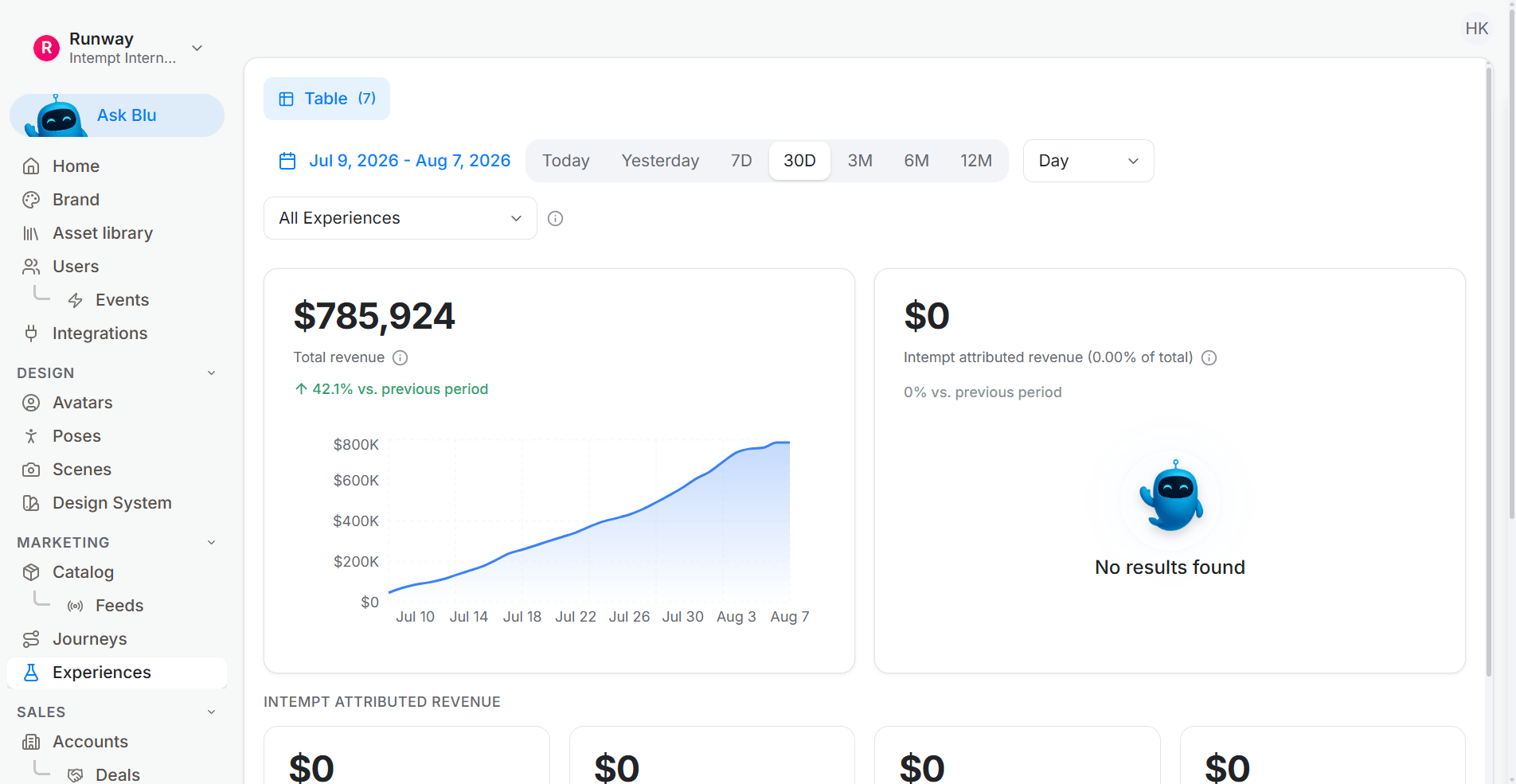
Use Intempt's Personalization Analytics to track the performance of each experience. Key metrics to monitor include:
Adjust and optimize
Read which step users stall on, then change that step rather than adding another one. For instance, if the conversion rate for the Created Project segment is low, consider refining the content or targeting criteria.
Ship the activation flow
A completed checklist and an activated user are different things, and most onboarding dashboards only measure the first. The step worth optimising is the one that correlates with week-four retention.
Knowing which step predicts retention needs onboarding events and retention on one profile, which is the join the agentic GTM software makes. The trial activation recipe instruments the activation event rather than the checklist, which is the harder half.
In-app onboarding is working when users hit an outcome, not when they finish a checklist. Start with Intempt.